
 English
expand_more
 Español
 Deutsch
 Français
 Português
 Türkçe
 Polski
 العربية
 हिन्दी

How to use AI visibility reports and configure brand name variants
Labrika shows which questions lead AI to recommend your company, which names it uses, which alternatives it suggests and which pages it cites. SEO and GEO specialists can identify a service visibility gap, verify it in a saved answer and choose the next task. Marketers can compare service areas and competitors, while agencies can explain changes to clients.
Choose the report for your task
The AI visibility project's left menu contains reports and settings for the entire process. A useful sequence is: find buyer questions → verify name matching → assess visibility → read responses and sources → assign work → check again.
| Menu item | When to use it | What it gives you |
|---|---|---|
| «Settings» | Adding a project, service or competitor | The brand and its names, prompts and selected AI assistants. |
| «Suggest prompts» | Finding questions buyers use to choose your offer | A list of questions to select and add to monitoring. |
| «Visibility» | Checking service coverage and changes over time | A chart showing the share of questions mentioning the brand, positions within answers and access to the response text. |
| «Brand synonyms» | Checking name variants, rebranding or incomplete matching | History for individual names and the questions where each appears. |
| «Brand visibility» | Finding market participants and names outside your tracked list | A comparison of discovered brands and questions mentioning them. |
| «AI Response Log» | Understanding what changed in a recommendation | Saved response text by prompt, model and date. |
| «Cited Domains and URLs» | Choosing pages to improve and external platforms to approach | URLs from responses linked to their AI model and question. |
| «AI Visibility schedule» | Collecting measurements regularly | Scheduled runs and their execution history. |
| «Print version» | Sharing findings with a manager or client | Selected reports in one PDF or DOCX. |
Consider the fictional supplier North Coffee, which sells coffee machines and is growing office rentals in Seattle. “Where can I rent an office coffee machine in Seattle with maintenance included?” is relevant to its goal. “What is a coffee machine?” tells you little about supplier selection.
Configure the brand and questions for your service
Open “Settings” → “My Site” and check the project domain. Under “Site or brand name variations”, add genuine names on separate lines: North Coffee and North Coffee Co. Use “Add a site or brand name variation” to create another row.
On “Competitors”, enter domains and names of companies buyers compare with your service. Select AI assistants on the right. This example uses ChatGPT; enable other assistants as needed and review their results separately.
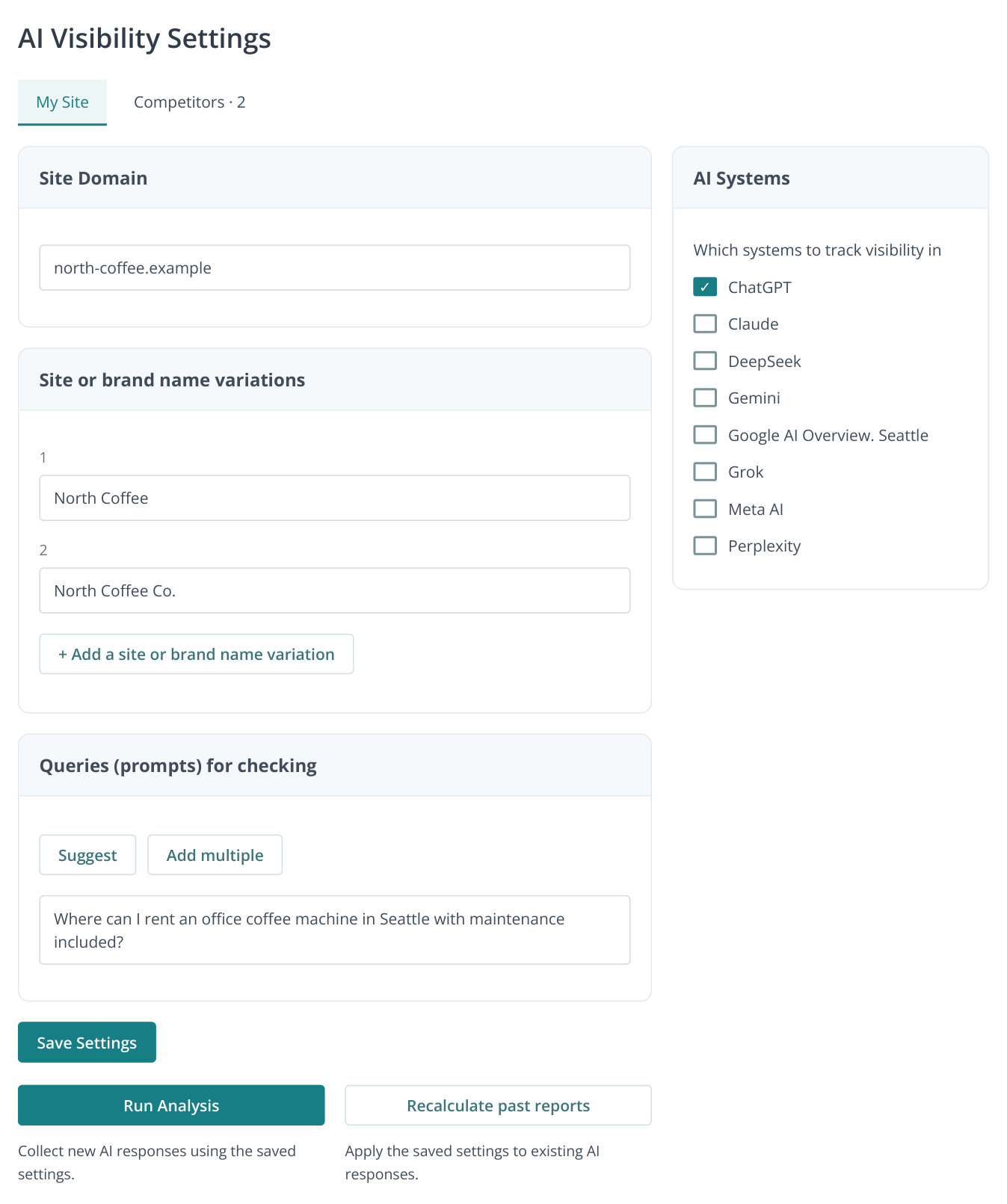
1. Settings for a project with existing history: names, prompts and models. Below the save button are separate actions for collecting new answers and recalculating past reports. The data is illustrative.
Click “Suggest” in “Queries (prompts) for checking” or open “Suggest prompts” from the menu. Briefly describe the service, customers and location, such as “Office coffee machine rental in Seattle, including installation, maintenance and replacement equipment during repairs.” Select suitable questions, add them and save. Another source is “Prompt ideas” in the AI audit; the prompt selection guide explains both routes.
Keep your brand name out of supplier-discovery questions. Use company-specific questions to check brand knowledge. In “Visibility”, select rows and use “Tags” to separate “rental”, “sales” and “brand knowledge”, so the overall figure does not hide an individual service's performance.
“Brand synonyms”: check which names are counted
After analysis, open “Brand synonyms” and select your website, assistant and dates. The chart tracks individual names; the table counts prompts whose answers contain each variant. Click a count to open the corresponding question list.
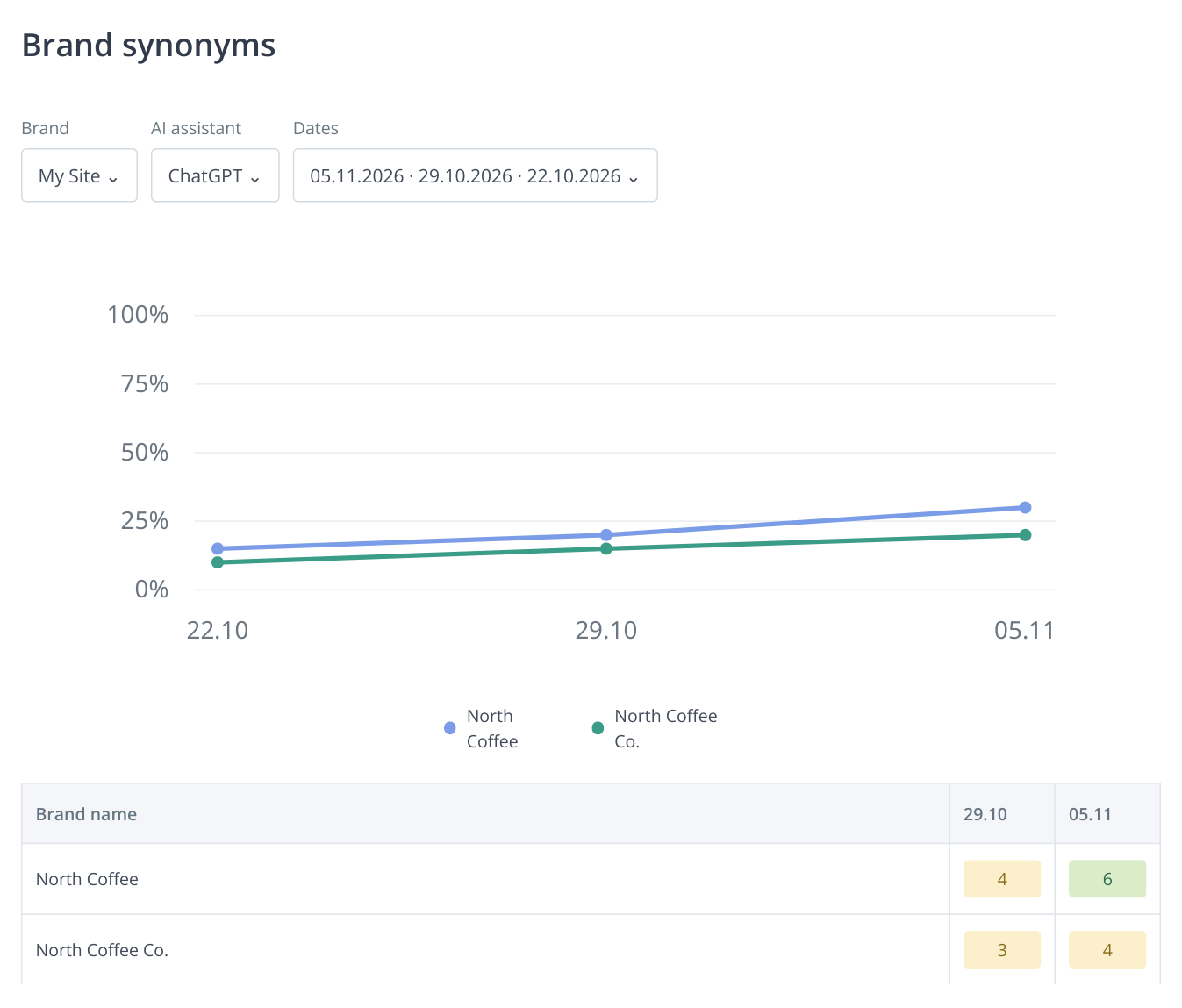
2. The chart shows percentages for individual spellings; the table shows question counts. Both names can occur in the same answer. The fictional sample contains 20 prompts and two history columns.
In this example, North Coffee appears in six answers and “North Coffee Co.” in four. Do not add them as ten distinct answers: both can appear in one response. View the company's overall share of questions in “Visibility”.
This report is useful in three situations:
- Rebranding. Add the former name if it represents the same business. Separate rows reveal which name is still recommended; the question list shows where to open those answers.
- Entering another market. Include the spellings and local names customers actually use. For software, this can be the product name under which customers choose the service.
- Name collisions. Open the answer and check the business, city and domain. A broad variant such as “North” could refer to a café; it cannot automatically be counted as the office equipment supplier.
Run the same check for a competitor using the brand selector above the report. Comparisons are more useful when both companies use verified name variants.
“AI Response Log”: understand the recommendation
In “AI Response Log”, search for a prompt, choose the model and click “Open” in its row. In the right-hand panel, change “AI model” and “Data collection date” to compare saved answers to the same question across dates or assistants.
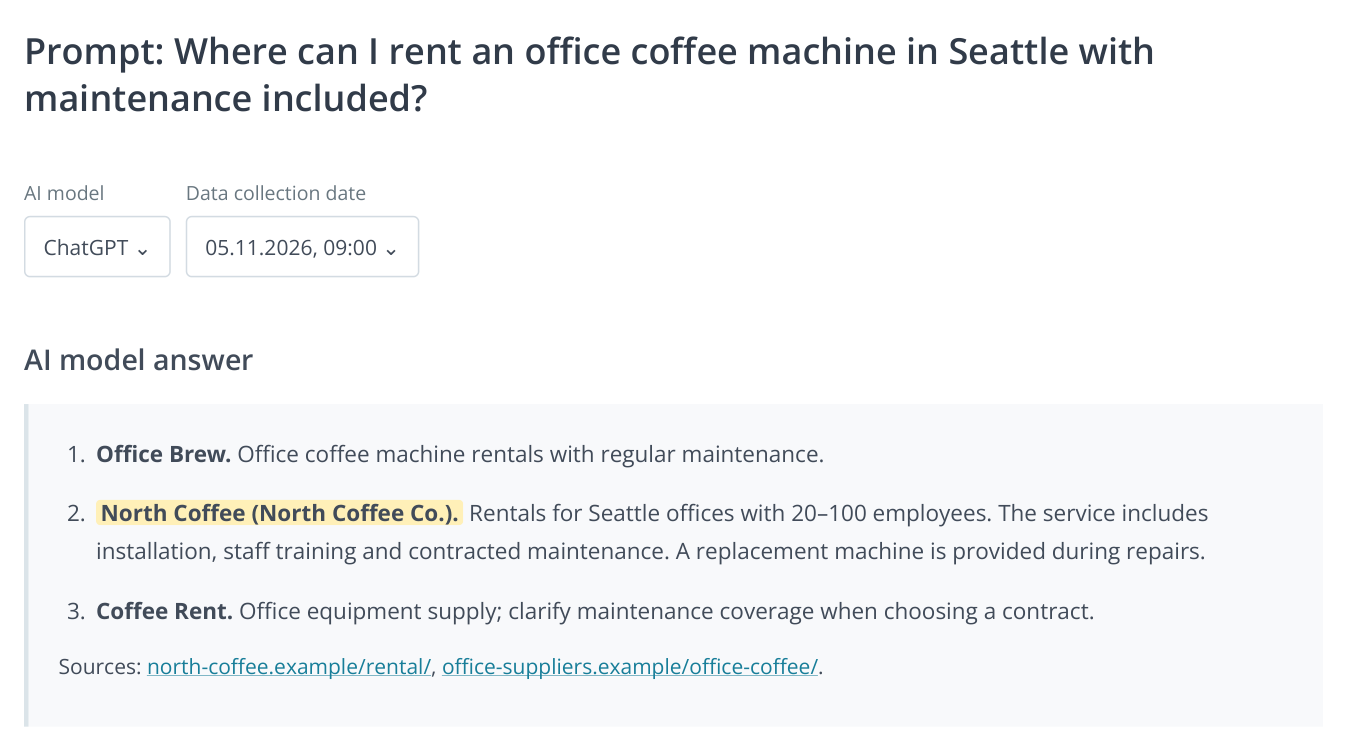
3. The panel opened from “AI Response Log” lets you change the model and date for a single prompt. This fictional post-improvement answer shows the service description alongside its sources.
Suppose ChatGPT previously described North Coffee as a seller and advised checking its rental terms. The new answer describes rentals, installation and replacement equipment. The marketer can see a change in service representation; the editor can identify which facts now appear and which remain unclear.
When you suspect a mistaken brand match, start with the response text. An answer about a café on another domain calls for tighter name matching. An answer about your company with an old address calls for updated website and external listing information. These are different tasks even though both problems appear beside the brand name.
“Visibility”: find questions where you are absent
Open “Visibility”. On “Brand visibility by queries (prompts)”, select your brand, model, dates and service tag. The chart shows the share of checked questions whose answers contain the brand. Rows below show mention positions; the eye icon opens the saved response.
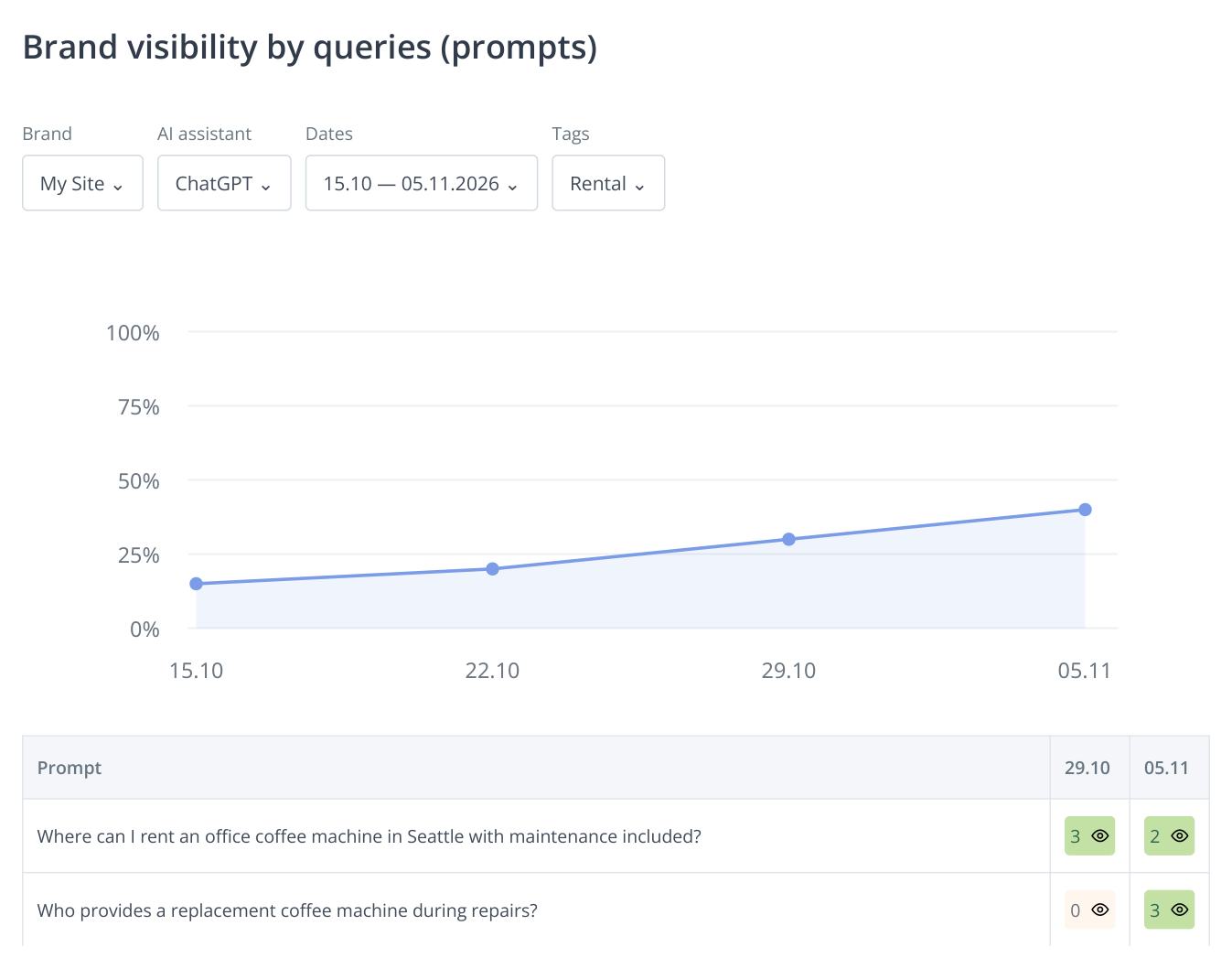
4. One example group of 20 questions. Between October 29 and November 5, coverage rises from 30% to 40%, or six to eight answers mentioning the brand. The eye icon opens the response. All figures are illustrative.
In this sample, eight of 20 answers mention the brand, giving 40% visibility. Start with commercially important questions marked 0: the brand was not found in that response. n/a indicates missing data; first check whether that model and date were included in a run.
A positive position shows where the brand is mentioned in the answer. Read the wording: “you could ask this company” conveys something different from a detailed service recommendation. For office rentals, inspect maintenance and replacement questions alongside general equipment selection.
Switch to a configured competitor while keeping the model, dates and tag. This compares the same service for two companies. A branch network can similarly group prompts by city, a store by category and a B2B service by use case.
“Brand visibility”: find competitors and missing name variants
This report shows brands found in answers that are not yet included in the tracked list. Choose the model and dates. Horizontal bars compare their presence on the latest selected date; the table gives mention counts across runs. Click a count to see the questions mentioning that brand.
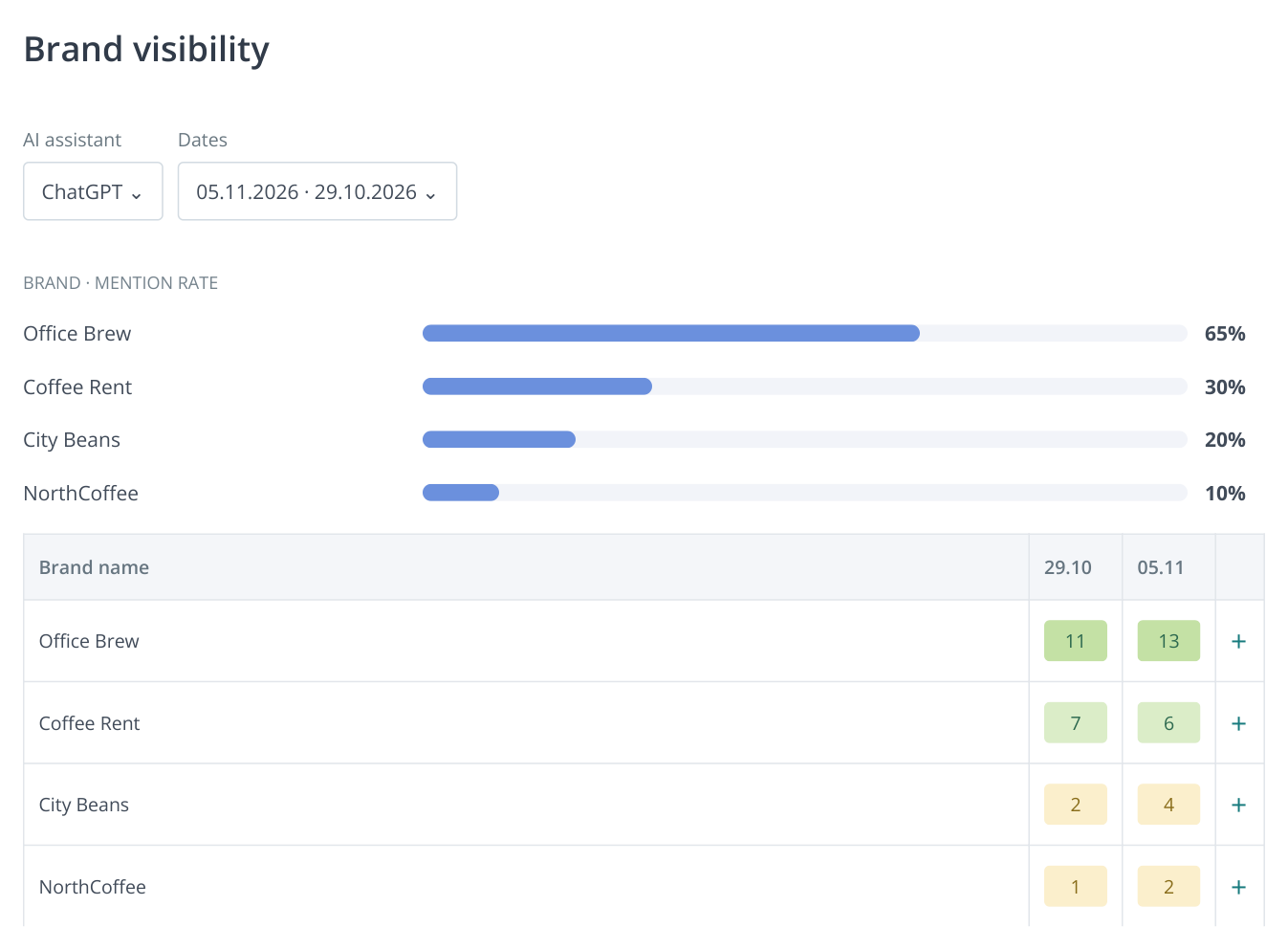
5. Discovered brands not yet in the tracked list. Counts open question lists; “+” adds a name to your own brand after confirmation. The example is fictional.
If Office Brew often appears in office rental questions, open those answers in “AI Response Log” and inspect its services and terms. If the audience matches yours, add it under “Settings” → “Competitors”. You can then compare its metrics with yours in “Visibility”.
You may also discover a missing variant of your own name, such as “NorthCoffee”. Check the context. If it really is your brand, the row's “+” button adds it to the alternate names of your own brand, after confirmation. Use the “Competitors” tab to add a competitor.
“Cited Domains and URLs”: choose pages and platforms to work on
Open “Cited Domains and URLs”. Select the AI model and prompt; use the table search to find a domain or part of a URL. Each row links a URL, model and question. URLs open in a new tab.
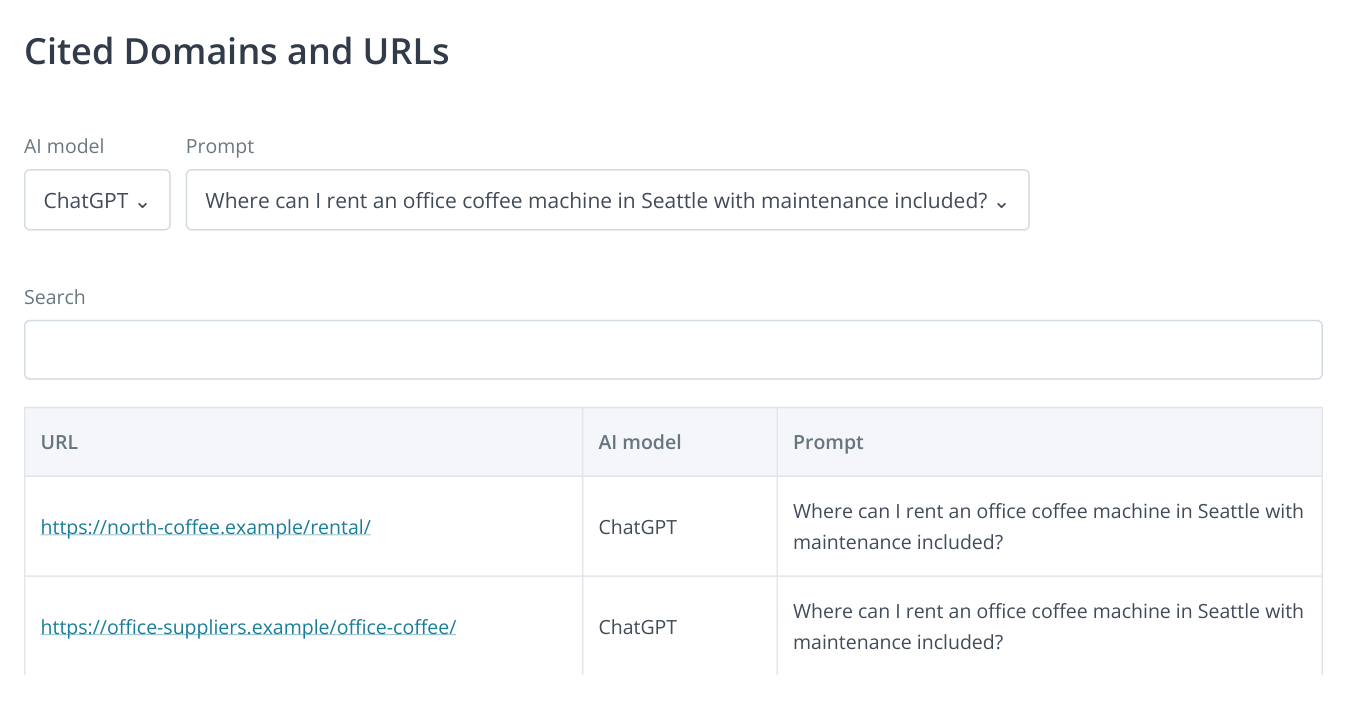
6. One question is associated with your service page and an external review. Open the URLs to inspect them; check the saved answer for the date the citation appeared. URLs and results are illustrative.
Use the list to distribute work. If it cites your old equipment article, an editor checks freshness and service details. If it cites a supplier roundup, a marketer investigates inclusion. If it points to an outdated listing, the reputation specialist prepares a correction. See the platform and listing guide for the workflow.
Inspect the specific page and answer context. A link may refer to a competitor or general background information. To confirm that it appeared during a particular period, open the prompt and date in “AI Response Log”; the cited URL table has no period selector.
Apply corrected names to existing responses
After refining names, click “Save Settings”, then “Recalculate past reports”. Labrika applies the saved names to previously collected answers. This is useful for history predating a rebrand or when you discover another spelling.
For example, old responses used “North Coffee Co.” while the settings contained only North Coffee. Adding the variant and recalculating refines past metrics. Recalculation does not request new answers. To check changes in the recommendations themselves, use “Run Analysis”.
If recalculation is temporarily unavailable, a nearby message explains why or when it can run again. Afterwards, return to “Brand synonyms” and “Visibility” and review the same dates. Note matching corrections in client reports so progress is assessed using consistent rules.
Turn findings into a recurring workflow
After each measurement, start in “Visibility” with an important question where the brand is absent or has declined. Read “AI Response Log”, verify names in “Brand synonyms”, examine companies in “Brand visibility” and inspect links in “Cited Domains and URLs”. Turn the finding into a specific task: explain rental terms, update a listing or create content for a buyer use case.
Use the AI audit to choose content work: “What will AI tell?” checks company representation; “Who is shown and why” and “Competitors’ Content” explore competitor offers; “Important content for AI” identifies page additions; and “Registration Directories” suggests external platforms. The GEO audit walkthrough connects those recommendations to practical work.
Set and save the frequency under “AI Visibility schedule”. Run history confirms whether each collection completed. Compare the same questions and models when assessing trends.
To share results, open “Print version” and choose PDF or DOCX, your brand, dates and document sections. Attach completed tasks and proposed next steps. The next guide covers reviewing agency work.