
 English
expand_more
 Español
 Deutsch
 Français
 Português
 Türkçe
 Polski
 العربية
 हिन्दी

How to evaluate an agency’s work with AI visibility reports
In Labrika, clients can inspect more than a rising visibility percentage: they can review specific questions, AI answers, competing brands and cited sources. This helps them accept published work, understand progress for the intended service and agree on the next phase. Agencies use the same reports to show what changed and the evidence behind it.
Agree on the service and buyer questions before work begins
Suppose North Coffee hires an agency to promote office coffee machine rental in Seattle. The assessment covers rentals, installation, maintenance and replacement equipment. General awareness of the company as an equipment seller is useful context, but does not replace results for the assigned service.
Choose an equivalent focus for your business: service and city for a local provider, category and purchase terms for a store, or customer needs and integrations for a B2B product. “Which CRM suits a service company with field technicians?” tests a specific use case.
In the AI visibility project's “Settings”, agree on brand name variants, direct competitors and models. Get prompts through “Suggest prompts” or transfer them from “Prompt ideas” in the AI audit. Select questions likely to attract relevant inquiries; the prompt selection and launch guide explains the steps.
In “Visibility”, select the rows and use “Tags” to tag them “rental”. Keep questions naming the company separate: they test knowledge of an already known brand. Use unbranded questions to assess supplier discovery.
Example agreement for one phase: check 20 office rental questions in ChatGPT, Perplexity and Gemini, saving new answers weekly. The agency expands the rental page, publishes a renting-versus-buying comparison and updates three company listings. Accept publications based on their URLs and content; assess trends using the same questions in each model.
Capture a baseline and schedule recurring checks
Before publishing edits, save the settings and click “Run Analysis”. When the run finishes, open “Visibility” and select your brand, model, baseline date and “rental” tag. Confirm the questions match the agreed service area.
Configure recurring checks in “AI Visibility schedule”. Run history confirms whether each collection completed. If the report lacks fresh data, check the run first: a missing measurement is not a decline in performance.
Enable monitoring of the relevant website URLs beforehand, including text, meta tags and screenshots. The first run saves their pre-work state. Record baseline external listings too, and run an initial SERM analysis if mentions are part of the assignment. Audit and page-version comparisons complement AI visibility assessment.
“Visibility”: compare service coverage and individual questions
Repeat the analysis after the work. In “Visibility”, keep the same brand, model and tag, and choose before-and-after dates. The chart shows the share of questions whose answers mention the brand. Table values are mention positions within individual answers; the eye icon opens the response.
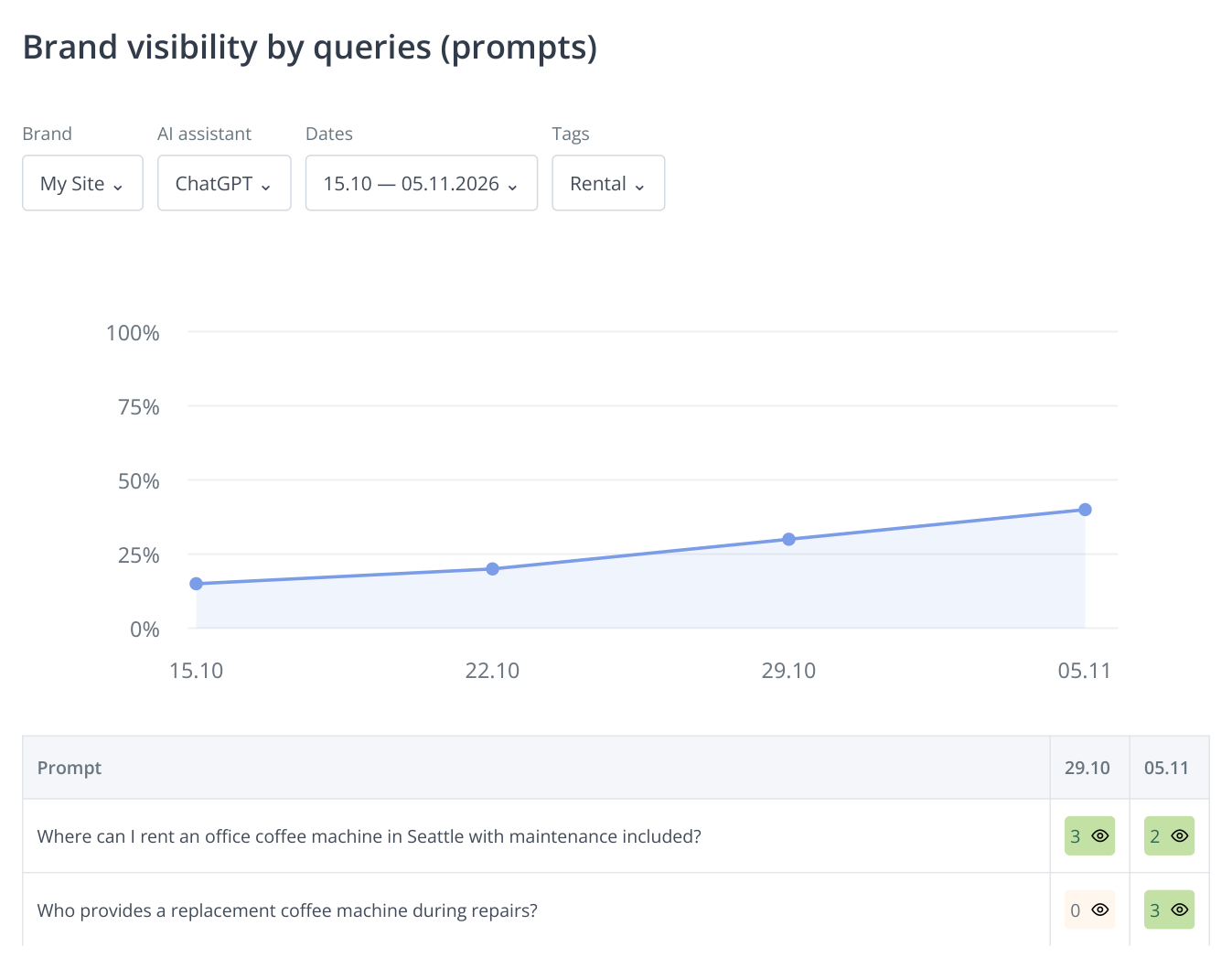
1. One sample group of 20 questions. Between October 29 and November 5, coverage increases from 30% to 40%, or six to eight answers mentioning the brand. The eye icon opens the response. All figures are illustrative.
Across the last two dates, coverage rises from six of 20 questions to eight of 20, or 30% to 40%. The report calculates this already; you do not need to add mention counts for separate name variants. Next, inspect exactly which questions gained a brand mention.
Improvements in maintenance and replacement questions relate to the rental assignment. If only the “sales” group grew, discuss that separately. Apply the same approach to product categories for stores or cities for branch networks.
0 means the brand was not found in the collected answer; n/a means no data exists. For a prompt added midway through the period, start comparisons from its first completed check. If the list expands, tag the original group so the new questions do not replace the baseline sample.
“AI Response Log”: check what changed for the buyer
Open “AI Response Log”, find the prompt and click “Open”. In the panel, choose the model and switch between the two “Data collection date” values. You are reading saved text, so the discussion uses the answer underlying the report.
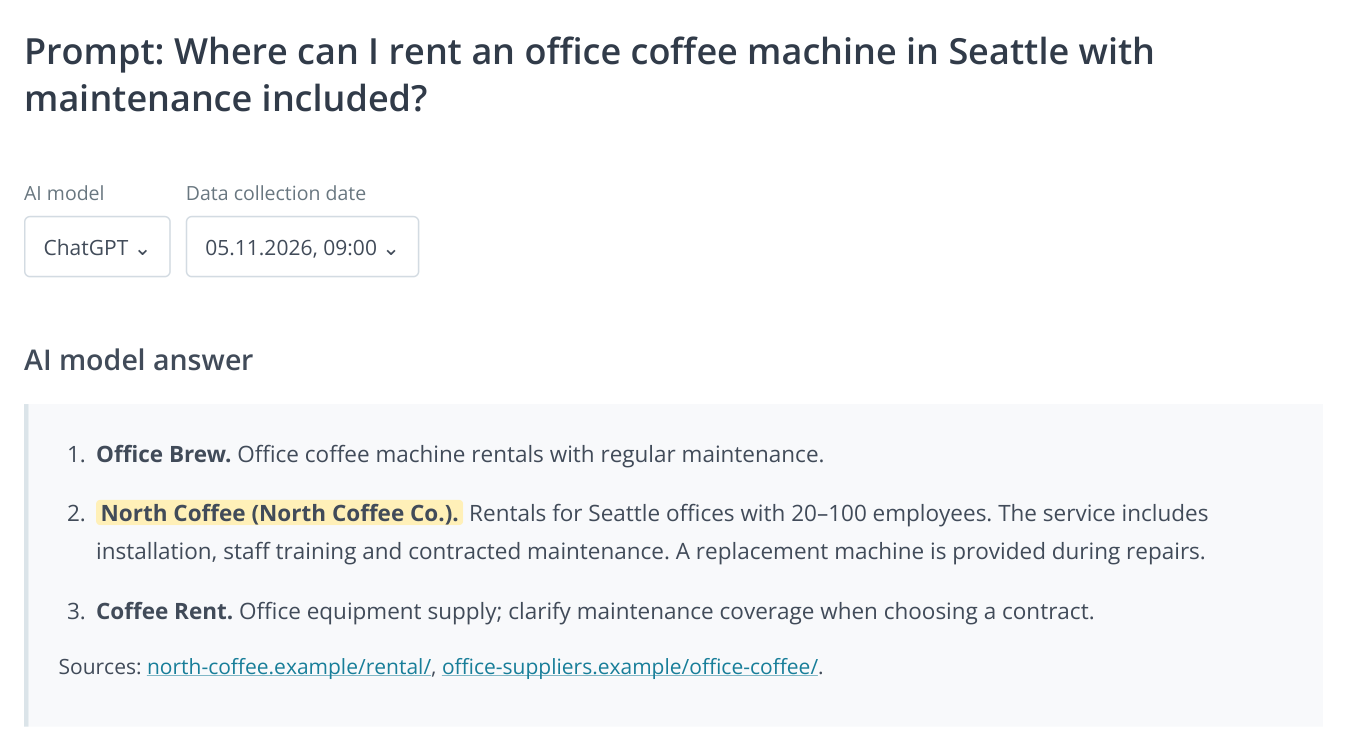
2. The “AI Response Log” panel lets you switch model and date for one prompt. This fictional post-improvement answer shows the service description and cited links together.
Before the work, the company might have been mentioned third, with advice to clarify its rental terms. Afterwards, it is second, with installation, maintenance and replacement equipment described. These are two observations: mention position and the completeness of the offer description. Show them alongside the rental-page changes.
Check that the recommendation concerns your brand, city and service. A mention describing a café or home equipment does not demonstrate progress for office rentals. If the description becomes more accurate while the position stays unchanged, that is still a meaningful change to discuss.
Switch models while keeping the prompt. ChatGPT, Perplexity and Gemini may describe the offer differently. Show each model's results so an improvement in one does not hide a problem in another.
“Brand synonyms”: verify consistent name matching
In “Brand synonyms”, select your company, model and dates. The chart and rows show the names included in mentions, such as North Coffee and “North Coffee Co.”. Clicking a count opens the questions containing that variant; check the context in “AI Response Log”.
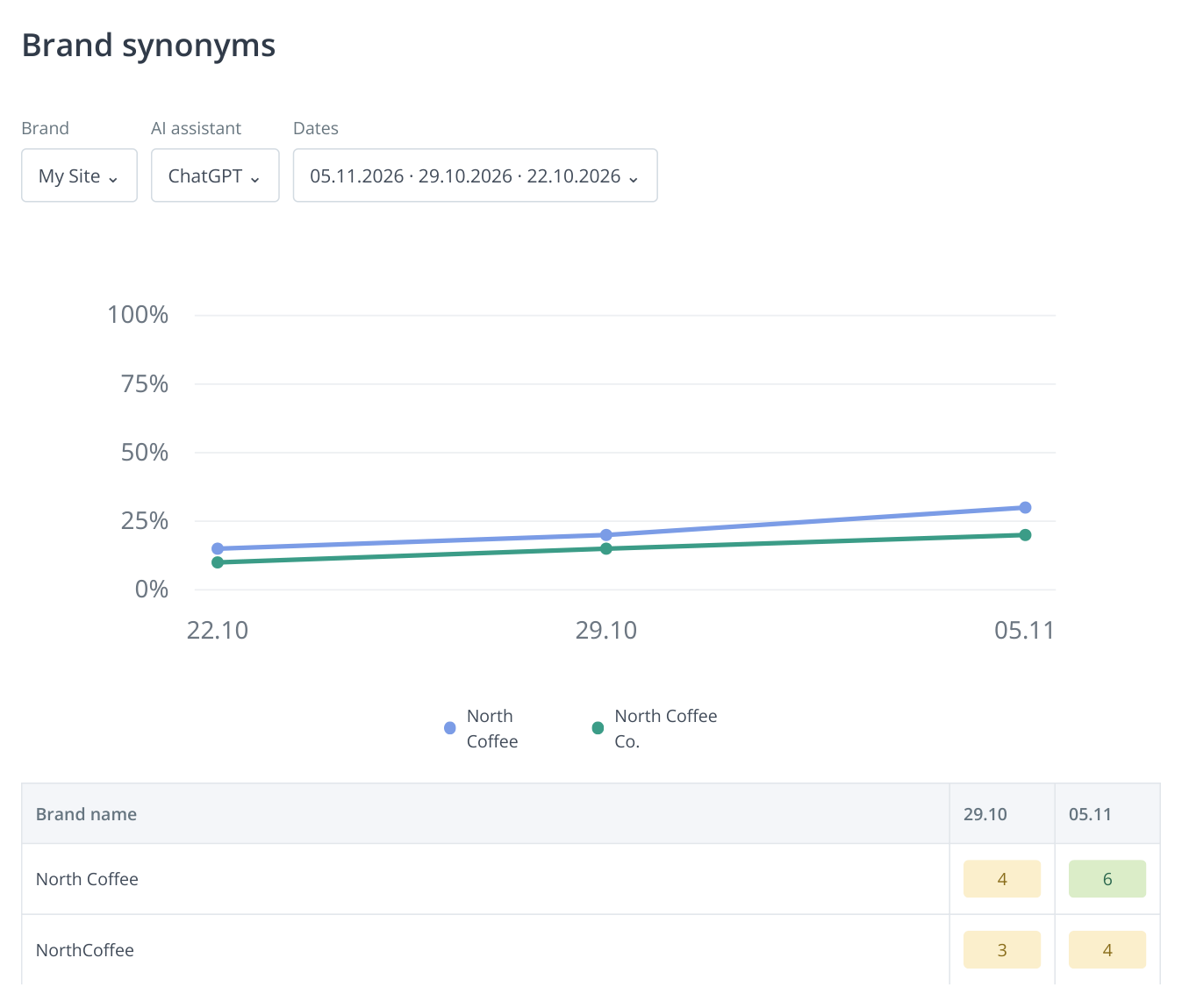
3. Percentages for individual names appear in the chart; the table gives question counts. Both names can appear in the same answer. The fictional sample contains 20 prompts and two history columns.
Two names can occur in one response, so six mentions of North Coffee and four of North Coffee Co. do not necessarily mean ten different questions. Use “Visibility” for the company's overall visibility.
If the agency adds another spelling or a former brand name and runs “Recalculate past reports”, previous responses are counted using the new settings. Ask them to record the change date and compare both dates after recalculation. This separates corrected matching from new recommendations. The brand names and reports guide explains the process.
“Brand visibility”: see whom AI suggests to your buyers
Open “Brand visibility”. It contains brands found in answers that are not yet in the tracked list. Select the model and dates. Horizontal bars show their presence on the latest selected date; the table gives mention counts across runs.
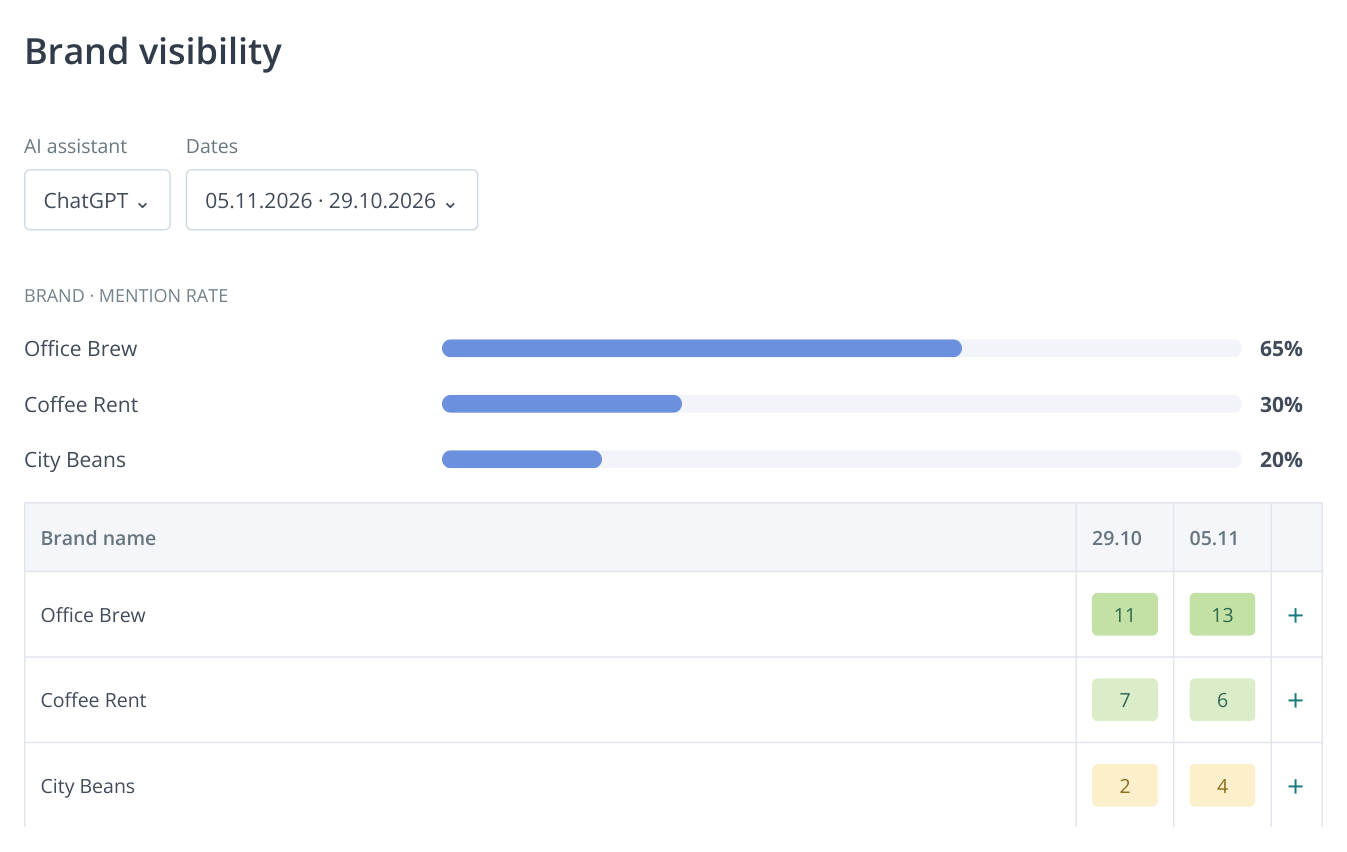
4. Discovered brands outside the tracked list. Counts open the relevant questions; “+” adds a name to your own brand after confirmation. The example is fictional.
Click Office Brew's count and inspect the questions where it appears. If it directly supplies office rentals, ask the agency to analyze those answers and offer terms. The report may reveal a competitor the team had overlooked.
Compare configured competitors through the brand selector in “Visibility”, keeping models, tags and dates unchanged. Your coverage may grow while a competitor still dominates key maintenance questions. That supports including maintenance in the next content phase. A competitor's growth alone does not assess the quality of your agency's page; review that page separately.
“Cited Domains and URLs”: connect answers to their sources
In “Cited Domains and URLs”, select the model and prompt. Use the table search to find your domain, a competitor or a placement platform. Each row shows the URL, model and question; open the URL to inspect it.
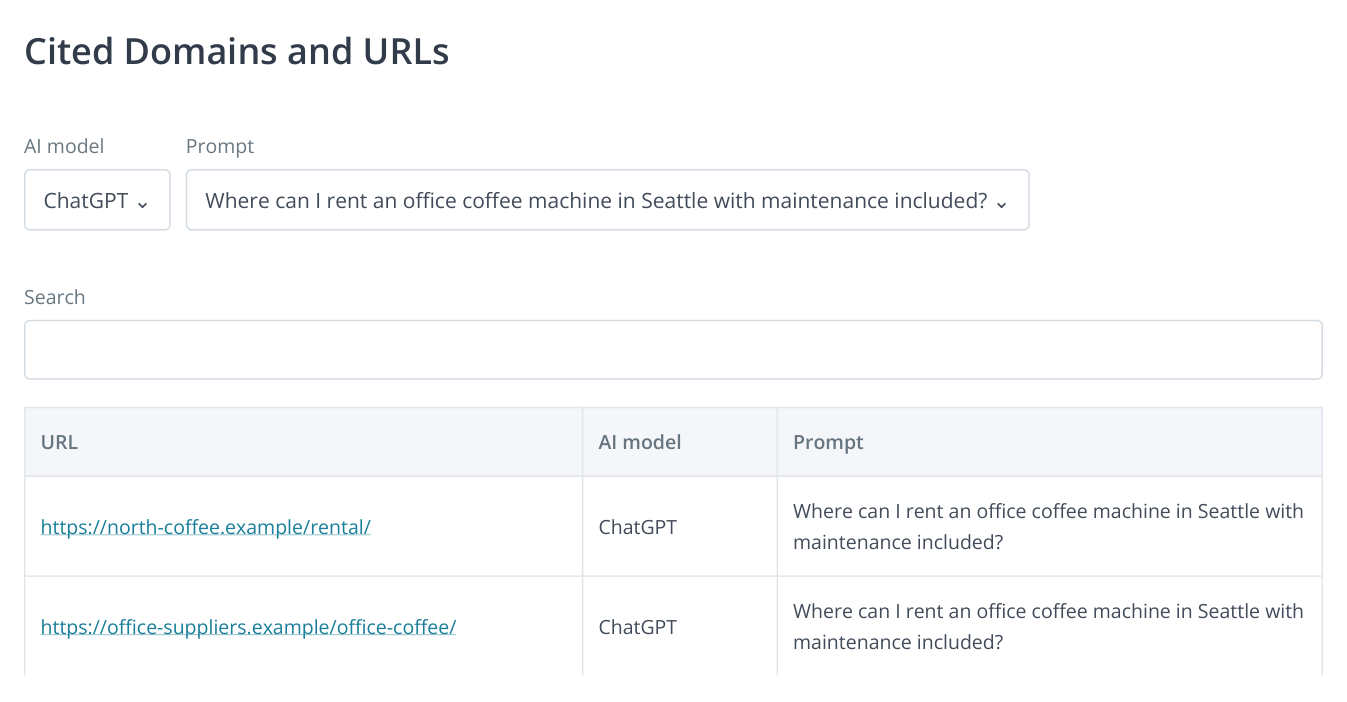
5. One question is linked to your page and an external review. Open the URLs for inspection and check the saved response for the citation date. The examples are fictional.
If the agency updated a company listing, find its URL and inspect the associated question's context. If a new article is cited, check whether the answer reflects its content and the intended service. If only a competitor's page is cited, examine which information it gives the buyer.
This table has no date filter. To verify a citation during the reporting period, open the same question in “AI Response Log” and select the relevant run. A URL in the overall list does not establish that it appeared after the latest work.
Match the findings to completed work
In the review meeting, start with the assignment, inspect its published result and then examine changes in AI answers. Different work needs different evidence:
| Assignment | Evidence of completion | What to monitor next |
|---|---|---|
| Expand the rental terms | The published URL and a two-date text comparison; screenshots show where the section appears. | Rental, maintenance and replacement responses in “AI Response Log”. |
| Create a renting-versus-buying comparison | A finished article with terms and examples relevant to the intended audience. | “Visibility” for solution-selection questions and “Cited Domains and URLs”. |
| Update three company listings | Three direct links with current descriptions after moderation. | “Platforms”, “Mention history” and “Description mismatches” in SERM, plus company information in new AI answers. |
| Fix technical barriers | A repeat technical audit and findings for the specific URLs. | Access to the relevant pages and subsequent answers to the agreed prompts. |
SERM mention counts and commissioned placements measure different things. Accept three published listings against three links. Reviews and company materials found by SERM help assess external presence, but do not replace the list of completed assignments.
Use the AI audit to plan the next phase. For incomplete company descriptions, inspect “What will AI tell?” and “Important content for AI”. Where a competitor is stronger, use “Who is shown and why” and “Competitors’ Content”. For external sources, combine “Registration Directories” with discovered citations. Each new assignment then follows from a report finding.
Create the report and record the review decision
Open “Print version”. On “AI visibility print version”, choose PDF or DOCX, your brand or a competitor, page orientation, color scheme and dates. Select the required reports under “Document sections” and click “Download”. One file can include visibility, synonyms, discovered brands, the response log and cited URLs.
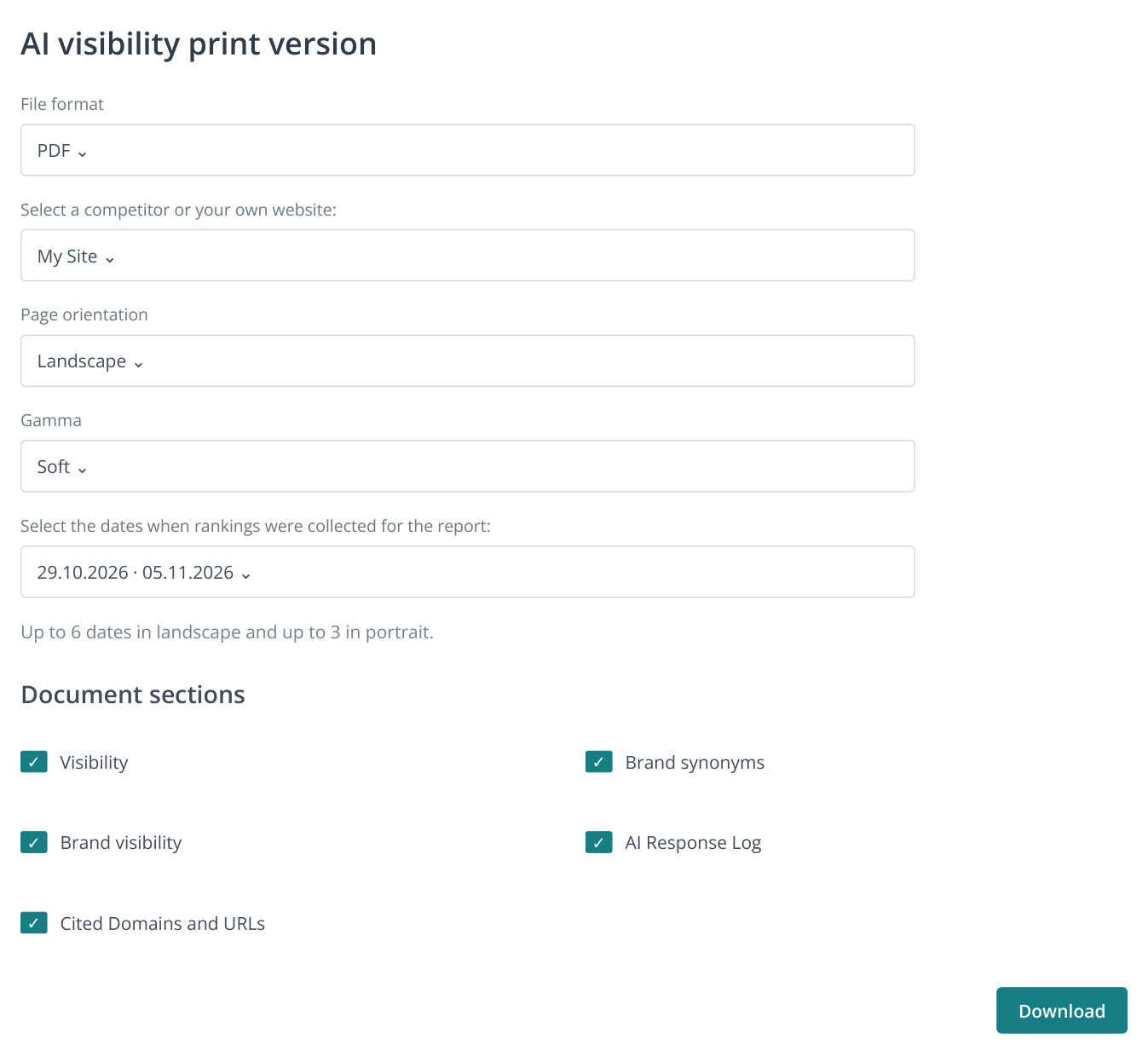
6. “Print version” combines the chosen sections in one document. The example selects PDF, your brand, two dates and all five sections for a single-file handoff.
Landscape orientation supports up to six dates and is convenient for multiple measurements; portrait supports up to three. To share one question's answer history, export “AI Response Log” using “By prompt”. “By date” suits a snapshot of one collection run.
Example phase conclusion: “Accepted the new article, rental terms section and three updated listings. In ChatGPT, coverage for the original 20 questions rose from six to eight answers; replacement terms appeared in the log. Perplexity and Gemini results are attached separately. The next phase addresses questions that still recommend only competitors.”
Compare several runs: one changed answer does not prove a particular publication caused it. Present completed work, recommendation changes and analytics inquiries separately. This lets you accept the delivered scope, identify unresolved needs and agree on the next phase using Labrika's findings.