
 English
expand_more
 Español
 Deutsch
 Français
 Português
 Türkçe
 Polski
 العربية
 हिन्दी

How to generate batches of 50–100 articles in Labrika
“Content Factory” helps online stores, businesses with many services and SEO agencies prepare content in batches of 50–100 pages. Labrika uses the project's keyword groups and recommendations to create a separate piece for each group, and you can start all selected documents with one command.
1. Create a task for the pages you need
Open “AI writer” → “Content Factory” → “Create Task”. Under “What to do”, select “Keyword group optimization”. This workflow uses the project's keyword groups and existing recommendations.
Choose the project under “Select a project with analysis”, then set “Select a search engine”. Keyword groups and recommendations must already be available. For a new project, first group your keywords. For example, when creating pages for a Seattle rental business, select recommendations for the search engine and location those pages will target.
Set the selection threshold under “What percentage of optimization to take”. For example, 70% selects groups with an optimization score of 70% or lower. To include new content with no existing text, enable “Include keyword groups without text”.
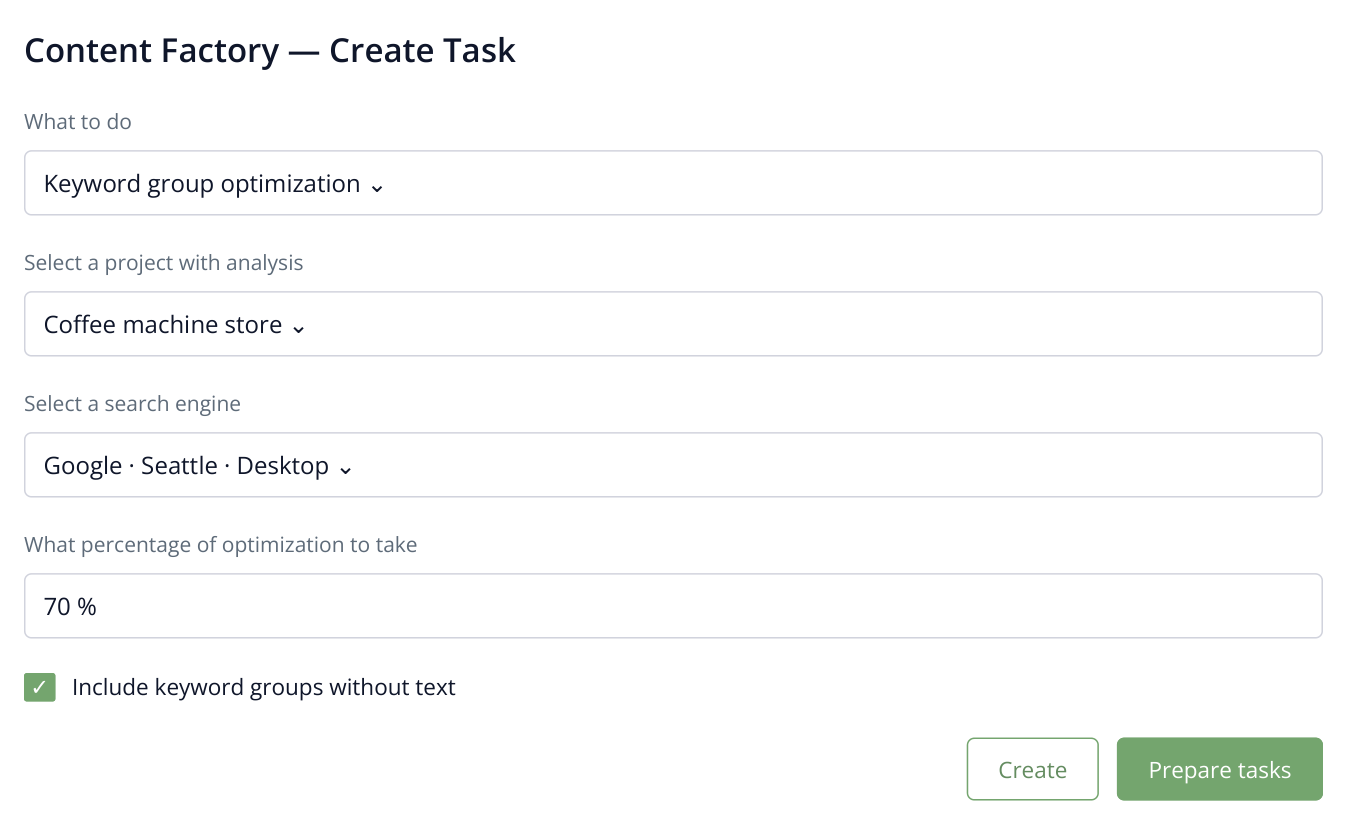
1. The store selects pages scoring 70% or lower, together with new groups that have no text. This focuses content generation on sections that need work.
Click “Create” to review the matching groups, then “Prepare tasks”. Labrika creates the document list ready for generation.
Suppose a store is expanding its coffee machine catalog and needs copy for compact kitchens, offices and machines with automatic milk frothers. The keyword groups represent different buyer needs, so the batch contains separate content for those pages. Your team can work on the product range and publishing while Labrika prepares the copy.
For other starting points: The wizard also offers “Fill thin pages” for pages with little text and “Clone website” for working from selected pages of a source website. The steps below use a batch created from existing keyword groups.
2. Select a batch of 50–100 documents
Select the required rows in the prepared document list. You can generate all selected items together or divide a large list into batches, such as service pages first and blog articles next.
For bulk selection, apply a filter and click “Select Filtered”. The total counter shows how many documents are selected, including rows on other pages of the table. To choose a different set, click “Deselect” and make a new selection.
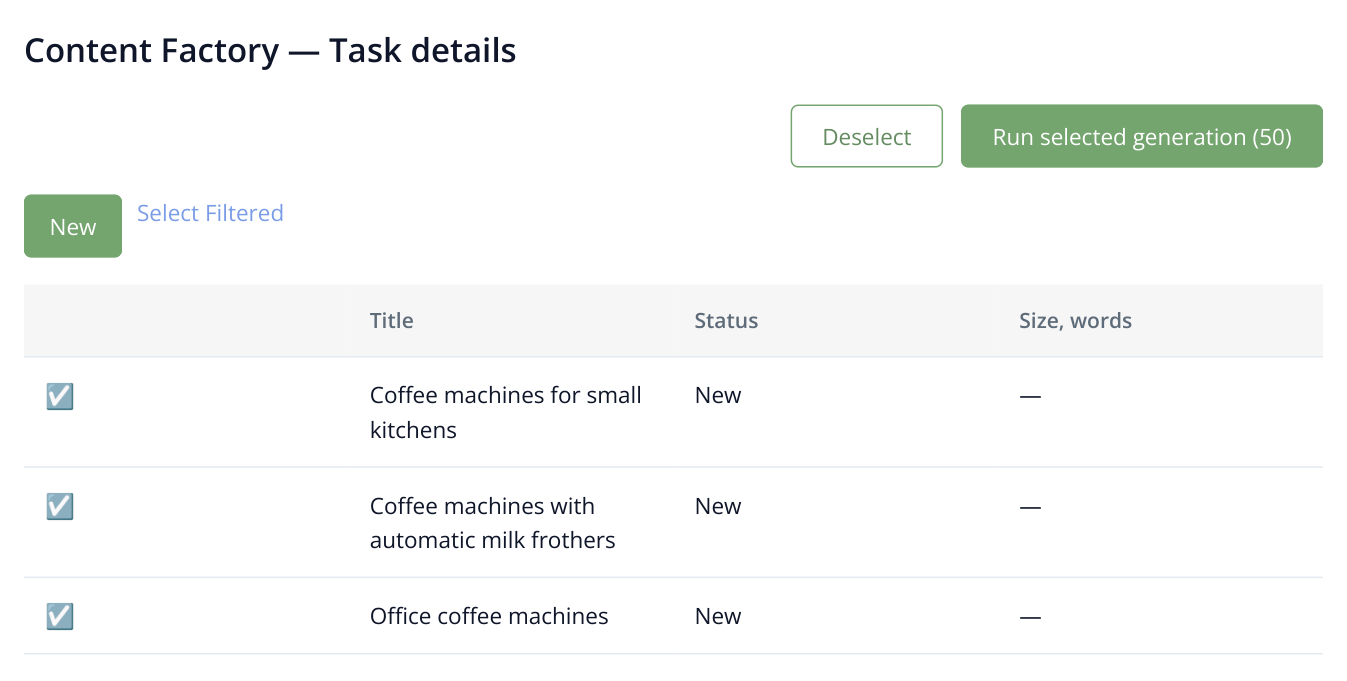
2. This example selects a batch of 50 documents; only part of the list is shown. The number on the generation button includes selected rows across every page of the table.
Click “Run selected generation”. The button shows the selected document count, and the confirmation dialog shows the required and available AI credits. Click “Yes” to start generating the selected batch.
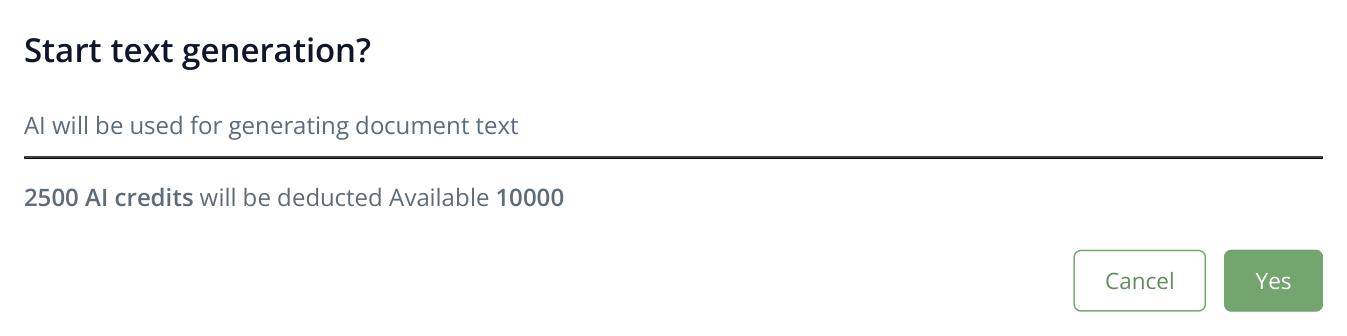
3. The confirmation dialog shows the cost for the selected documents. These figures are illustrative; use the estimate shown for your own task before starting.
If some documents have already been completed, use the “New” filter to select those that have not been generated yet. This makes it easy to continue with the next set of pages. Agencies can deliver agreed content batches for each project, while smaller editorial teams can prepare a series without starting every article separately.
3. Open the completed content
The statuses show progress: “New” means generation has not started, “Processing” means the text is being created, and “Completed” means it is ready. Open a completed row to work with the content. If generation fails, open the error details and resolve the reported cause. You can use completed documents independently of any failed rows.
For content linked to keyword groups, the result opens in the corresponding group's interactive editor. Check conditions that apply across the batch, such as delivery areas, service inclusions and the product range. If categories have different terms, adjust the relevant texts before transferring them to the website. A single batch can still reflect the differences between individual pages.
4. Download the content for publication
In the document row, open the menu using the icon with three horizontal lines. Choose “Download in HTML”, “Download in TXT” or “Copy to clipboard”. Export applies to the selected document.
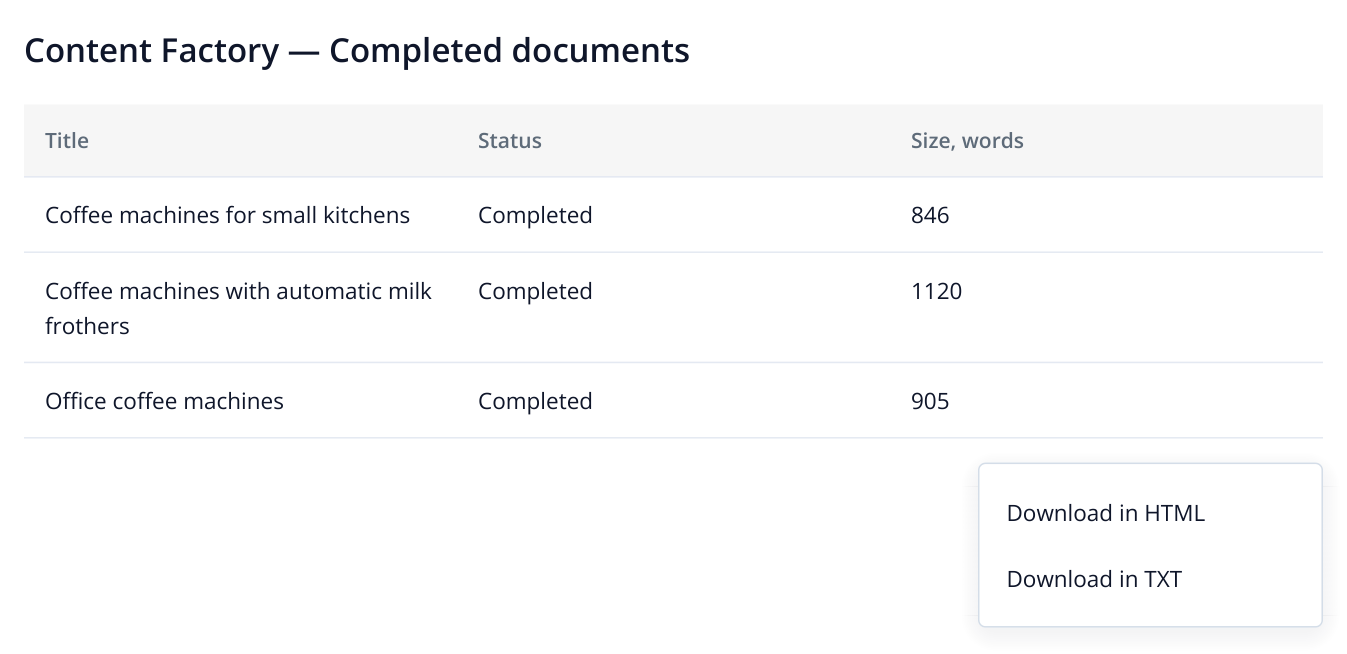
4. The result is separate content for different store pages. “Completed” means the text is ready; the row menu lets you download that document. The word counts are illustrative.
HTML lets you transfer content to your CMS while preserving its markup. When saving a batch, use filenames that make each destination easy to identify, such as choosing-a-coffee-machine.html for a coffee machine buying guide.
To improve an individual page further, use one-click optimization. For a new, comprehensive guide, choose “Expert article”.
When expanding into a new area, prepare a batch covering the services you actually offer there. For a store, create pages for new categories in its product range. Agencies can organize delivery in stages: agreed commercial pages first, followed by supporting informational content.