
 English
expand_more
 Español
 Deutsch
 Français
 Português
 Türkçe
 Polski
 العربية
 हिन्दी

How to group keywords for SEO, content and PPC campaigns
Keyword grouping is a core planning step in SEO: it helps you decide which queries belong on one page and which need separate sections. Labrika groups keywords by the overlap of URLs in search results. SEO specialists get a foundation for site structure, editors get article topics, and PPC specialists get keyword groups to match with landing pages and ads.
Choose the goal for keyword grouping
The same keyword list can support several workflows. The difference is how you use the resulting groups.
| Scenario | How to use the groups |
|---|---|
| Launching a new online store | Plan categories, subcategories and informational articles. For example, separate buying an espresso machine from choosing or repairing one. |
| SEO for an existing website | Find queries without a suitable page and groups currently spread across multiple URLs. |
| Ads | Group queries with similar needs, choose their landing page and match the ad's offer to that intent. |
| Content planning | Combine related questions in one article and give distinct reader needs their own publications. |
| Agency work | Show the client the planned site structure and number of pages before commissioning copy or development. |
A coffee machine supplier may want to promote sales, rentals and maintenance at the same time. Grouping everything containing “coffee machine” would mix those services. Search results help distinguish queries served by catalogs, service pages and buying guides.
Add keywords and select a location
In the website project, open settings → “Keywords”. Paste your keyword list or import a prepared file. For a new project, start with the products and services you intend to promote: category names, solution types and customer needs.
Under “Search Engines”, set the search engine, location and device. Equipment rentals in Seattle require Seattle search results: competitors and landing page types can differ between cities. Use the relevant search settings for each target market.
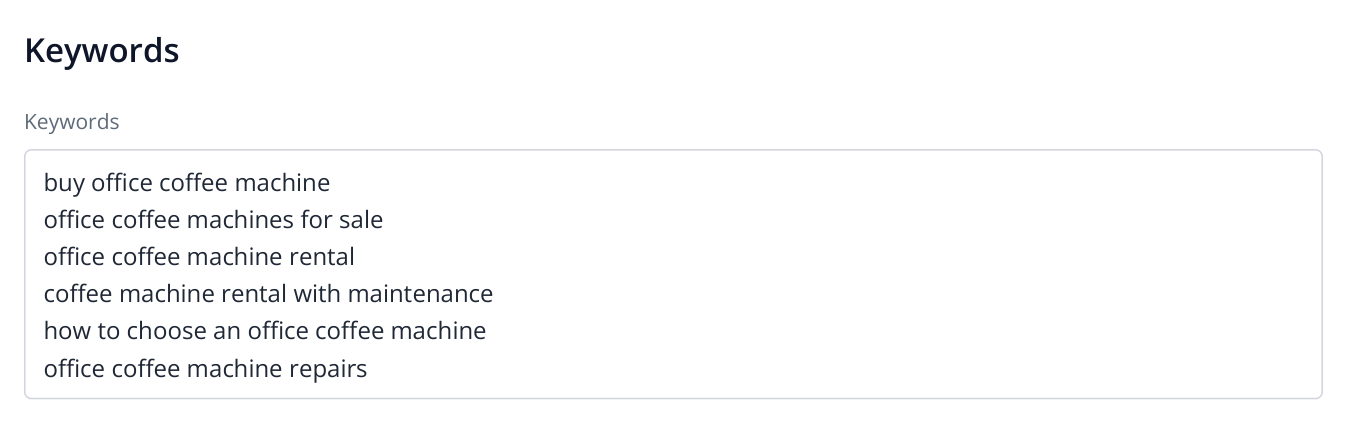
1. The initial list covers buying, renting, choosing and repairing equipment. Search result analysis helps separate the purposes of the future pages.
You do not need a finished page for every keyword before grouping. For a new website, grouping helps determine what to create. “Buy office coffee machine” and “office coffee machine rental” concern the same equipment but different transactions.
Run the analysis and open the keyword groups
“Keyword Grouper settings” contains “Keyword Grouping algorithm” and “Number of shared URLs”. The overlap value determines how similar the search results must be for keywords to be grouped. A higher value makes grouping stricter. For your first run, you can use the project's existing settings.
Click “Save”, then “Start report”, and run a full analysis with the selected keywords and search engine. When it finishes, open “Optimization and KW grouping”. A keyword group represents one need, such as “office coffee machine rental” and “office coffee machine rental with maintenance”. Open a group to inspect its keywords and competing pages.
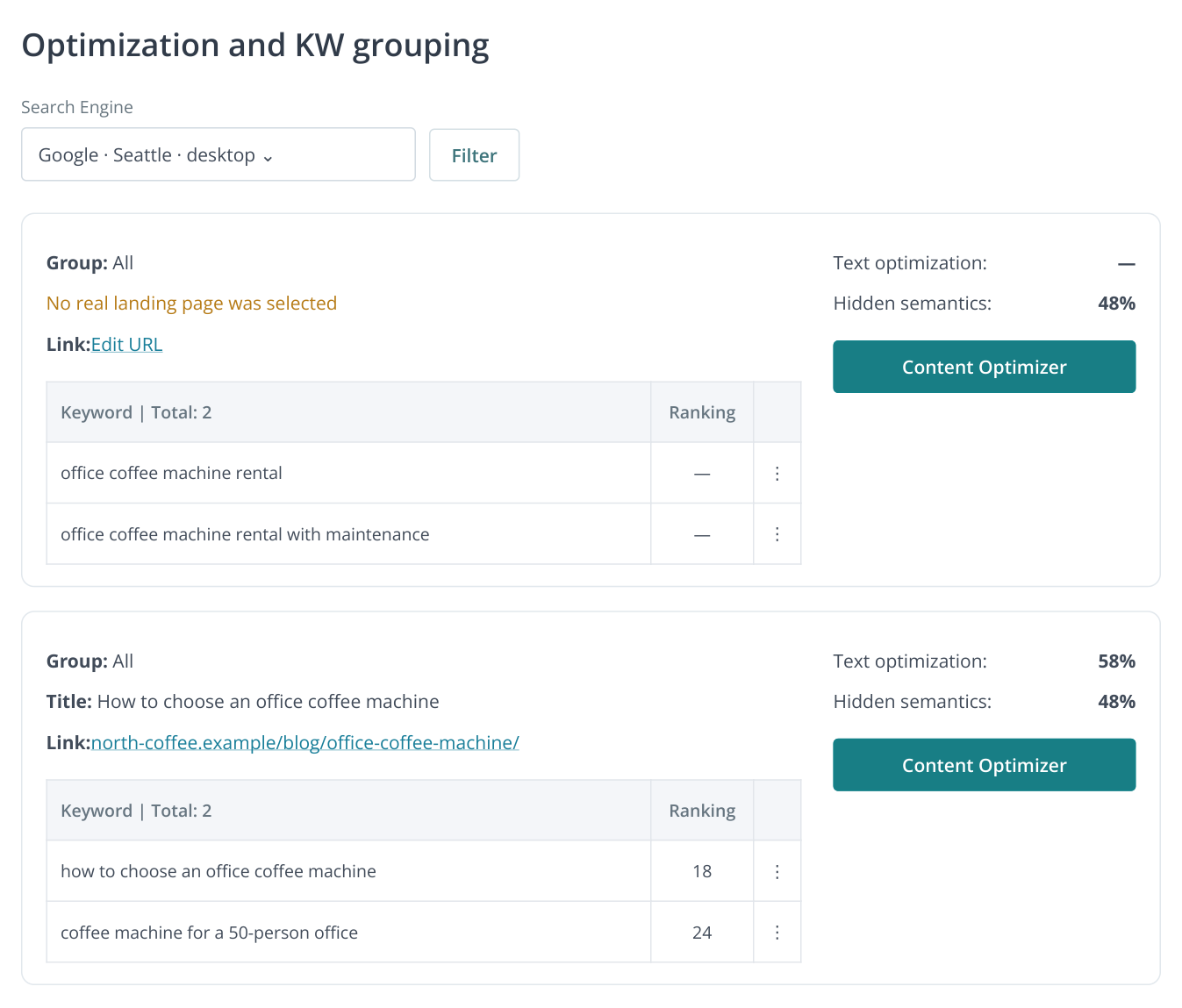
2. Two expanded groups: the rental group has no live landing page yet; the guide already has a URL assigned. Keywords and metrics are illustrative.
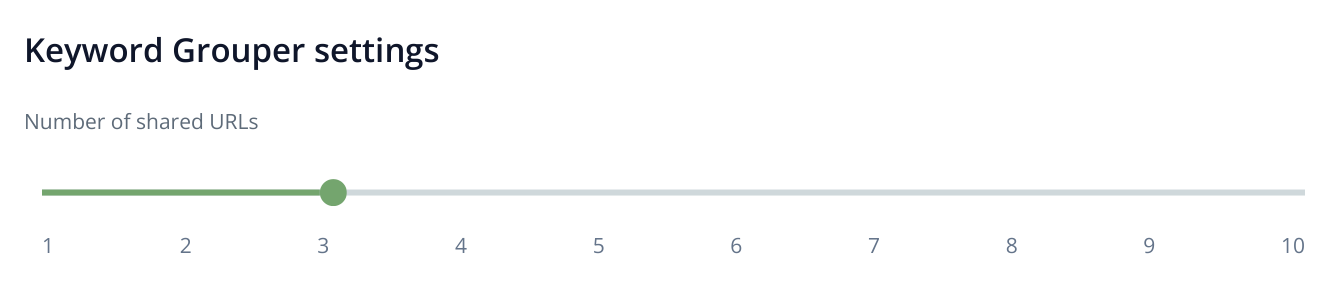
3. Part of the settings screen: use the slider to set the number of shared URLs. The example value and range depend on the selected algorithm.
A useful starting point is the groups matching your main revenue-generating services. For this supplier, those might be office equipment sales and rentals. The first pages will then support services the company is ready to sell.
Assign a suitable page to each group
Review the group's competing pages. Catalogs suggest a category with product listings; guides suggest an article; service offers suggest a service page. To assign your own URL, click “Edit URL”, whose tooltip is “Attach the landing page to this cluster”. Enter the address under “Specify URL of landing page.” and click “Edit”. You can also enter a future URL to plan the structure before building the pages.
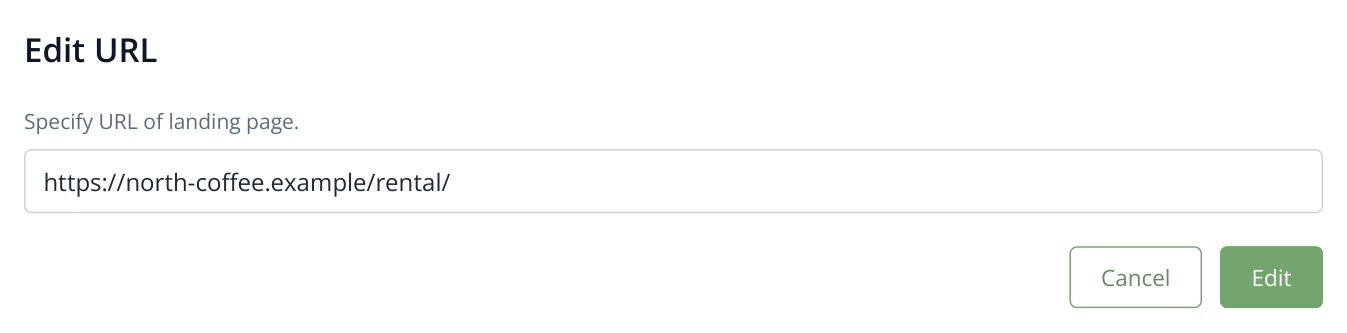
4. Assigning a future page to the rental group. Save the URL before the page exists, then use it when preparing and publishing the content.
| Keyword group | Page | Visitor's goal |
|---|---|---|
| Buy an office coffee machine | Office coffee machine category | Choose a model and check purchase terms |
| Office coffee machine rental | Rental page | Compare contract terms, maintenance and payments |
| How to choose an office coffee machine | Blog guide | Determine the required machine type and capacity |
| Office coffee machine repairs | Repair service page | Check service visit terms and submit a request |
This illustrates how groups inform site structure. If one group contains different transaction types, inspect the results and decide whether one page can meet both needs. Rentals and purchases may require separate landing pages. On an existing website, reuse suitable URLs first; avoid creating another page for a need already covered.
If you manually refine a group and assign its URL, lock the group before regrouping. Unlocked groups are rebuilt, and their notes, color labels, URL assignments and folder assignments are removed, as the launch dialog explains. Locking preserves the decisions you have already made.
Use the groups for PPC campaigns
Keyword groups help align the query, offer and landing page. For rental terms, write an ad about renting and send visitors to contract terms. Send purchase queries to a catalog where customers can choose equipment. This is particularly useful when all your ads previously led to the homepage.
For an advertising campaign, further separate groups by conditions that change the offer: city, customer type, buying or renting. An informational group such as “how to clean a coffee machine” should not be mixed with repair bookings: the needs differ. Whether to target it in a separate campaign depends on your offer.
Labrika's grouping provides the foundation; configure ads, negative keywords and bids in your advertising account. Before launching, use the landing page checks guide. Your keyword plan then connects to relevant ad copy and a working URL.
Create briefs or write content from the groups
To assign work to a copywriter, open “Content Optimizer” → “Content brief” for the selected group. This contains the content requirements, length and destination page. Click “Export to .docx” to download the brief.
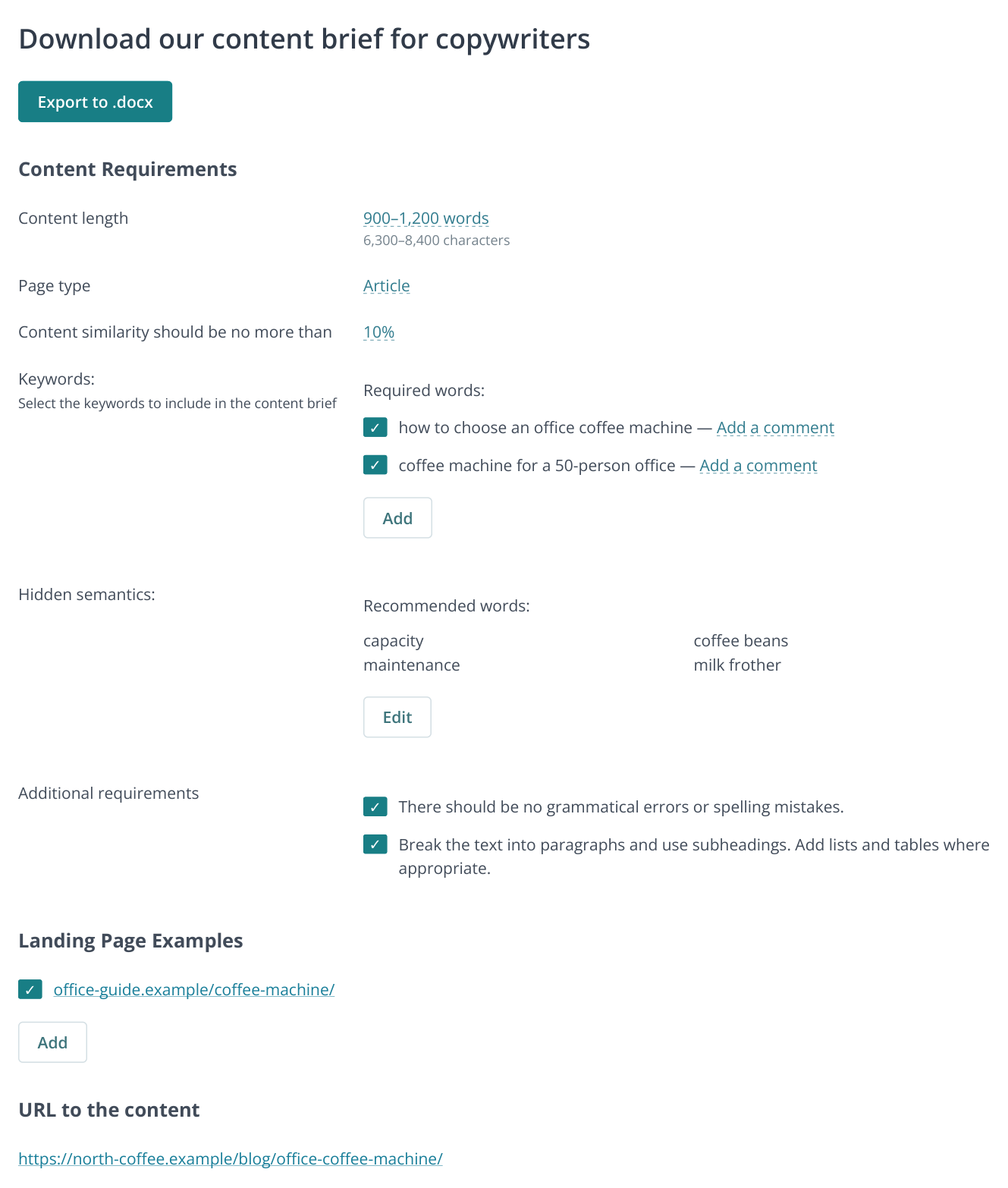
5. Brief settings: editable values, keyword and requirement selection, recommended words and competitor examples. “Export to .docx” saves the brief. The data is illustrative.
If you need finished content, use the editor or send the groups to Content Factory. A store can prepare a new section, while an editor can produce a series covering different buying questions. In both cases, the topics are already tied to the project's keywords.
Turn the decision into an assignment: “Create /rental/ for the rental group and include contract and maintenance terms.” Assign an editor, publication date and SEO review. Once the page is live, track rankings for the original group. An agency can then show the client a finished page, its purpose and performance over time, rather than just a keyword file.