
 English
expand_more
 Español
 Deutsch
 Français
 Português
 Türkçe
 Polski
 العربية
 हिन्दी

How to optimize an article with Labrika’s one-click AI tool
“Optimization in 1 click” helps SEO specialists, editors and website owners improve published articles and commercial pages. Labrika inserts keywords and related vocabulary using recommendations derived from the top 10 results, while preserving the original text. It is useful when an approved piece needs stronger search optimization.
1. Open the article in the editor
In your project, open “Optimization and KW grouping”, find the article's keyword group and click “Content Optimizer”. Recommendations must have been calculated for the selected search engine.
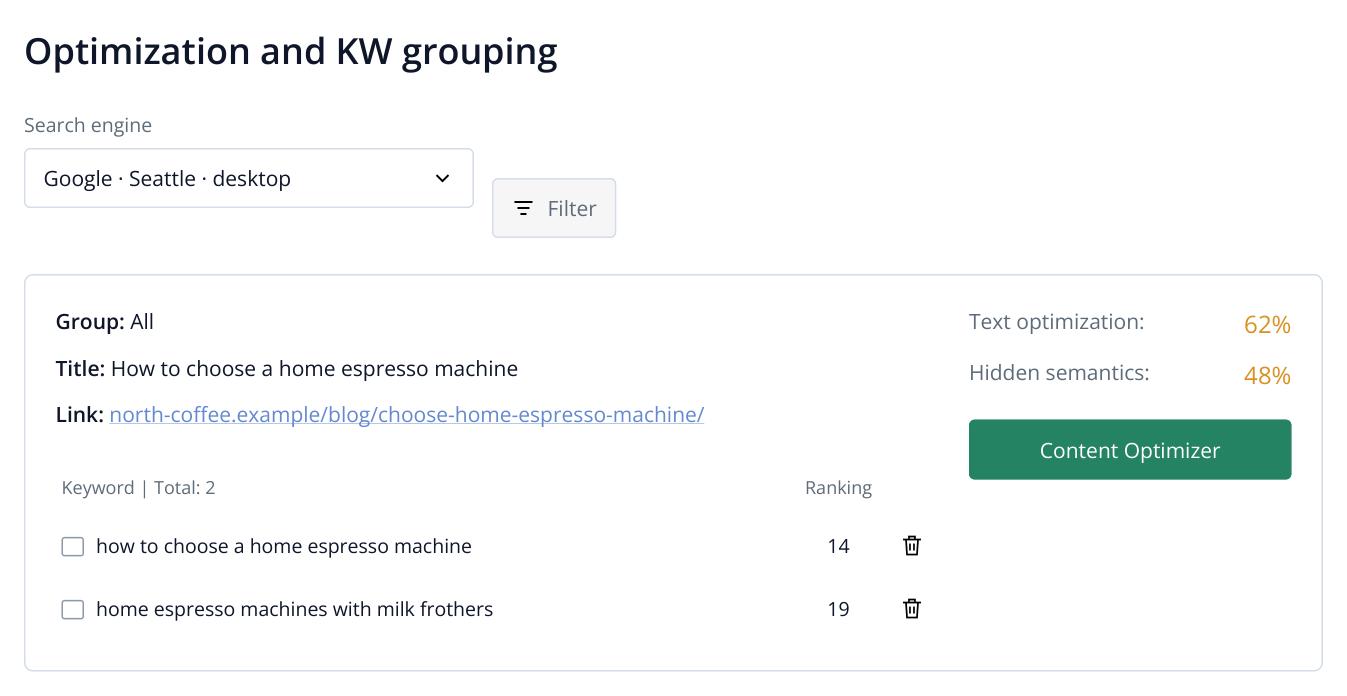
1. An expanded keyword group: the landing page and keywords are on the left; recommendation scores and “Content Optimizer” are on the right. This report excerpt uses sample data.
The Body field contains the main text. Edit the imported page or paste in your own article. Enter the page title, description and main heading in Title, Description and H1. Click “Refresh” to calculate the current score and save the version.
Tip: If the website's navigation or footer was imported with the article, remove it from Body so the optimizer works on the article itself.
2. Run one-click optimization
Above Body, click “Optimization in 1 click”. AI inserts the required words in suitable grammatical forms into existing sentences, preserving their meaning and style. In an espresso machine article, for example, it can expand “compact models” with “of home espresso machines” and add automatic milk frothers to the sentence about milk systems. The adjacent “Article in 1 click” mode is intended for more extensive rewriting.
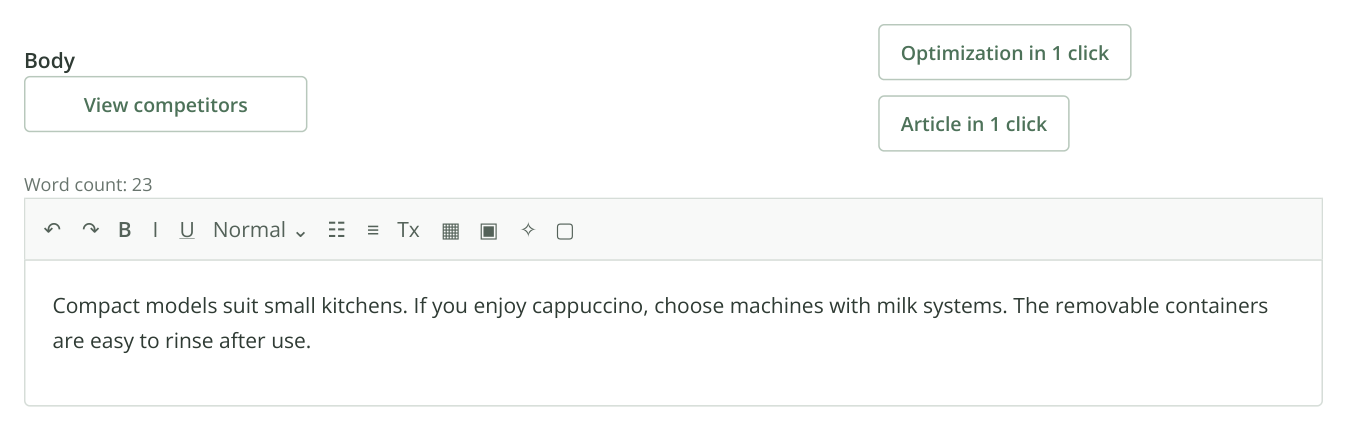
2. Three original sentences. The two mode buttons sit above Body on the right, followed by the word count, formatting toolbar and text. “Optimization in 1 click” adds missing expressions to this material.
The “Run SEO Optimization?” dialog shows the cost. You can also enable “Do not adjust text length to TOP-10” here. Select it to retain the original length and focus on keyword insertion. This suits an approved service page, an authored review or a detailed case study. Leave it unchecked to follow the recommended length.
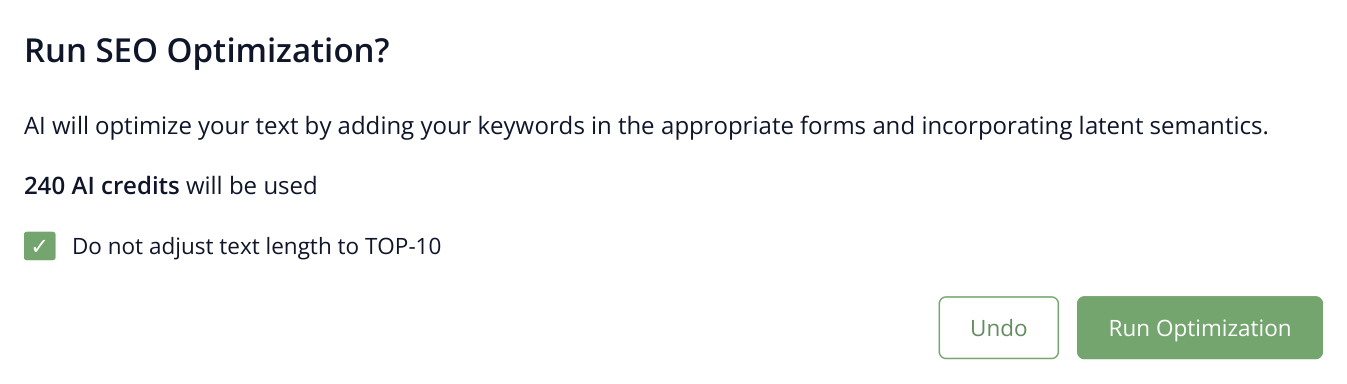
3. “Do not adjust text length to TOP-10” is enabled for this example to retain the original text length. The cost is illustrative; your actual charge is shown before you start.
Click “Run Optimization”. When processing finishes, “Show new version of the article” appears.
3. Select the new version
Click “Show new version of the article”. “Current version of the article” is on the left, “New version of the article” in the middle, and scores and recommendations on the right. Additions are highlighted in green in the left column. Below, AI has inserted two required expressions into an existing paragraph, retaining all three original sentences.
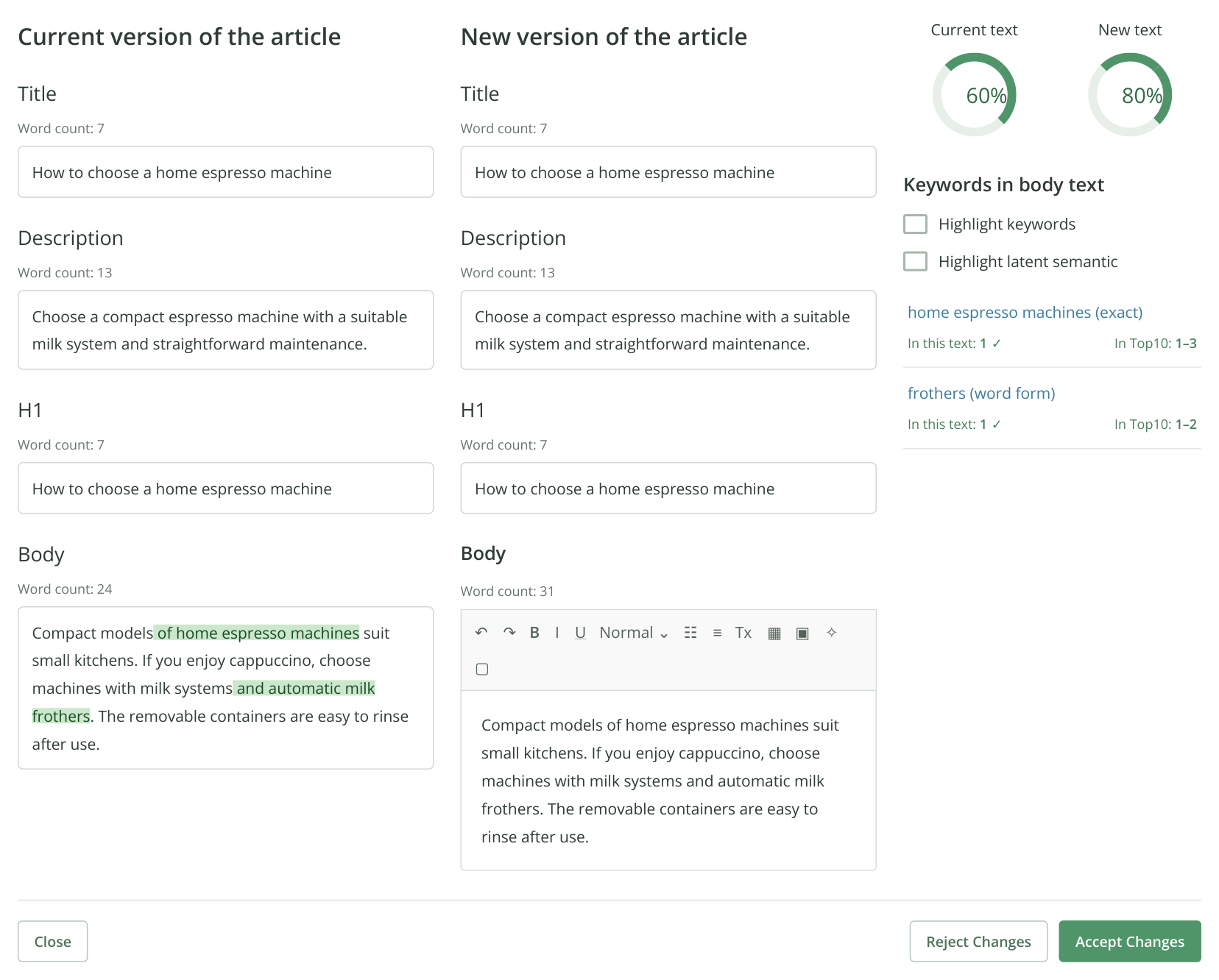
4. The new-version dialog: highlighted additions on the left, the editable result in the middle, and scores and recommendations on the right. All three sentences remain, with only two expressions added. Text and scores are illustrative. Horizontal scrolling keeps the three columns readable.
Stores can improve category descriptions, service businesses can optimize approved pages, and editorial teams can update useful articles for their target keywords. Instead of placing each keyword manually, you receive ready-made insertions based on recommendations for that specific keyword group.
In the comparison, check the newly added product claims. For example, “automatic milk frothers” applies only to machines with that feature. If an insertion changes the promise to customers, edit it directly in the new version. The rest of the approved text remains the basis of the article. Click “Accept Changes”.
The new version appears in the editor. Click “Refresh” to save it and refresh the score. To retain the previous version, choose “Reject Changes”.
4. Publish the finished article
On the Body toolbar, click the icon with the “Copy html to clipboard” tooltip. Paste the text into your CMS editor's HTML mode. Copy Title, Description and H1 into their corresponding page fields.
Save the page in your CMS and open it as a visitor. The example should retain the same paragraphs, with the added expressions inside the sentences. This transfers the accepted version in full without inserting the keywords again manually.
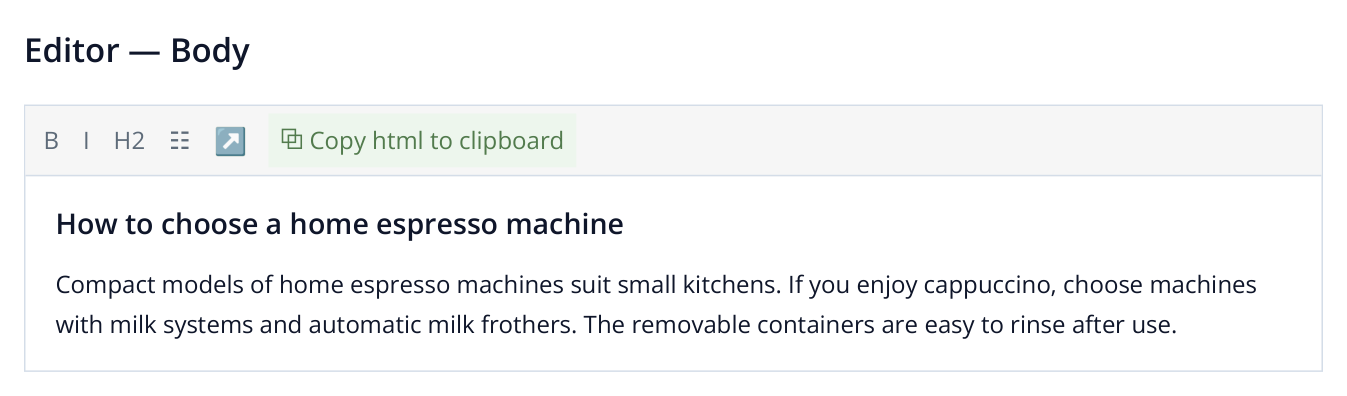
5. The copy button is on the Body toolbar. The excerpt shows the text after accepting the insertions; Title, Description and H1 go into separate CMS fields.
After publishing, compare the website's content with the saved version in Labrika. Previous checked versions remain available under “History”.
To process dozens of pages together, use the Content Factory to prepare jobs for keyword groups and run them as a batch.
The top-10 recommendations are based on competing pages for the selected keyword group. After publishing, track rankings for that same group in Labrika. You can then assess the page's search performance separately from its editor score.
Read more similar articles