
 English
expand_more
 Español
 Deutsch
 Français
 Português
 Türkçe
 Polski
 العربية
 हिन्दी

How to write an expert article of up to 15,000 words in Labrika
Labrika creates expert articles by analyzing the topic and competing content. It develops a detailed outline and explores questions that ordinary overviews often overlook. Retailers can use this mode for buying guides, service businesses for in-depth explanations of complex offerings, and editorial teams for analytical articles or a series of posts.
1. Create an expert article
Open “AI writer” → “My documents” → “New document” and select “Expert article”.
Fill in “Website/Business field for which this text will be used” and “The title of the article”. Choose English under “Language” and select the destination under “Folder”. Click “Create”.
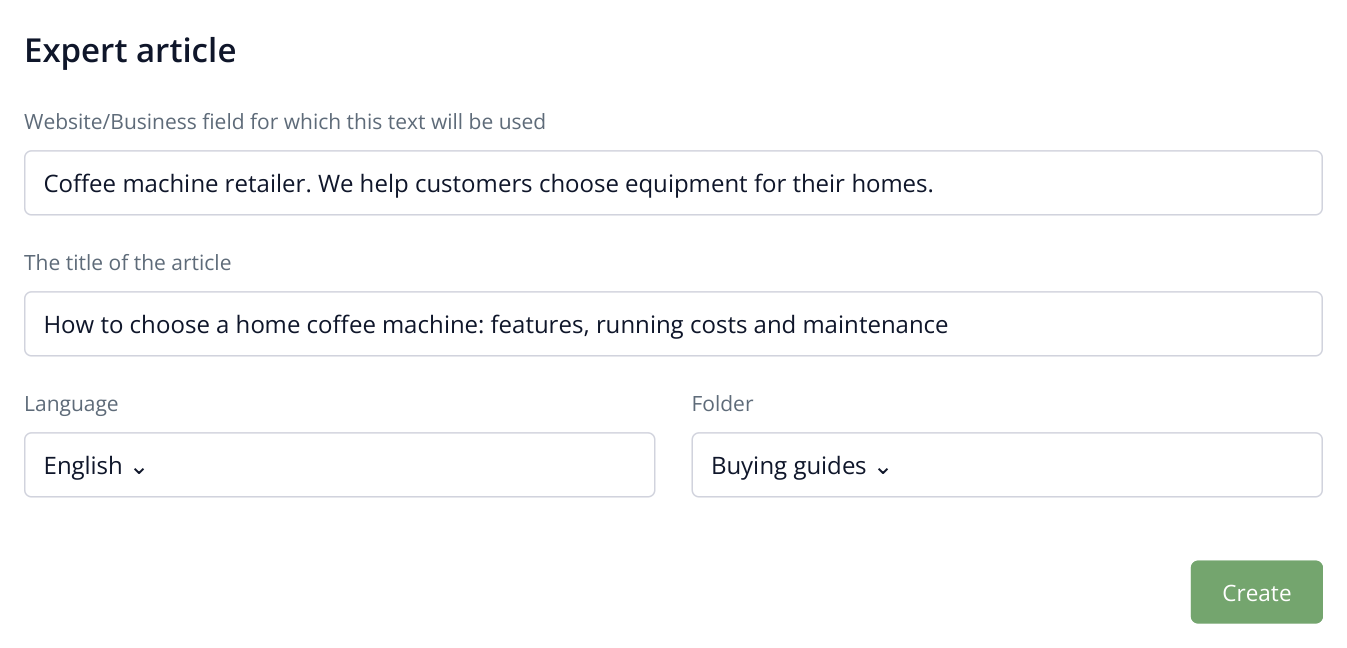
1. The topic addresses a buyer's questions: choosing a machine, running costs and maintenance. This article helps a retailer explain the options before a purchase.
Make the topic specific: In the business field, describe what you do and who the article is for, such as “Retailer of home coffee machines”. In the title, state the reader's task: “How to choose a home coffee machine: types, running costs and maintenance”. This gives Labrika a clearer focus for its detailed coverage.
For a narrow question, use a precise topic such as “How to choose a coffee machine for an office with 50 employees”. For a comprehensive guide, name the main considerations in the title: machine types, costs and servicing. Labrika analyzes the material, builds the outline and writes the article; you do not need to prepare a separate detailed brief.
2. Choose a length and click “Write an article”
Check the title in the dialog. Under “Document size, words”, select 3000-6000, 6000-8000 or 8000+. Choose a larger range for a detailed guide covering several buying scenarios, or a smaller range for a more focused topic.
The AI credit cost is shown before you start. Click “Write an article”. Labrika will prepare the outline and write the article, with progress displayed in the interface.
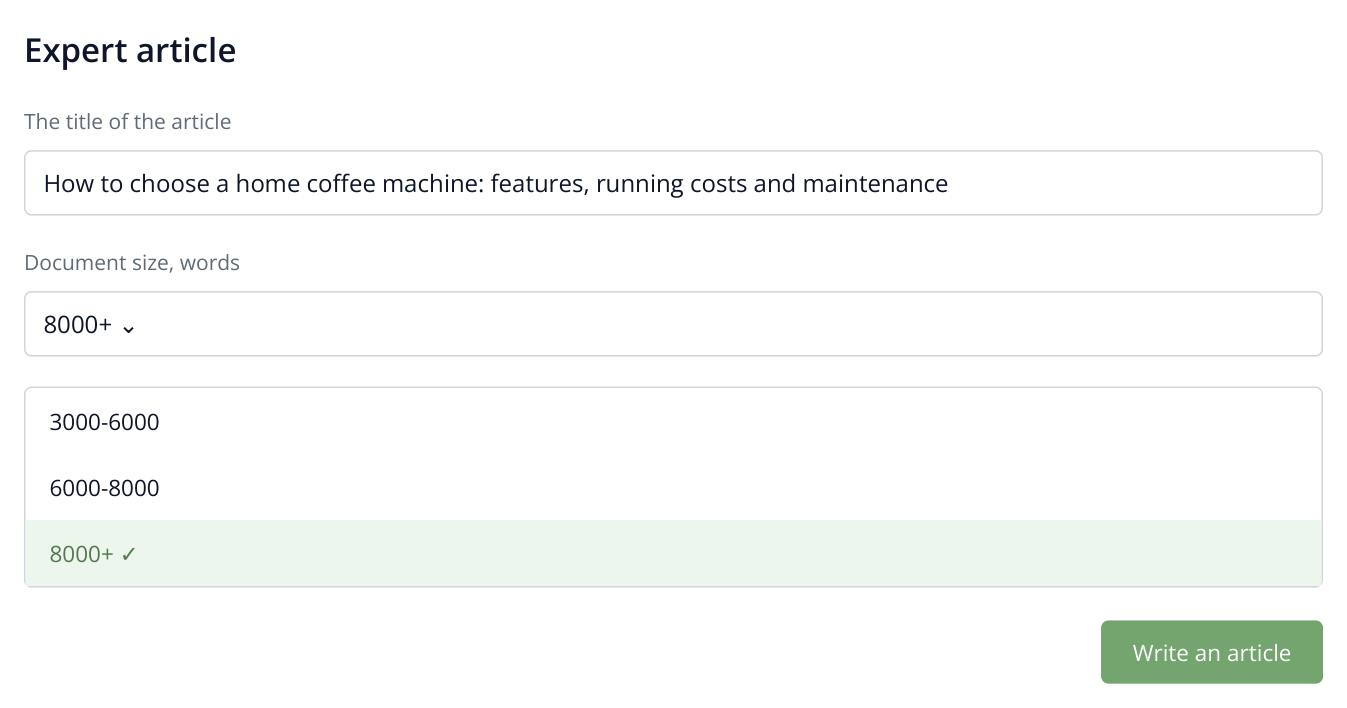
2. This example uses the 8000+ range for a comprehensive guide. Once started, Labrika prepares the outline and writes the article on the chosen topic.
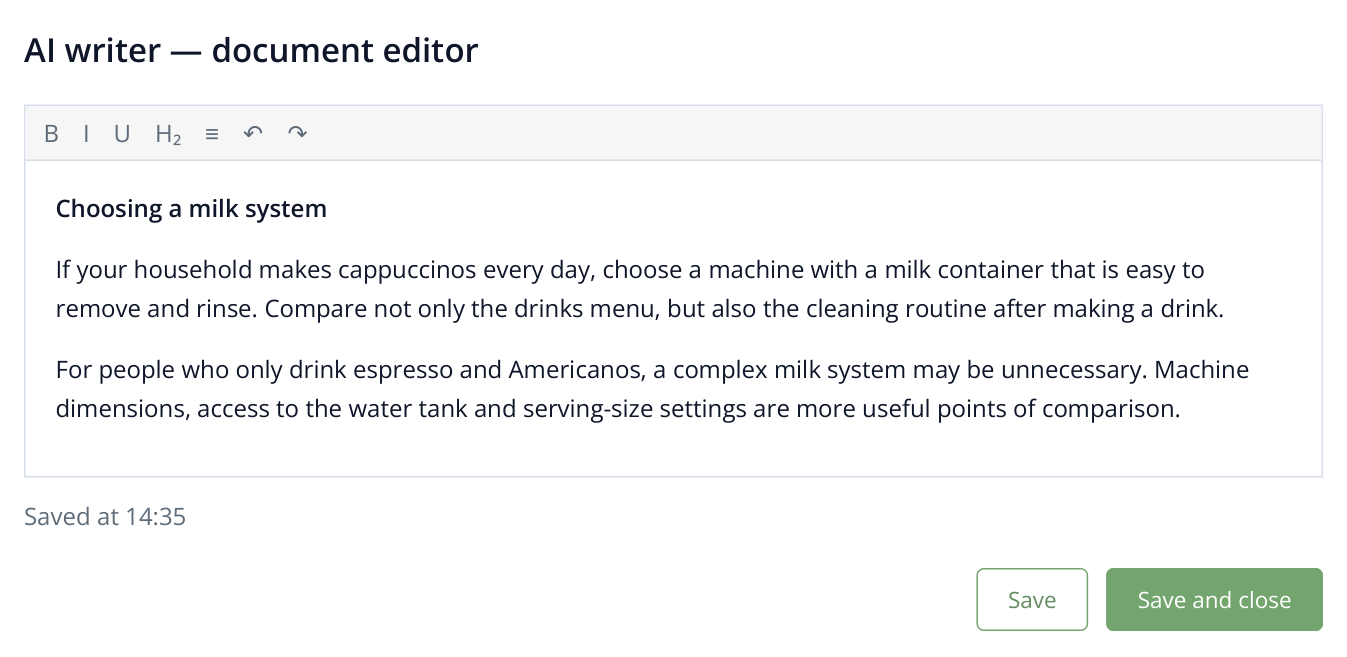
3. Example content from a finished article. The recommendations explain who each option suits; the headings and body text are already in the editor.
The finished article appears in the document. Before publishing, check facts that affect the reader's decision: equipment specifications against the manufacturer's documentation, and your company's prices and terms against its current offer. Make any adjustments directly in the editor. For example, replace a general maintenance recommendation with the requirements for a particular machine model.
3. Save and download the article
Click “Save” or “Save and close”. Under “My documents”, open the document row's menu using the icon with three horizontal lines, then choose “Download in HTML” or “Download in TXT”.
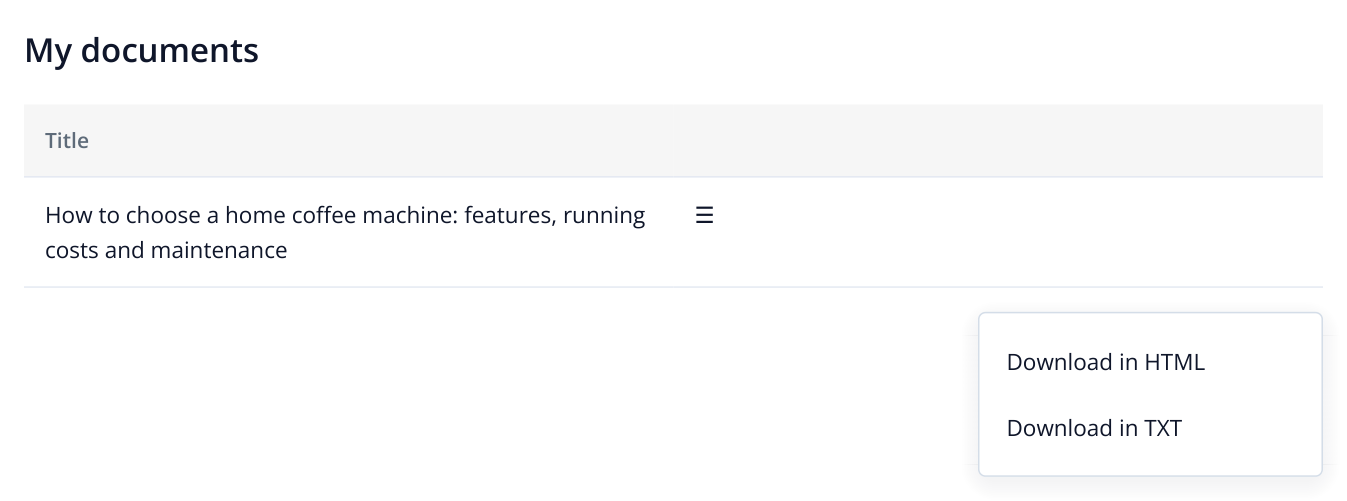
4. Row menu → “Download in HTML”. This format preserves the article's markup when you transfer it to your CMS.
Use HTML to transfer the article to your website editor while preserving headings, lists and tables. TXT is suitable for plain-text editing or sharing the copy with a colleague.
To publish, open the HTML file as source code and paste the article content into your website editor's HTML mode. If your CMS supports file uploads, use its import function. After saving, open the page and check that headings and lists remain separate elements, as they were in the generated document.
If the article targets a specific keyword group, you can also optimize it using recommendations from the top 10 results in Labrika.
Read more similar articles