
 English
expand_more
 Español
 Deutsch
 Français
 Português
 Türkçe
 Polski
 العربية
 हिन्दी

How to verify SEO work using your website's change history
Labrika saves dated page changes so you can assess the volume of work, compare text and meta tags, and review before-and-after screenshots. Managers get evidence of published changes, agencies get material for client sign-off, and marketers can track competitors' updates.
Add the pages covered by the contractor's brief
Open your “Change monitoring” project and go to “Tracked pages”. Click “Add”, paste complete URLs one per line and confirm. Start with the pages in the brief, such as /rental/ and /service/, plus a representative product page if a shared template will change.
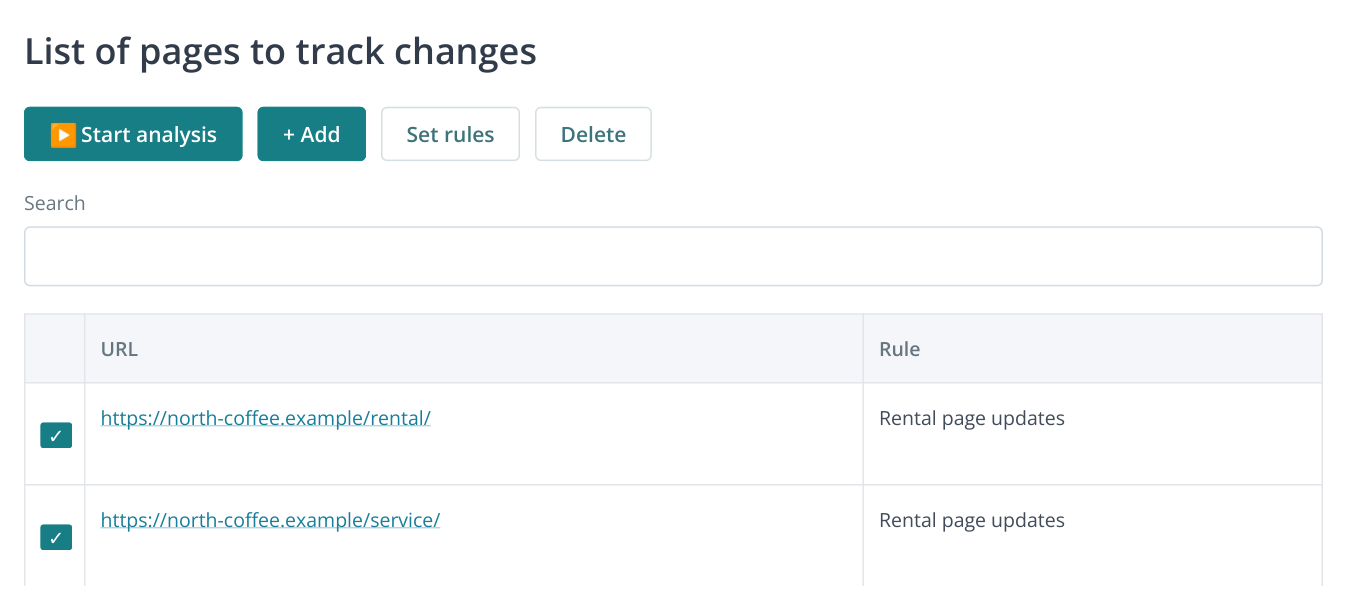
1. The report without the sidebar. Add URLs, check the assigned rule and start the analysis. The URLs and rule name are examples.
If you do not have a project yet, create one through “Add new site” → “Monitoring”, name it and select “Universal monitoring”. The change monitoring guide covers project setup and adding your first pages. This is a separate monitoring project: site audits and change monitoring serve different purposes.
Save the original text and screenshots before work starts
Create a rule in “Analysis and alert rules”. Enable the screenshots you need: “Take desktop screenshot” and “Take mobile screenshot”. Configure text, HTML and meta tag tracking; use a low change threshold for small editorial updates. Enable JavaScript processing if the content appears after scripts run.
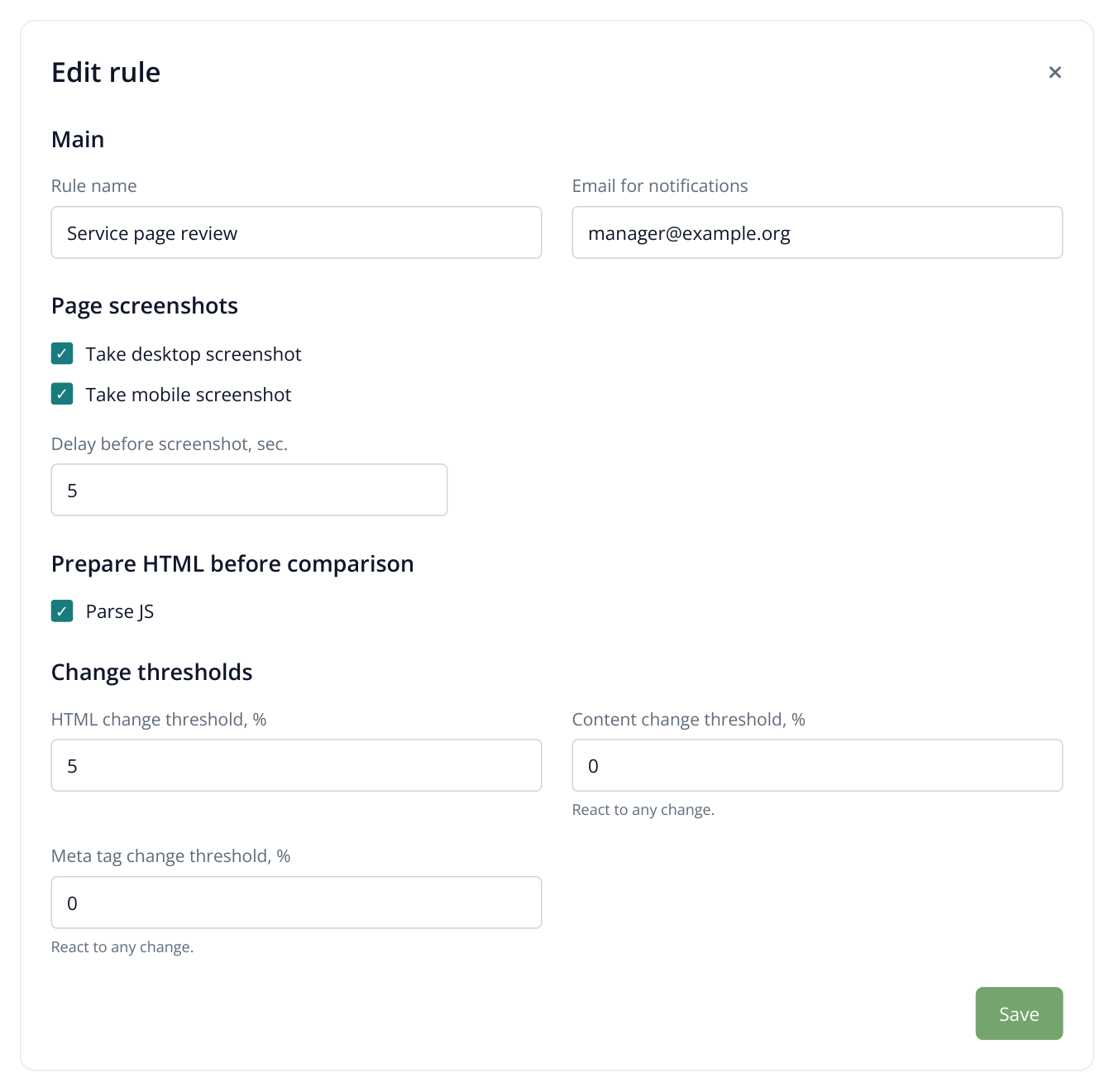
2. A rule excerpt: both screenshot types are saved, and even small text or meta tag edits are detected. The settings and email address are examples.
In “Tracked pages”, select the URLs, click “Set rules” and choose your rule. Run the first analysis before the changes are published. Set a retention period that covers the work and sign-off: you will need the saved versions for later comparisons. Then enable a schedule, such as one check at the end of each working day.
Find the dates when the website changed
Open “Change history”. A bar chart above the table shows the runs, with different colors for HTML, Text and Meta. Use the checkboxes above it to display the types of changes you need. Click a date or select it in “Report date”, then open a URL from the table.
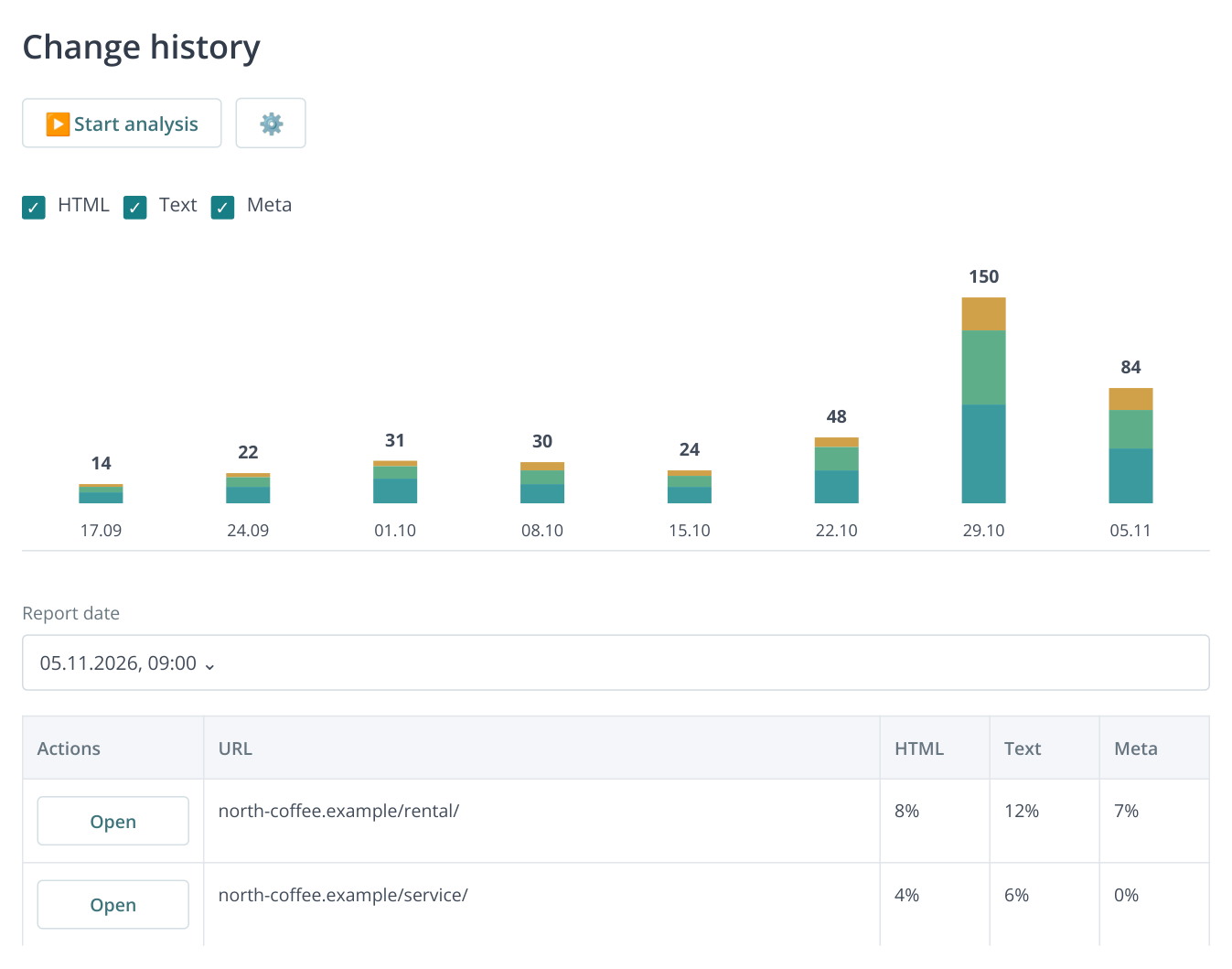
3. Change history: bar height helps identify active dates, while colors distinguish HTML, text and meta tag changes. Selecting a run opens its URL list below the chart. This excerpt uses illustrative data. The table scrolls horizontally on phones.
For a weekly review, if a contractor says they updated the catalog on Tuesday, find the corresponding run and affected pages. Extensive HTML changes with little text change may come from a template, menu or shared block. Open a page to find out; bar height alone does not measure the value of the work.
Assess the work by pages and words
In “Change summary”, switch between “Pages” and “Words”. The chart shows the selected metric over time; the table below lists added, removed and changed pages and words for the selected run. Choose the “Changed” category below to open specific URLs.
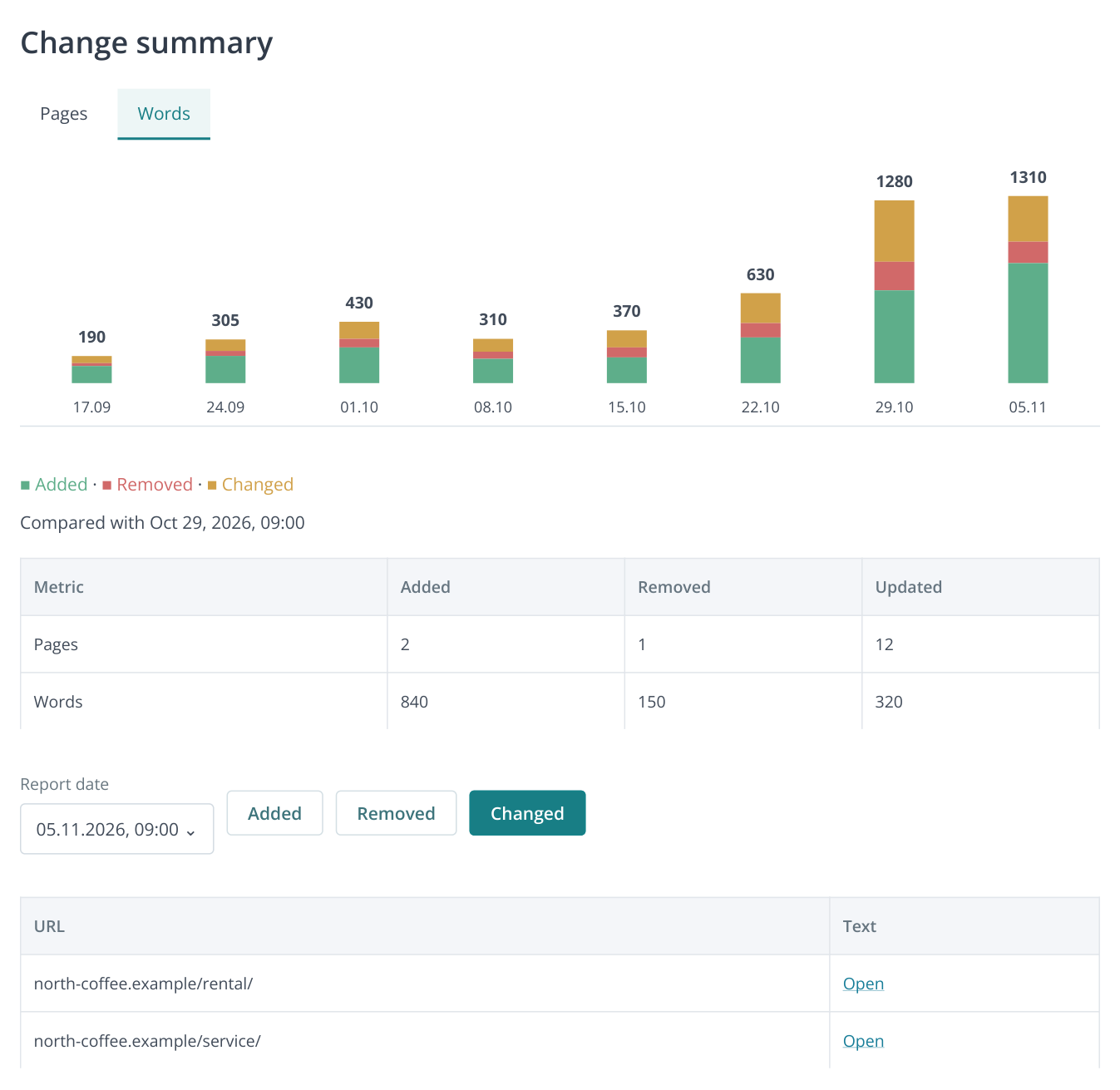
4. Switch between pages and words in “Change summary”. The totals compare the selected run with the previous one; “Changed” opens the URLs for review. The figures are illustrative.
In this example, 12 pages changed, 840 words were added and 150 removed. Compare that with the assignment: if the writer was asked to update rental terms on 12 landing pages, the list lets you verify coverage. If the task was to fix canonicals, word counts are irrelevant; review the tags and repeat the audit instead.
The summary compares consecutive runs. Do not add every word change together to measure a month of work: the same paragraph may have been edited several times. Compare the initial and final versions of the relevant page as follows.
Compare content from any two saved dates
In “Change history”, select the end date of the work period and click “Open” next to the URL. In the page panel, click the comparison-date link above the properties. A list of available runs appears on the right: select the date at the start of the period. The dates do not have to be consecutive; the comparison is prepared automatically.
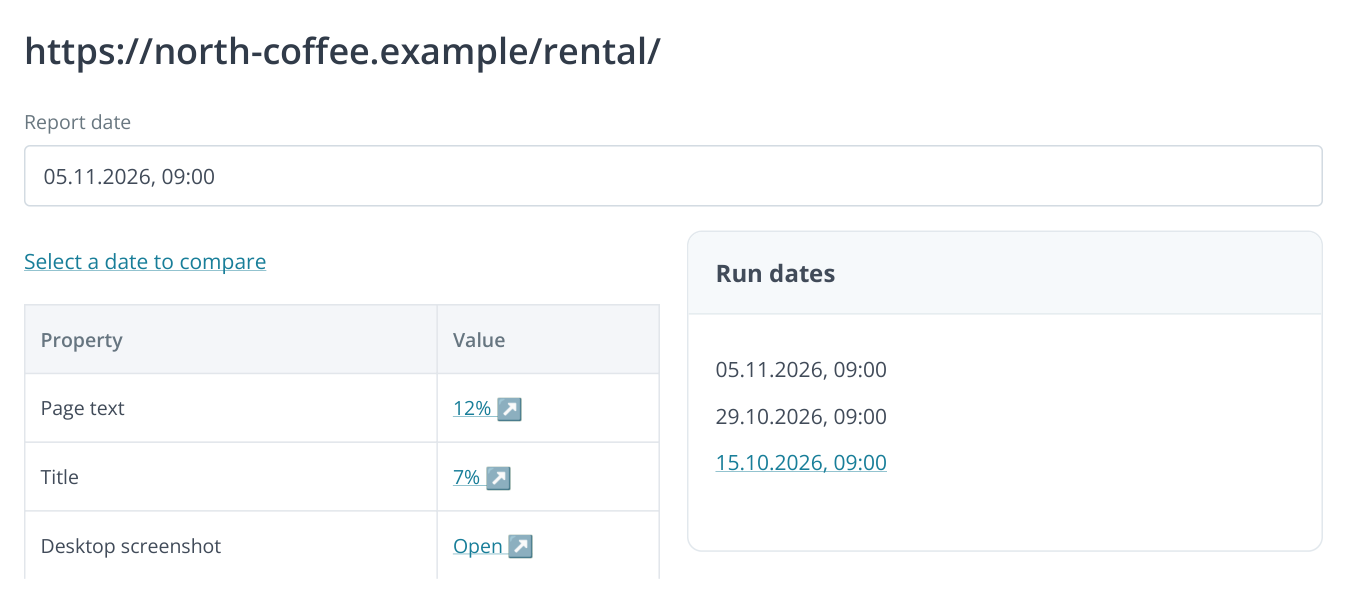
5. Select the second date from the available runs in the right-hand page panel. You can compare the beginning and end of a stage, skipping intermediate checks. Dates and values are illustrative.
Check the date pair in the heading. Click the value with the details icon in the text, HTML or meta tag row. In the text comparison, deletions are red and additions green. For example, you can see that a vague promise of “fast service” has been replaced with replacement-machine terms and a technician response time.
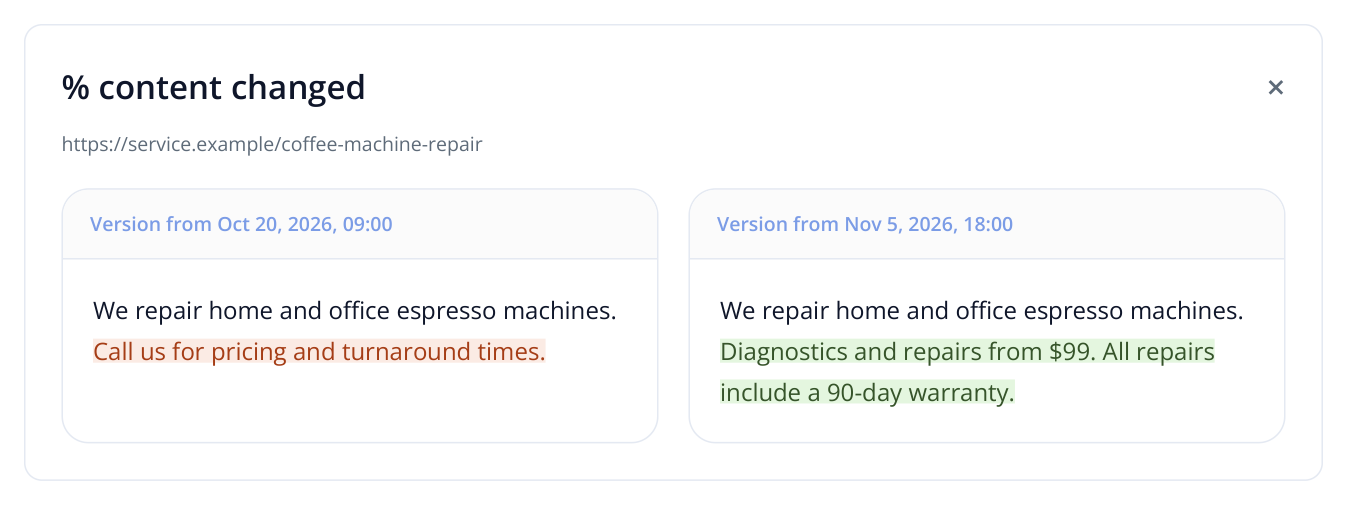
6. The two versions reveal the actual terms: deleted text is red and added text is green. The example uses the same monitoring dates.
The browser address updates after you select the second date. Copy the link into the task or client report: it returns to that pair of versions while they remain stored and the reader has project access. The assignee will not have to find the page and date again.
Review visual changes
Open the desktop and mobile screenshot comparisons. Use “Side by side” to see both versions, or “Before / After” with the divider to check block placement. If a contractor was asked to move an enquiry button higher, fix a banner or show the price above the fold, screenshots provide evidence of the published result.
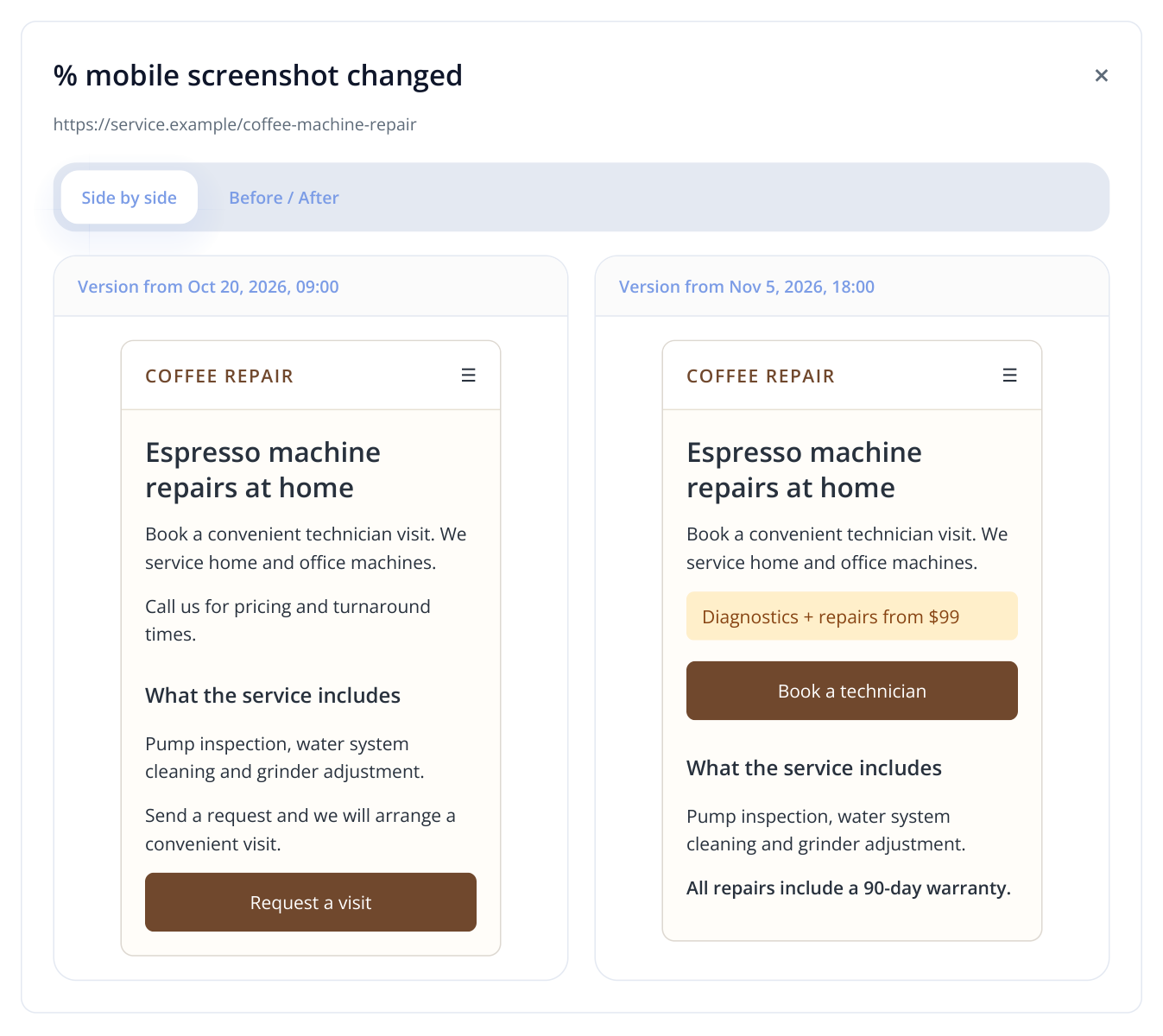
7. Example mobile page sign-off: the contractor moved the price and enquiry button higher and added a warranty. The screenshots show the published changes on two dates.
Attach both a text comparison and a screenshot to the task for sign-off: one shows the wording, the other shows how visitors see it. Test enquiry delivery to your CRM on the live site; the screenshot supports review of the form's appearance.
Use the history for sign-off, releases and competitor tracking
| Situation | What to track | How to use the findings |
|---|---|---|
| SEO contractor sign-off | URLs in the brief, text, meta tags and screenshots. | Compare the changed page list with the agreed scope and repeat the error audit. |
| Editorial work | New and changed words on published pages. | Check that new terms appear on every intended page and important information remains intact. |
| CMS update | Representative pages before and after the release. | For widespread changes, open the HTML and screenshots, identify missing blocks and pass the findings to the developer. |
| Competitor monitoring | Service pages, pricing, promotions and product pages. | Identify offer changes and update sales talking points or your content plan. |
| Project handover to another team | The first and latest saved versions of key URLs. | Show the history of published changes and establish a baseline for the next stage. |
To assess SEO outcomes, add before-and-after audit comparisons, rankings and AI visibility for the agreed topics. Monitoring shows what changed on the website; these reports help assess which problems were fixed and how visibility in search and AI answers is developing.