
 English
expand_more
 Español
 Deutsch
 Français
 Português
 Türkçe
 Polski
 العربية
 हिन्दी

Competitor website monitoring: screenshots, HTML and meta tags
Labrika saves competitors' page HTML and screenshots on a schedule, shows changes to text and meta tags, and sends notifications. Marketers can spot new promotions and sales terms, SEO specialists can follow changes to important pages, and managers get a dated visual history of competing offers.
Choose pages for your business question
Start with URLs whose changes could influence a decision: a popular product, pricing plan, core service or shipping policy. A price reduction alone does not tell you the whole offer. The promotion's end date, included accessories or delivery terms may change too. Labrika preserves those details in the page text and screenshots.
| Who benefits | Pages to choose | Decision to make |
|---|---|---|
| Online store manager | Popular product pages, shipping and warranty information | Compare price, package contents and service; plan your own promotion |
| SaaS marketer | Pricing, plan comparisons and trial terms | Update sales messaging when plan limits or features change |
| Service business or B2B sales manager | Landing pages, case studies and service terms | Spot a competitor's new service, warranty or market focus |
| SEO specialist | Competing pages ranking for important keywords | Find title, H1 and content changes and assess ideas for your own website |
| PPC or conversion specialist | Seasonal promotion pages and advertising landing pages | Identify a new offer, lead form or call-to-action placement |
| Agency | Key pages from several of the client's competitors | Show dated market changes and support recommendations with evidence |
A separate project for each competitor keeps your monitoring organized. Within it, use different rules for product pages, pricing and articles. Each group can have its own sensitivity settings and notification recipients.
Create a monitoring project and add URLs
- In the new-project form, choose “Monitoring”, enter a descriptive name such as “Competitor: espresso machines”, and click “Create project”.
- Select “Simple mode” and click “Create”. In the setup wizard, name your rule and enter complete URLs, one per line.
- To add more URLs later, open “Tracked pages” → “Add”.
Our example uses https://competitor.example/catalog/barista-120 and the shipping page. When comparing several stores, add pages for the same product model so that a different bundle is not mistaken for a simple price change.
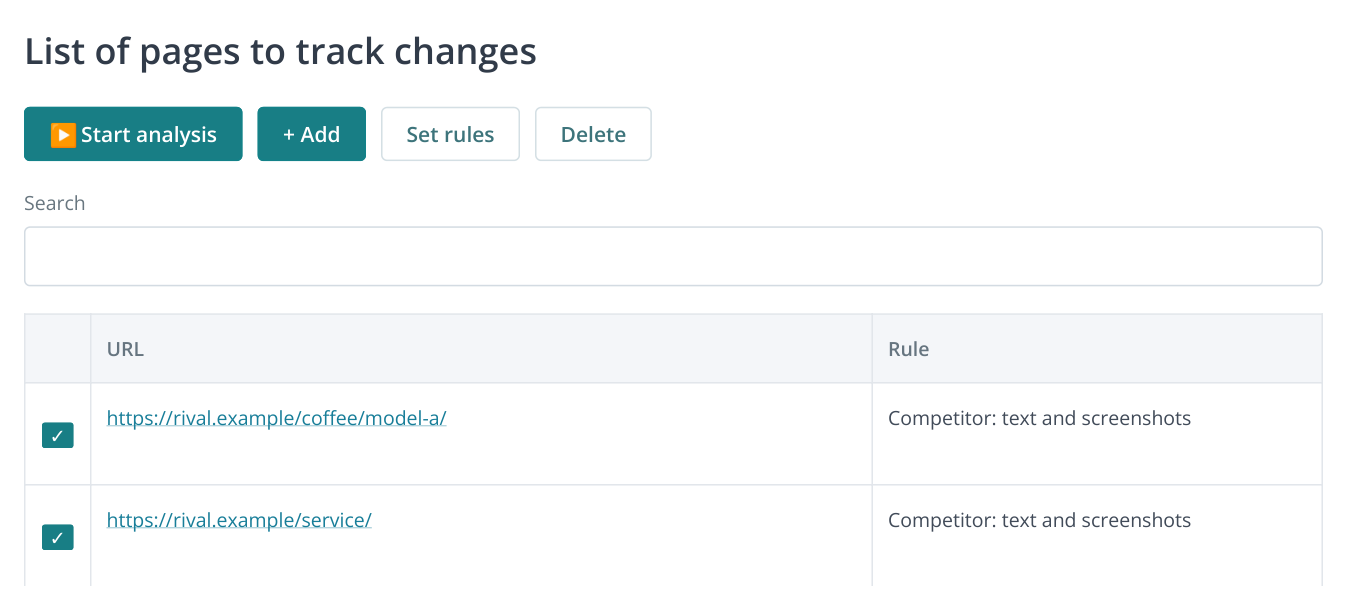
1. The report without the sidebar. Add URLs, check the assigned rule and start the analysis. The URLs and rule name are examples.
Add the URLs that answer your monitoring question. For one advertising campaign, its landing page and promotion terms may be enough. An assortment review needs a wider selection of product pages.
Enable screenshots, text, HTML and meta tag checks
Open “Analysis and alert rules” and select your rule. Under “Page screenshots”, enable “Take desktop screenshot” and “Take mobile screenshot”. Labrika will capture both device views during checks using this rule.
Set “Delay before screenshot, sec.” to between 1 and 10 seconds. Start with 5 seconds for pages where prices or images appear late. After the first analysis, open the screenshot and check whether the required sections have finished loading.
If JavaScript renders the content, enable “Parse JS”. Under “Change thresholds”, configure HTML, content and meta tags separately. A value of 0 reacts to any edit, which is useful for pricing terms and short titles. Use a higher threshold for large HTML documents with frequent minor updates.
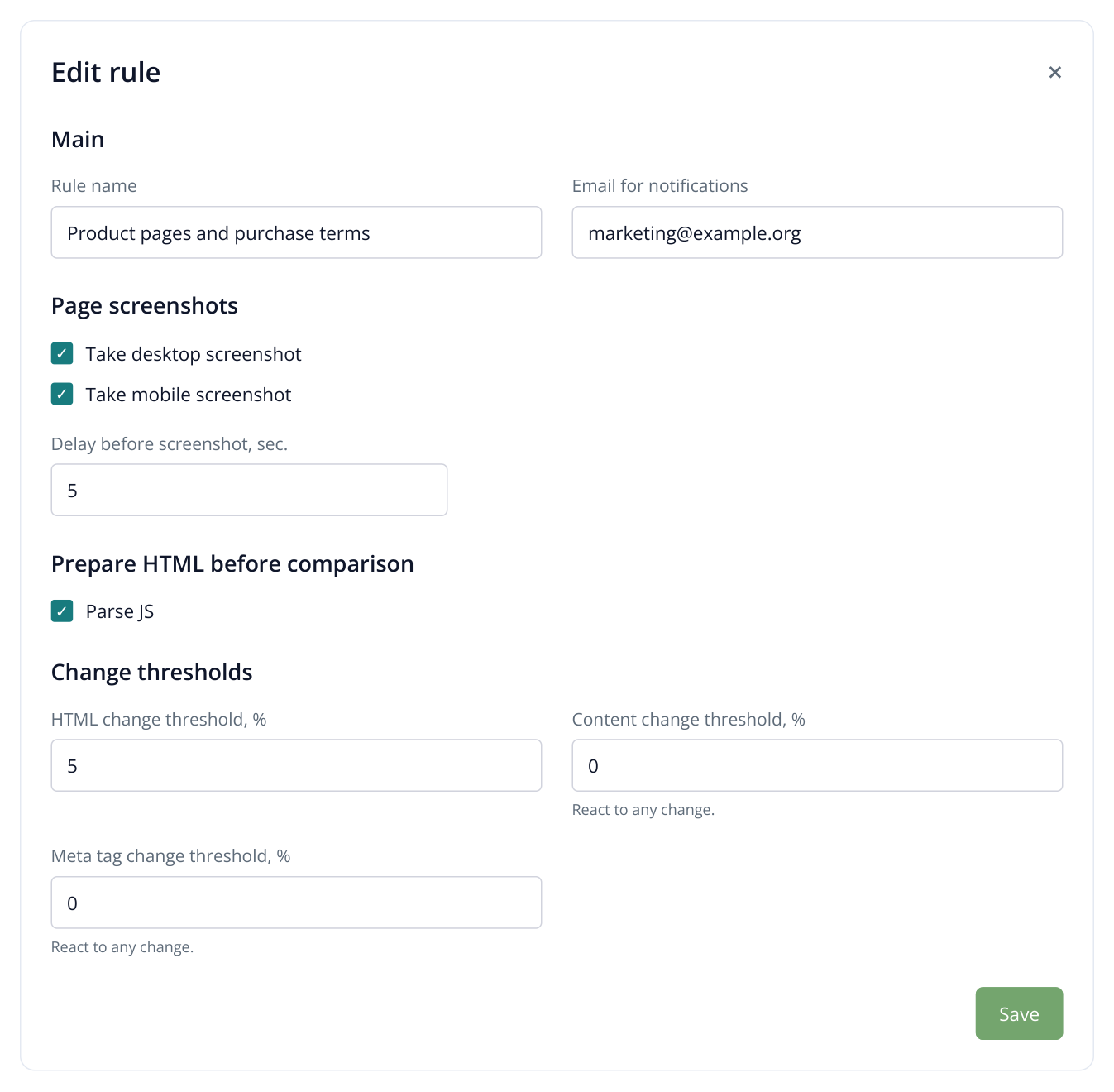
2. A rule excerpt: both screenshot types are saved, and even small text or meta tag edits are detected. The settings and email address are examples.
Under “Email for notifications”, enter the email of the person who will use the findings. Save the rule. In “Tracked pages”, select the URLs, click “Set rules” and assign it. If the wizard already assigned the rule, check its name in the URL rows.
Saving a rule and assigning it to pages are two separate steps. After “Set rules”, check the rule name in each URL row. If product pages and shipping terms need different conditions, give each group its own rule so price-change notifications remain distinct from policy changes.
Send alerts to the decision-maker: prices and shipping terms to the marketer, SEO page changes to the SEO specialist. When an email arrives, open the URL in “Change report”, select the event date and compare it with the previous saved version. The next sections show how to inspect its text and screenshots.
Set retention periods and recurring checks
In “Storage settings”, choose “HTML retention” and “Screenshot retention”. For a seasonal campaign, keep versions for the entire promotion and subsequent review. New retention settings apply to future runs; existing files retain the storage period paid for when they were created.
In the page list, click “Start analysis”, review the credit or monetary cost and confirm with “Start”. The first run captures the baseline. Later runs reveal changes against a saved version.
Under “Schedule settings”, choose “Daily at selected hours” and select the hours you need. For timely promotion monitoring, check near the start and end of the working day. For rarely updated service pages, choose “Weekly on selected days”.
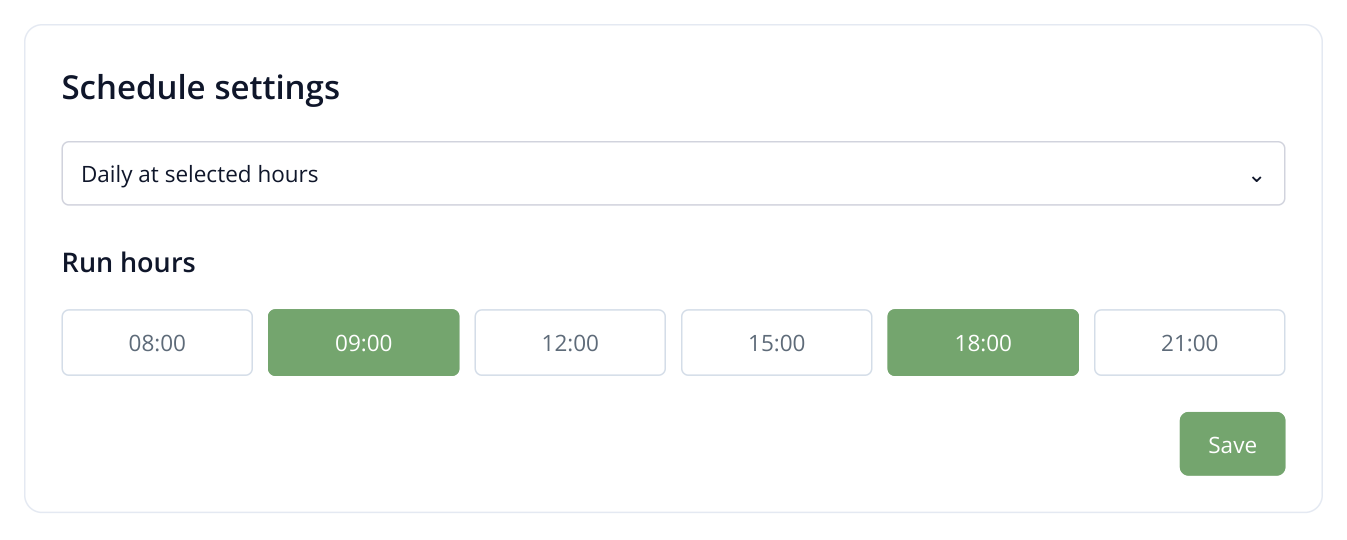
3. A sample schedule with checks at 09:00 and 18:00. Choose times when your team needs the findings.
Monitoring captures the page at each check. With runs at 09:00 and 18:00, you see the differences between those versions; a brief promotion between them may not enter the history. Select several daily hours for short promotions and less frequent checks for a weekly pricing review. The baseline exists only after the first run.
Open a page from a specific date
- Go to “Change report”. In “Change history”, select a run under “Report date”.
- Find the URL and click “Open” in “Actions”. The page panel opens on the right.
- Click the metric you want to inspect: text, HTML, title, description, H1 or screenshot.
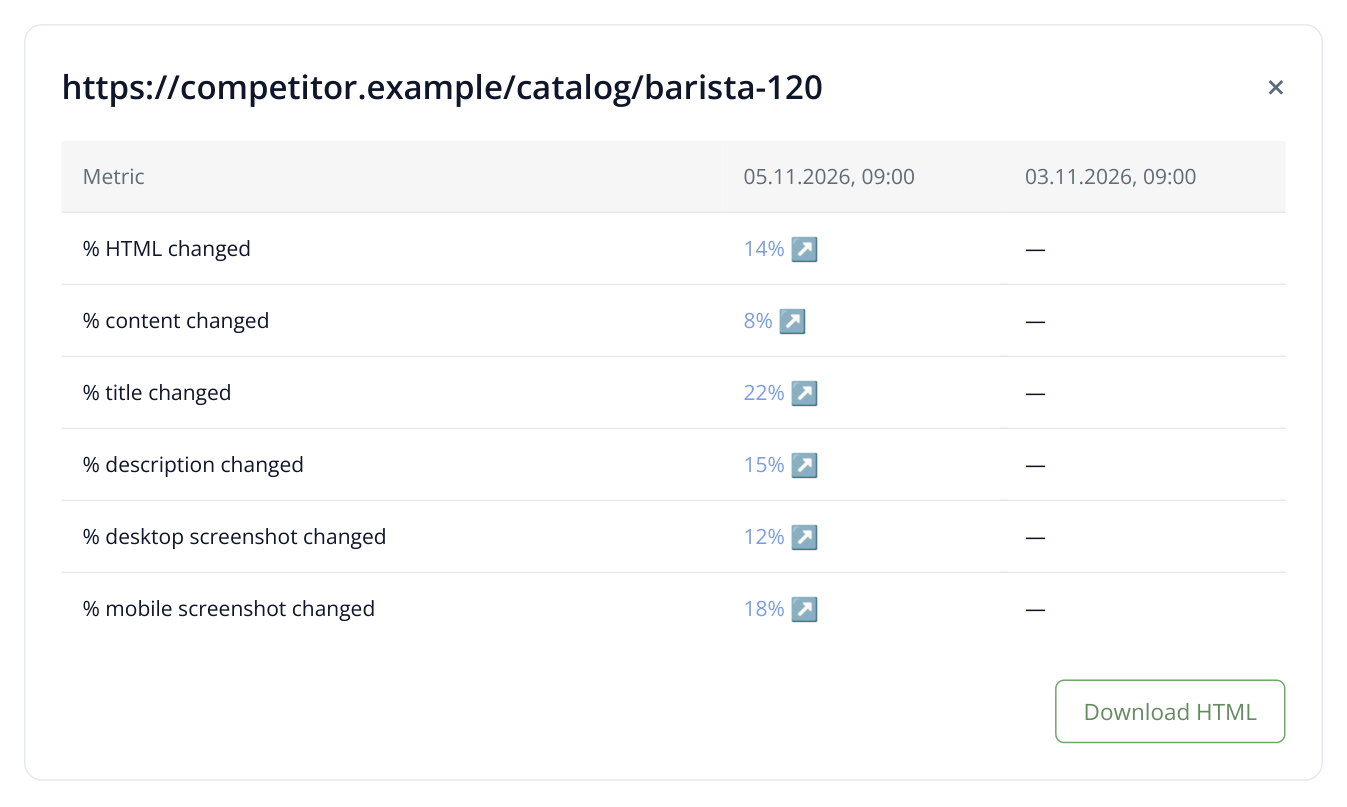
4. Part of the right-hand page panel. Linked numbers open text, meta tag and screenshot comparisons; dates identify the versions being compared.
To compare the beginning and end of a promotion, use the blue comparison button above the page properties to select a second saved date. Labrika prepares metrics for that pair. This is useful when many small edits occurred during the week but you need the overall change.
Compare desktop and mobile screenshots
Click “% desktop screenshot changed”. In “Side by side”, the old and new screenshots appear next to each other, each with its date. You can see changes to banners, prices, images, lead forms and section placement even when the wording barely changed.
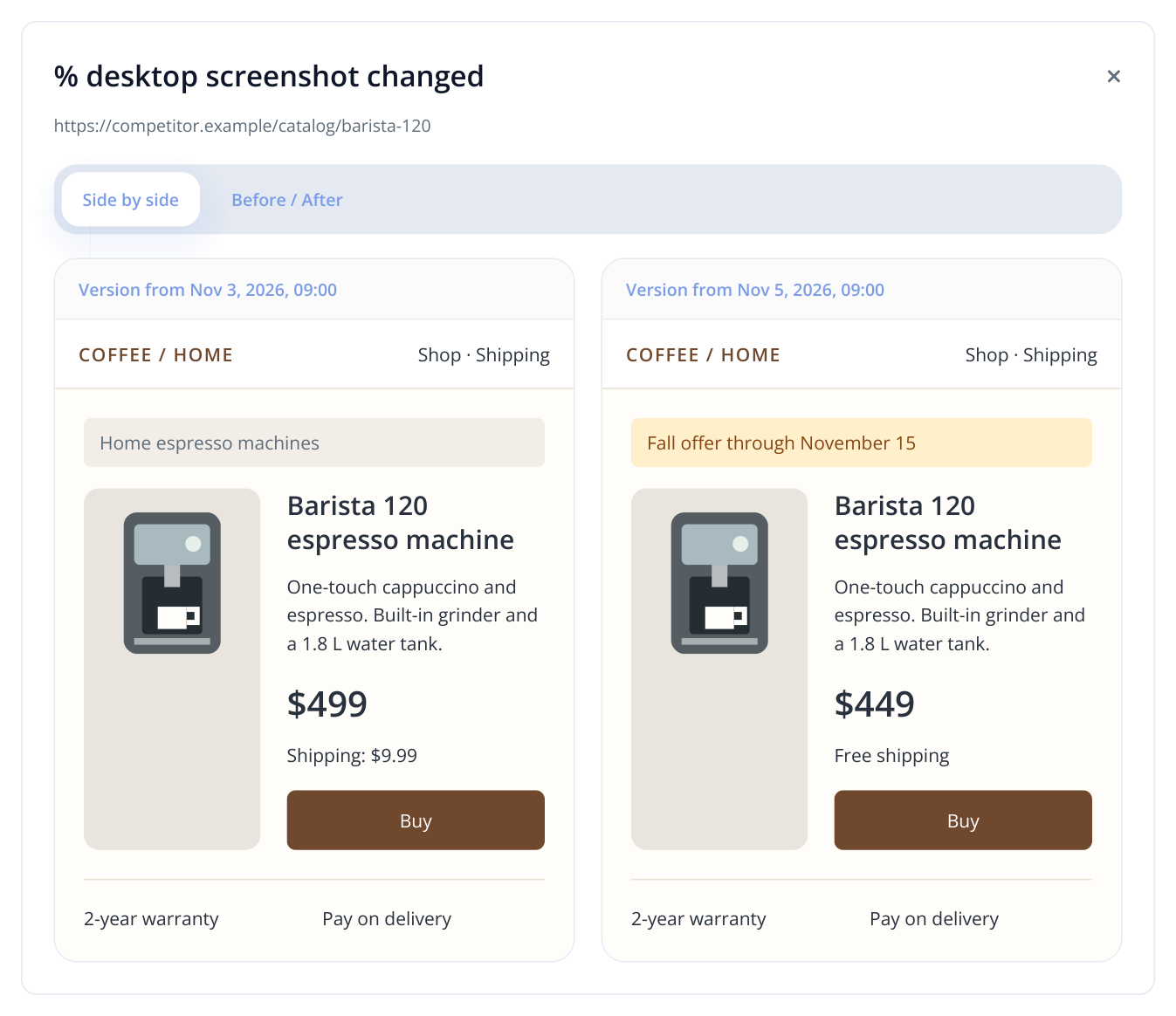
5. Saved versions of a fictional store: the price fell from $499 to $449, with a new promotion and free shipping. Compare the entire offer, including shipping and warranty terms.
In this example, the competitor reduced the espresso machine's price by $50 and removed the shipping charge. A store manager can compare the total cost to the customer and decide how to respond: a lower price, an accessory bundle or faster delivery. The saved screenshot supports a discussion with purchasing and sales teams.
Switch to “Before / After” and move the slider. Overlaying the screenshots is useful when sections move: you can see a form placed higher, a new banner or a changed first screen.
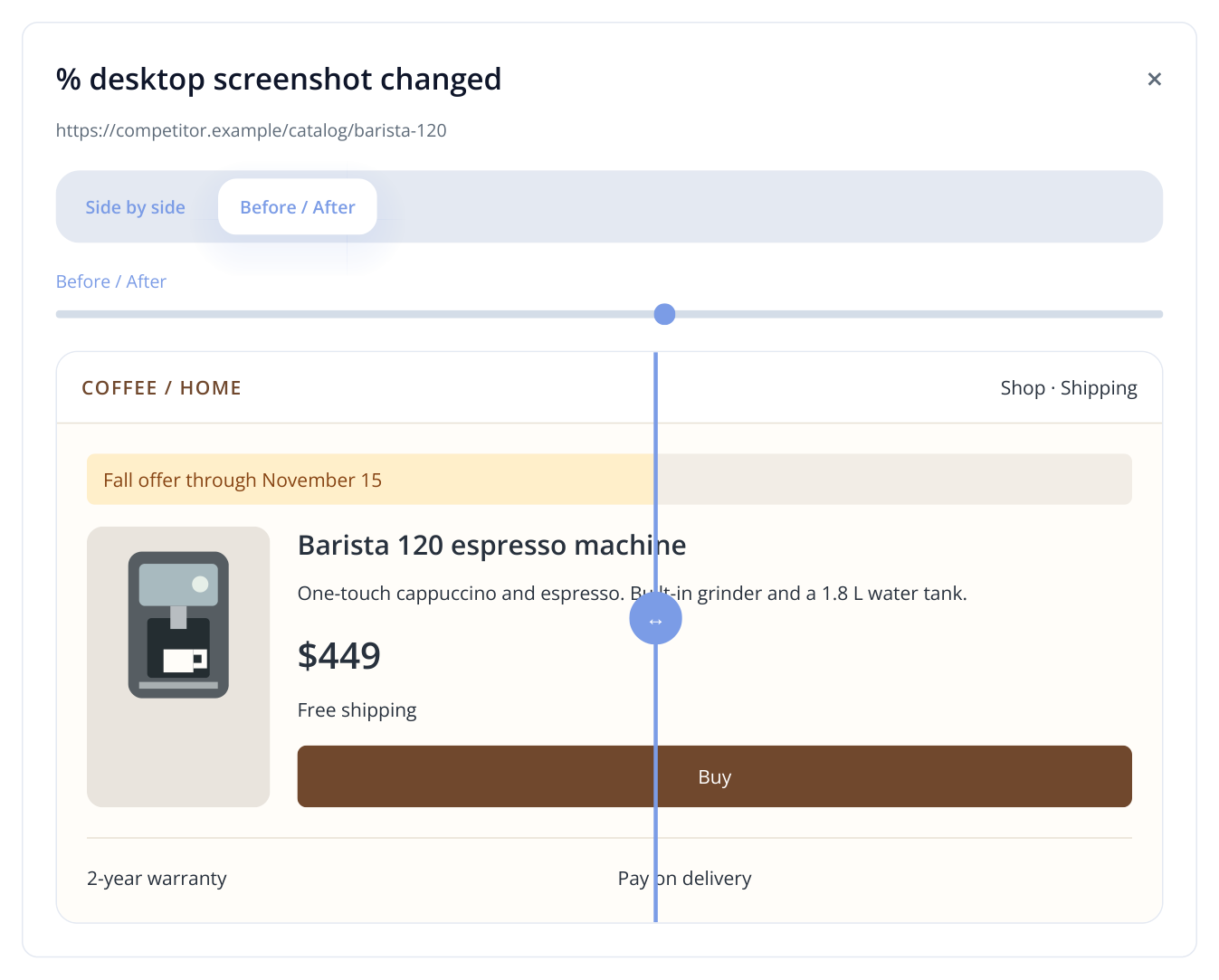
6. A diagram of “Before / After”: moving Labrika's slider lets you compare section placement in the old and new screenshots. This illustration shows one divider position.
Open “% mobile screenshot changed” separately. On mobile, the offer may be presented differently: a lower button, a taller product card or a larger banner. This view is particularly useful when studying competitors' landing pages for campaigns with mobile traffic.
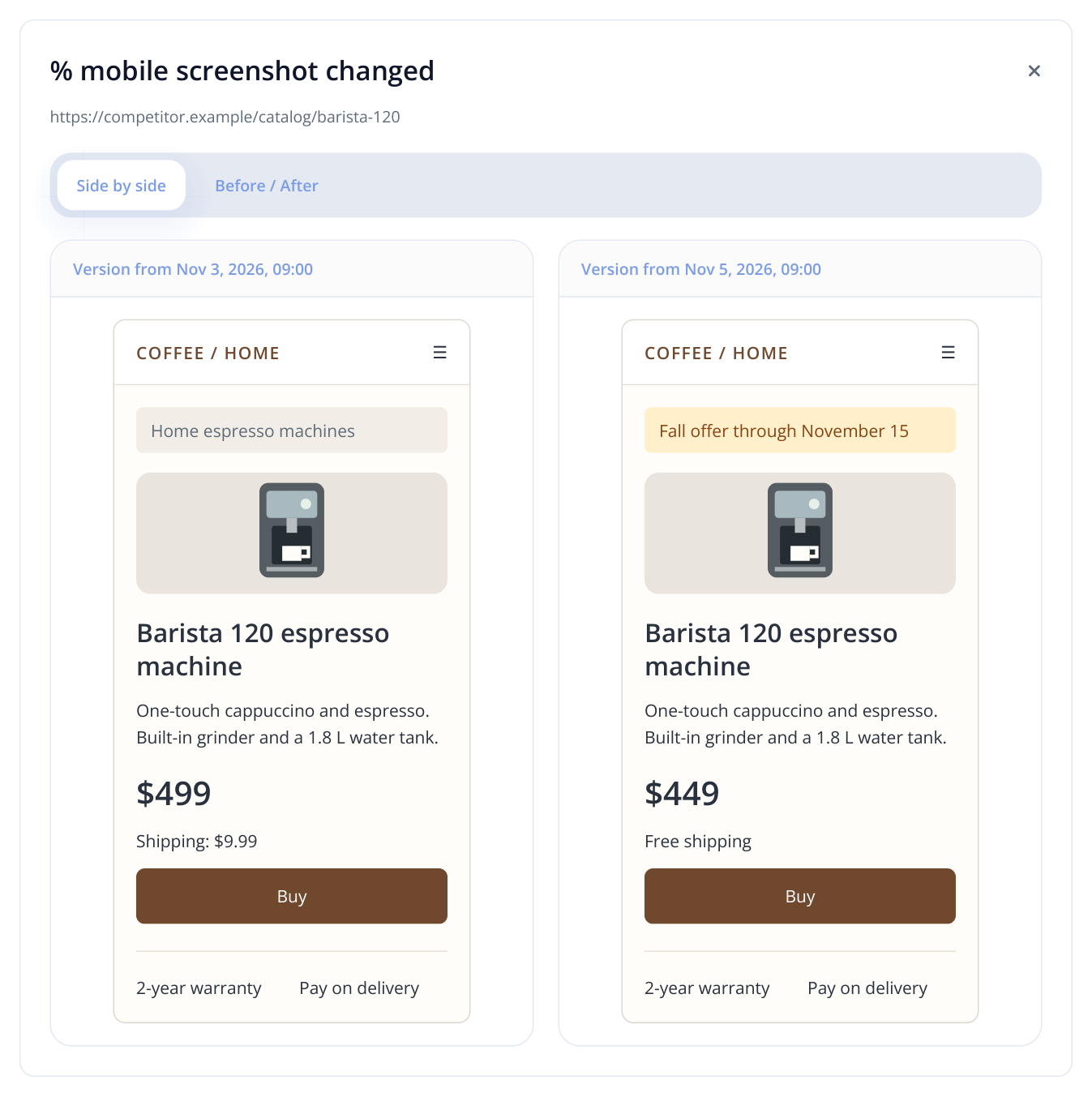
7. Saved versions of a fictional store: the price fell from $499 to $449, with a promotion and free shipping. The mobile screenshot shows how the offer fits on a narrow screen.
If a difference comes from a rotating slide or pop-up offer, inspect the text comparison as well. This helps distinguish changed sales terms from a different banner state. Treat a useful competitor idea as a hypothesis to test, such as placing shipping information beside the price and measuring the effect on orders.
Inspect text, HTML and meta tag changes
Click “% content changed” to read two versions with additions and deletions highlighted. This is quicker than searching a long page for one changed sentence. It is particularly useful for pricing plans, where user allowances, billing periods or support coverage may have changed.
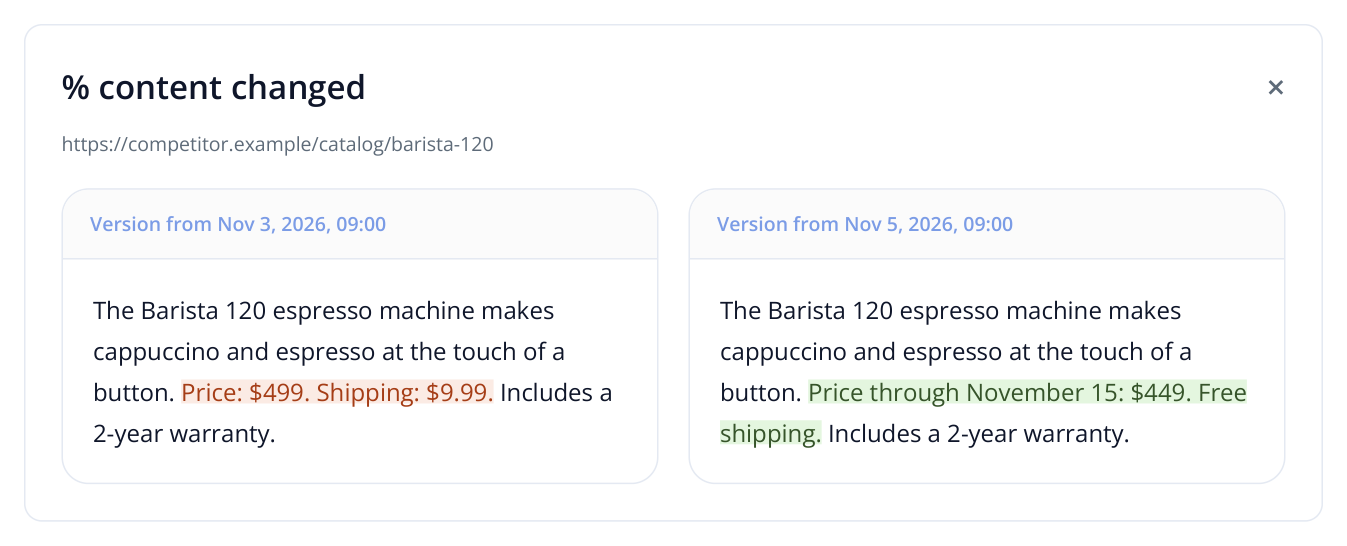
8. The two versions show specific purchase terms: removed text is red and added text is green. The example uses the same observation dates.
For SEO, open “% title changed”, “% description changed” and “% H1 changed”. A competitor might add a city to its title, mention delivery in H1 and expand its FAQ. You can identify newly emphasized topics and benefits, then assess whether your own audience needs similar information.
Use “% HTML changed” to inspect markup changes and “Download HTML” to save a version for a closer review. HTML is useful when pages look similar but links, attributes or section structures have changed. Screenshots preserve appearance, text comparison reveals wording, and HTML exposes implementation details.
Turn findings into decisions
For SaaS sales teams. A competitor adds weekend support without raising its plan price. Save both versions of the terms and share the change date with sales representatives so they can update their plan comparison. Ask the product team to assess demand for that support among your customers.
For service businesses. A competitor adds a service guarantee and a fixed-price package. Identify which customer questions the new offer answers. Where appropriate, clarify your own page and sales messaging using terms your company actually provides.
For agencies. In the monthly review, show clients saved competitor pages: who launched a promotion, expanded a service or updated a landing page. Pair each example with an action for the client's project, such as checking bundle pricing, expanding shipping details or testing a new section. The screenshot history makes market discussions concrete.
Use the same approach to monitor your own website during contractor work. See the before-and-after review guide for a workflow combining audits, screenshots and SERM.
Read more similar articles