
 English
expand_more
 Español
 Deutsch
 Français
 Português
 Türkçe
 Polski
 العربية
 हिन्दी
Before the promotion
Select the participating products and comparable competitor pages. Save prices, availability and discount conditions so you can compare subsequent checks with the original offer.
Labrika checks selected product pages on a schedule and shows changes in prices, availability and purchase terms. Get alerts and reports to review prices, plan promotions and manage purchasing, without visiting stores every day.
All you need to sign up is an email address — no phone number or payment card required.
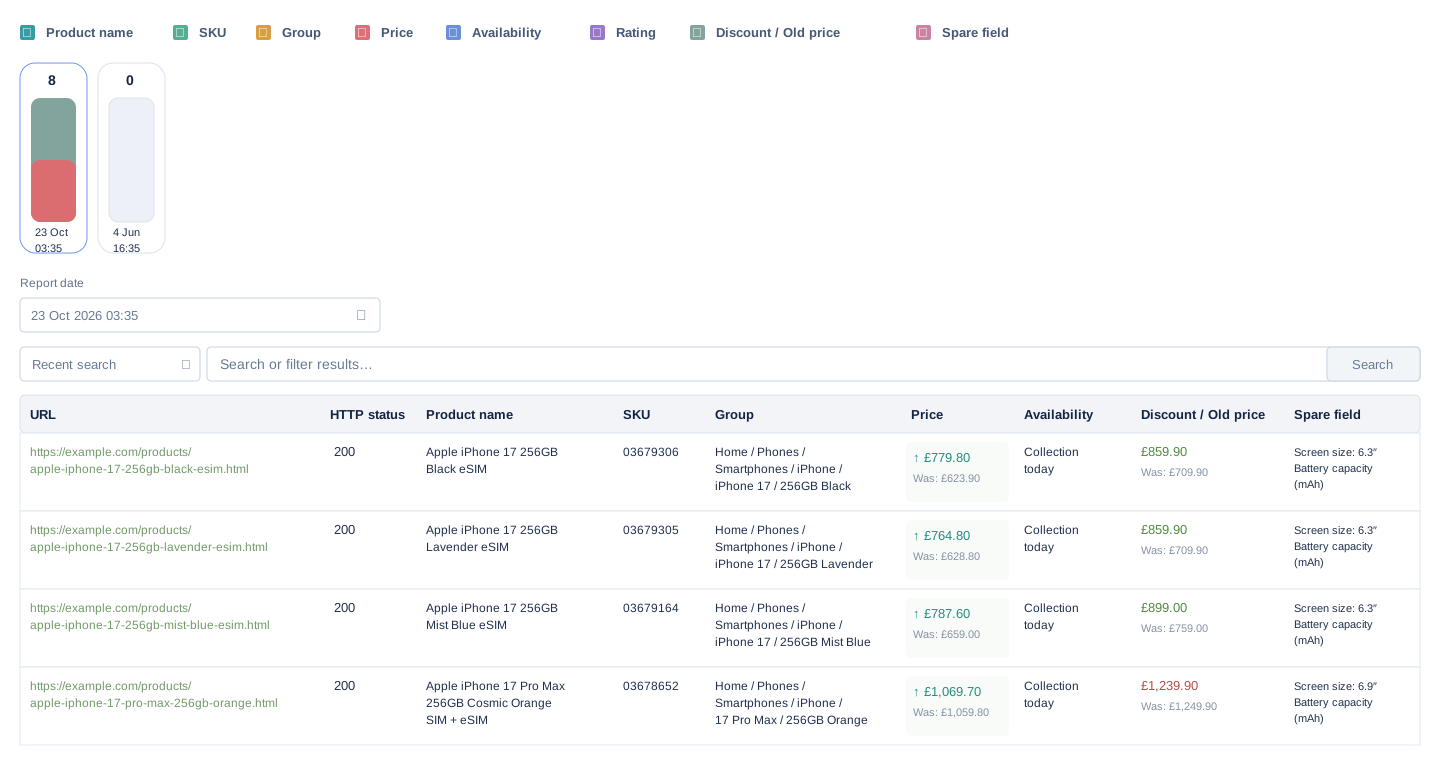
A dedicated report brings together product URLs, page statuses and the fields you select. Comparing current and previous values helps you find offers that need your attention now.
Go straight to the offers that have changed. Store A has lowered its price, Supplier B has restocked, and Store C has raised its price. Store F has changed the model name — check that this page still matches your product.
| Product page | Model | Price | Availability | HTTP |
|---|---|---|---|---|
|
Store A
shop-a.example/a17 |
A17 | £199.90 → £184.90 | In stock | 200 |
|
Supplier B
supplier-b.example/a17 |
A17 | £184.90 | Available to order → In stock New value | 200 |
|
Store C
shop-c.example/b24 |
B24 | £75.00 → £79.00 | In stock | 200 |
|
Store D
shop-d.example/c08 |
C08 | £52.00 | In stock | 200 |
|
Store E
shop-e.example/a17 |
A17 (collection failed) | £189.90 (collection failed) | In stock (collection failed) | 403 Open the page and check data collection before drawing conclusions about a change in price or availability. |
|
Store F
shop-f.example/a17 |
A17 → A17 Pro | £210.00 | Available to order | 200 |
A competitor has reduced the price of the A17 from £199.90 to £184.90. At the same time, delivery is no longer free. The price tag alone suggests a saving of £15.00; for a customer ordering delivery, the difference is smaller.
Labrika lets you track price and delivery as separate fields. Compare them with your own terms: the total cost, availability or delivery time may matter more to a customer than the discount shown in the store.
Use the comparison to make a specific decision: adjust your price, offer better delivery terms, or keep your price and make the benefits of buying from you clearer. Your team factors in your own markup and costs.
Product
£199.90
Delivery
£0.00
Total £199.90
Product
£184.90
Delivery
£9.00
Total £193.90
£6.00 Difference including delivery
For the same order and region. The manager calculates the total cost; monitoring saves the individual values from the page.
Track when an item becomes available so you can confirm delivery and prepare an order without checking the page every day.
An item you need is temporarily unavailable, and you need to replenish your range or prepare an order. Add the supplier’s page and set up monitoring for availability, price and the required product configuration.
Once the status changes, you can open the offer, confirm the quantity and lead time, and decide whether to place an order. The price may stay the same — the useful event is the product becoming available.
Add several suppliers you have already selected to monitoring so you can check available options in a single report. The wording “in stock” reflects what the page says; confirm quantities and reservations with the supplier.
Supplier B
supplier-b.example/a17
Previous check
12 September · 09:00
Availability on the page
Available to order
Price: £184.90
New check
13 September · 09:00
Availability on the page
In stock
Price: £184.90
In the report: “Available to order” → “In stock”. The price and configuration remain unchanged.
Next step: open the product page, confirm the available quantity and dispatch time, then prepare an order.
A page may display several prices at once: the previous price, the current price and a special price. Choose which one to collect in each field and give the columns clear names. This keeps a cardholder discount separate from the price available to all customers.
You can configure up to eight named fields in the report. For one category, price and availability are key; for another, packaging, seller, delivery or the promotion end date may also matter. Labrika compares the selected values between checks.
The fields you can collect depend on the information available on the target page. An extraction rule specifies where to get a value; compare the result with the product page before scheduling regular checks.
Comparing two checks of the same product page
| Report field | 12 September | 13 September |
|---|---|---|
| Regular price For all customers | £184.90 | £184.90 |
| Cardholder price For programme members | £174.90 | £169.90 |
| Discount condition | Pay with the store card | Pay with the store card |
The regular price has not changed. The special price still requires payment with the store card.
Each price and purchase condition has its own named field. Add other fields as needed: you can configure up to eight in total.
During a sale, there is more to track than discounts. A product may sell out, delivery may become more expensive, or a special price may be available only to cardholders. These changes help you decide what will make your offer attractive to customers.
Select the participating products and comparable competitor pages. Save prices, availability and discount conditions so you can compare subsequent checks with the original offer.
Watch for changes in the fields. If a competitor sells out, check your own stock: you can make availability and dispatch times more prominent on the product page and in your ads.
Compare the new values with the saved report. When a competitor returns to the regular price, your team has a reason to review your own discount rather than extend it out of habit.
Similar products can differ in storage capacity, size, included accessories or pack quantity. First choose comparable pages, then use monitoring to see changes in those offers.
The “Model” field helps you notice when an existing URL starts describing a different version. The “Packaging” field can reveal that a price now refers to a set rather than a single item. This gives the manager a reason to double-check the comparison before updating your own price list.
How do I choose a URL for the right configuration? Open it again and check that the selected variant is retained. If it is only available after interacting with the page, test data collection before starting monitoring.
| Field | 12 September | 13 September |
|---|---|---|
| Model | A17 | A17 Pro |
| Storage | 128 GB | 256 GB |
| Price | £210.00 | £210.00 |
The price is the same, but the configuration has changed. Check again that the product is suitable for comparison.
Open your saved reports and choose a comparison. You will see the values collected previously and what changed by the next check. This is useful before replenishing your range, reviewing a promotion or preparing a report for your manager.
The history helps you reconstruct the terms you observed without searching through old messages. For example, you can check when availability first appeared in the reports or which price was saved before your promotion began.
A separate chart shows the number of changes by field. Use it to gauge activity on the monitored pages, then return to the report rows for specific amounts.
12 → 13 September
The number of rows in which each field changed. These are change counts, not a product price chart.
An empty cell, an unusual price or a new model is a reason to open the URL and check its HTTP status. Compare saved checks and inspect the page data in Diff.
In this example, the page returned status 403. Check access and the extraction rule: the price in an old report may no longer be valid for purchasing.
Saved HTML and page snapshots help you identify where a value came from: the rule may have selected a crossed-out price or a different product block.
Is the price loaded via JavaScript?
Test data collection with JavaScript rendering and run the check again. Authentication, region settings and store protection may restrict access. If the page changes, update the rule and verify the price, model and availability.
| Field | 12 September | 13 September |
|---|---|---|
| Price | £189.90 | Not retrieved |
| Availability | In stock | Not retrieved |
| HTTP status | 200 | 403 |
Price and availability were not retrieved. Check page access and the extraction rule before purchasing.
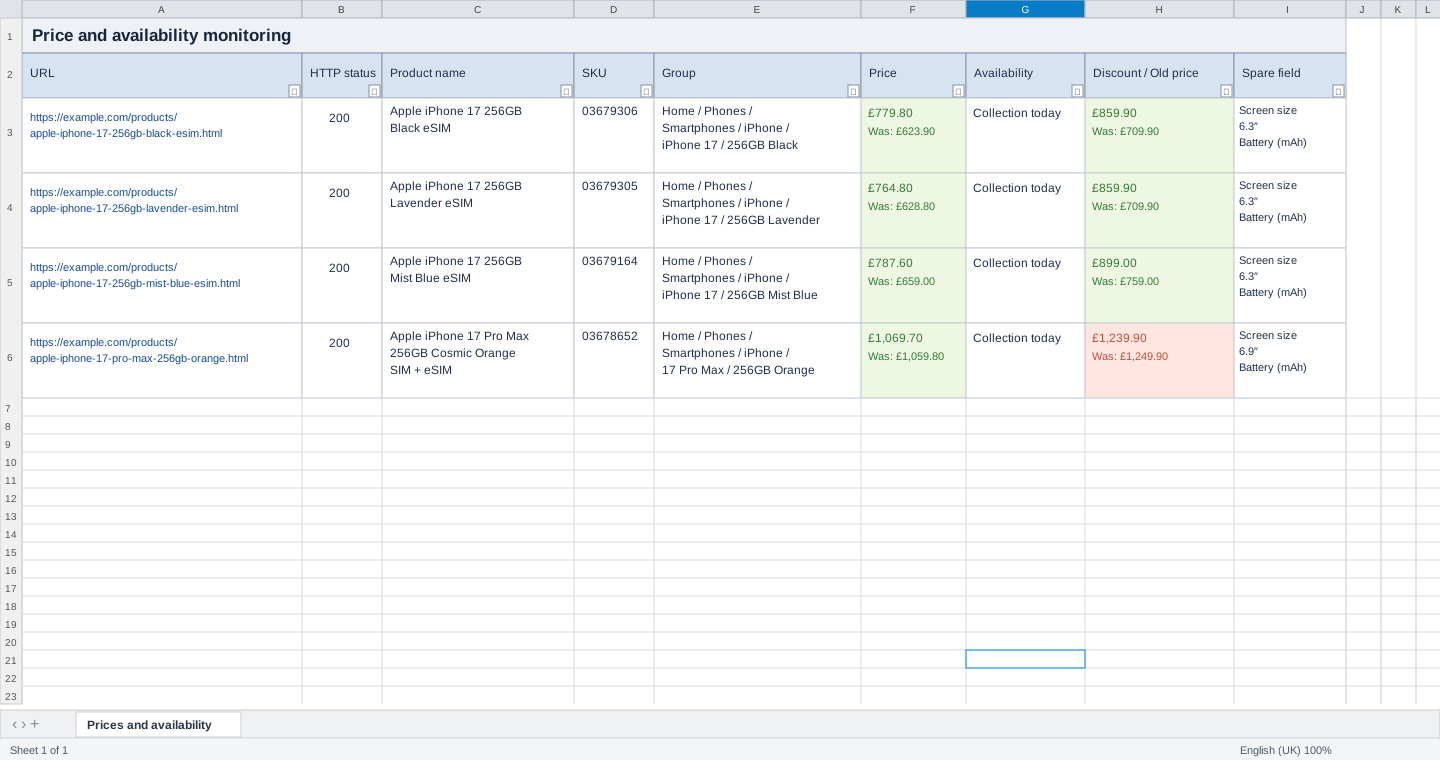
Price and availability monitoring has its own XLSX export. Save the report and send it to a colleague to compare offers, prepare a purchase or review a promotion.
The recipient can continue working in a familiar spreadsheet: add the purchase cost, calculate the markup and record a decision for each product. Your team performs these calculations separately using the collected data.
Include the comparison period and products that need attention with the export. This lets the discussion start with a specific URL and change, instead of a request to check competitors again.
A17 · Store A. Compare the new price including delivery and decide whether our promotion needs adjusting.
A17 · Supplier B. Confirm the quantity and lead time after the status changes to “In stock”.
A17 · Store F. Double-check the version: the page now lists the A17 Pro.
Labrika will check the selected fields on a schedule and email you when your condition is met.
There is no need to open product pages every day. Choose an available schedule that fits your team’s workflow.
A price changes or a product comes back into stock — set up an alert for the field you need.
After the email arrives, open the report, compare the values and decide whether to change your price or prepare a purchase.
Changes are recorded during checks: a brief change between runs may not appear in the history.
You choose the URLs to monitor. You can add them manually or import a URL list. Matching identical models, bundles and packs is your responsibility: this mode does not automatically find every offer by SKU or GTIN.
Yes. The URLs you select determine what is monitored. You can track a particular group of products or supplier pages. Limits and payment terms depend on the available package, not on the size of the example on this page.
Test data collection on the pages you need. Results depend on their accessibility, structure, selected seller and product state. JavaScript rendering does not guarantee access to pages that require authentication or use protection; seeing the product in your browser alone does not confirm that automated collection will work.
You can add selected accessible URLs and collect published prices, availability and other fields. For dealers’ offers, retain the seller and product context. For your own product pages, comparisons help you check which values appeared after a price list update or promotion.
It is the wording collected from the product page during a check. Before ordering, confirm the actual quantity, delivery availability and whether the seller can reserve the item.
No. In this mode, you get observations, comparisons, alerts and a report. Your team changes prices, discounts and sales terms. Calculating recommended prices based on costs and automatic repricing are not included in this offering.
Use URL import for your selected pages. Extraction rules must be configured and tested in Labrika. Being able to add URLs does not mean settings and the full history from another service are transferred automatically.
Prepare your URL count, preferred frequency and page processing requirements. Compare them with the available plans before starting. One product on several websites requires monitoring several URLs; access to checks is determined by your chosen package.
Add competitors’ and suppliers’ pages and choose price, availability and any other fields you need. Get changes in one report and use them for purchasing, promotions and improving your own offer.
All you need to sign up is an email address — no phone number or payment card required.