
 English
expand_more
 Español
 Deutsch
 Français
 Português
 Türkçe
 Polski
 العربية
 हिन्दी

How to track brand visibility in Perplexity and Gemini
Labrika checks buyer questions in Perplexity and Gemini, saves the answers and records brands' visibility over time. Marketers can see which products and services each assistant recommends. Agencies can follow changes after publishing content, refining positioning or adding company listings on external platforms.
Choose what to monitor regularly
When launching a product, check whether it appears among solutions to the intended problem. A customer support platform, for example, wants recommendations for small online stores. “Which tools help a store manage customer inquiries across multiple channels?” tests that more directly than a question naming the platform itself.
A business offering several services needs separate questions for each. A coffee machine supplier might appear among equipment sellers yet be absent from rental answers. Monitoring reveals that difference and helps assess content the team is creating specifically to grow rentals.
For an agency, a consistent question set supports recurring client reports. For a marketing manager, it provides a way to compare brands and select the next area of work. Review Perplexity and Gemini separately: each can recommend a different set of companies.
Configure your brand and select both assistants
Open the AI visibility project's “Settings”. If you do not have a project, click “Add project” in the project list, select the website and click “Continue”. You can add a new website in the same dialog. On “My Site”, check the domain and add actual name variants. On “Competitors”, add other companies with their domains and names.
Under “AI Systems”, select Perplexity and Gemini. For an office rental supplier, compare companies serving offices in your region. This makes the findings relevant to selling that particular service.
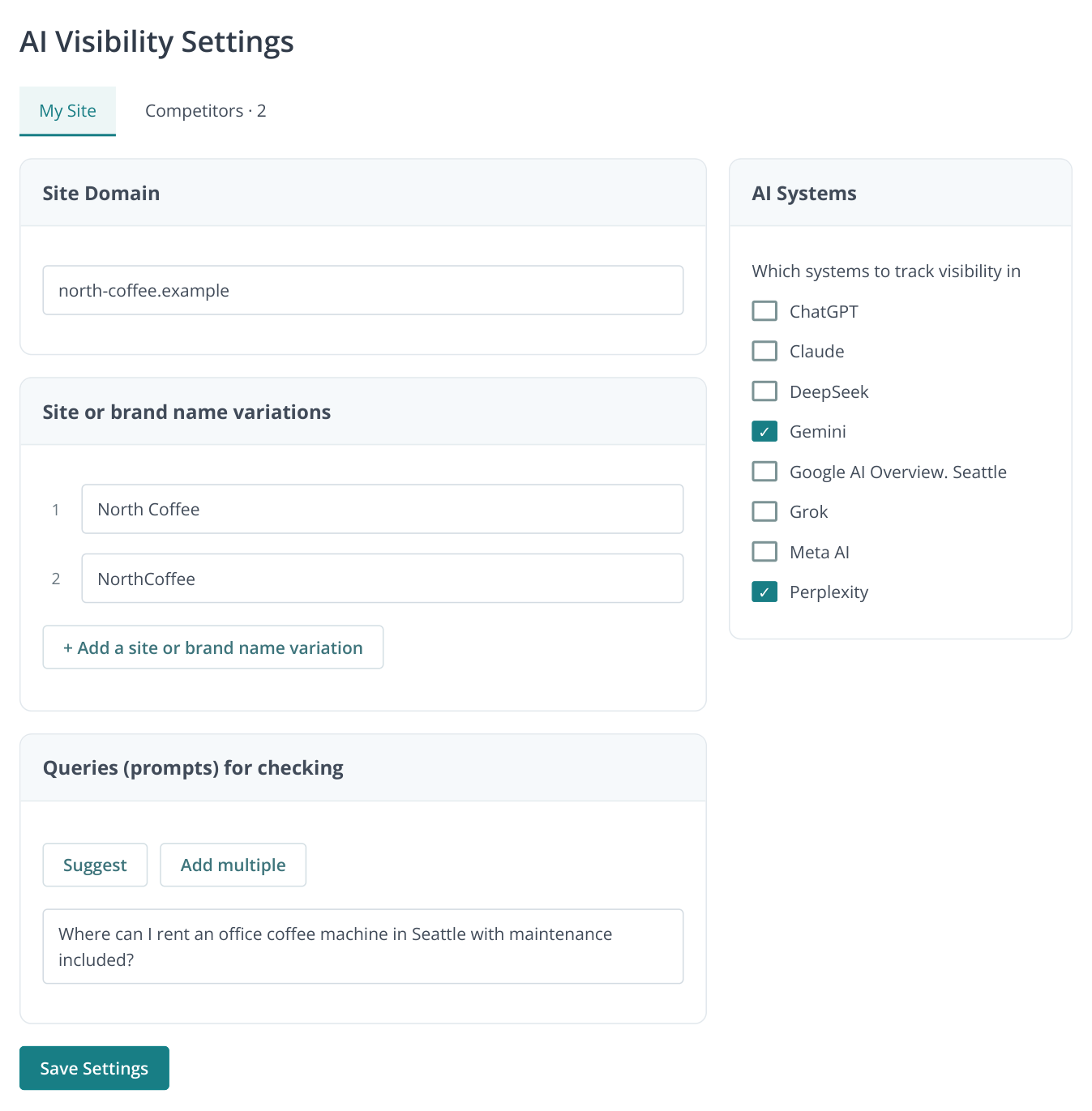
1. The right-hand panel shows all eight assistants and AI search services included in this edition. Perplexity and Gemini are selected for the example; Google AI Overview uses Seattle. On mobile, the panel moves below the fields. The project data is illustrative.
Find questions and tag service areas
In “Queries (prompts) for checking”, click “Suggest”. Describe your company, audience, products and location, then click “Suggest”. Select suitable questions from the results and click “Add” with the selected-row count. Review the list in “Adding prompts” and click “Apply”. Use “Add multiple” to paste your own list, such as questions customers ask before purchasing.
If you have completed a GEO audit, use “Prompt ideas” in the AI audit: select questions and transfer them to monitoring settings. You can use the audit to find questions for a new service that your earlier checks did not cover.
| Service area | Prompt |
|---|---|
| Rental | Where can I rent an office coffee machine in Seattle with maintenance included? |
| Purchase | Where can I buy a coffee machine for a 50-person office with installation? |
| Maintenance | Which companies provide contracted office coffee machine maintenance in Seattle? |
| Brand knowledge | Which services does North Coffee offer offices? |
After the first analysis, select prompts in the visibility report and apply “rental”, “purchase” and “maintenance” tags. Tag questions naming the company separately: those check brand information, whereas unbranded questions test supplier discovery. The tag filter then lets you review and export trends for the service area you need.
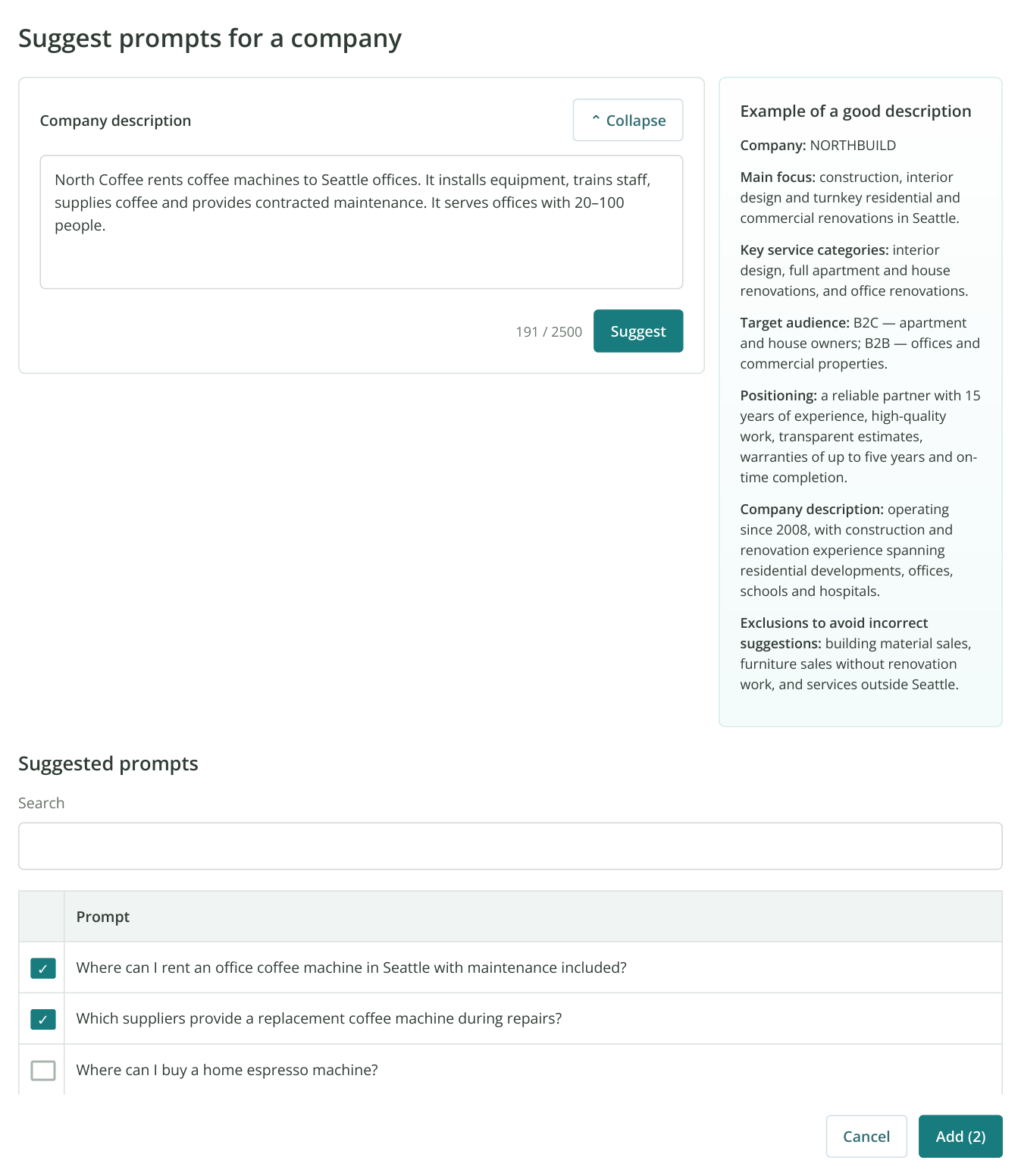
2. Prompt suggestions: your company description is on the left and a completed example on the right; suggested questions appear below. Two office rental questions are selected. “Add (2)” opens the list for review before applying it. The example data is fictional.
Run the first check
Click “Save Settings”, then “Run Analysis”. The confirmation dialog calculates the cost for the selected prompts and assistants. Confirm the run and wait for the results.
Open “Brand visibility by queries (prompts)”, choose Perplexity and select the analysis date. Then review the same questions in Gemini. Use the icon beside a position to open the saved answer in “Responses”.
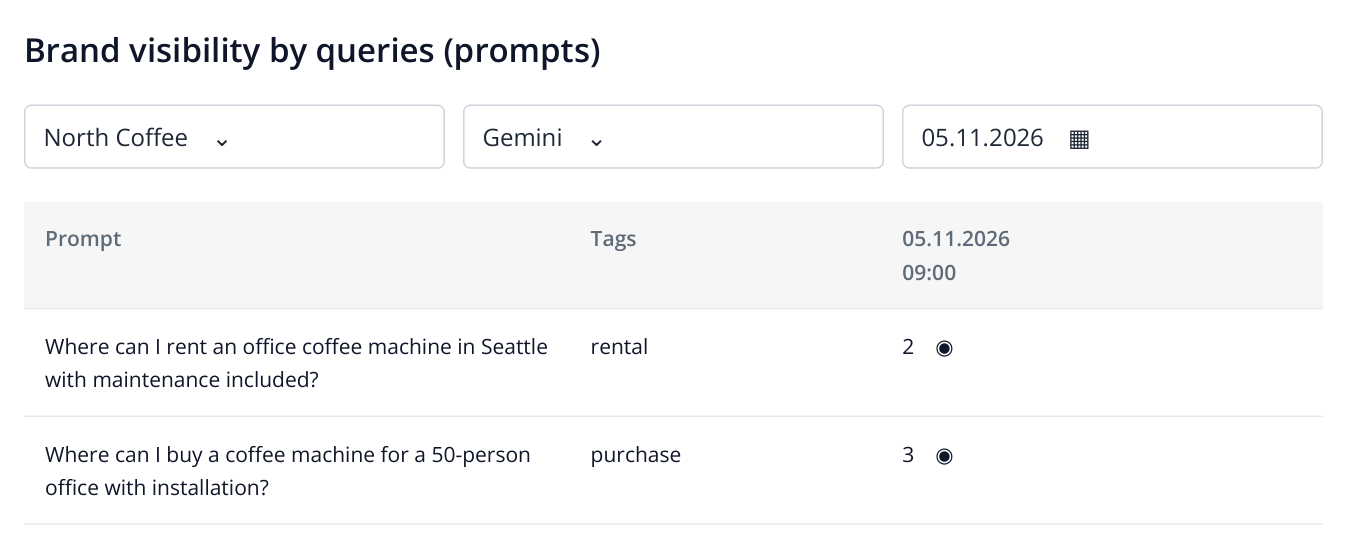
3. A Gemini results excerpt for your brand. Select Perplexity and inspect the same questions to compare assistants.
For example, Gemini recommends your brand for rentals, but Perplexity lists only competitors. Examine the terms it highlights: maintenance, contracts, service area or specialization. This gives you a specific issue to investigate in the AI audit and content, beyond a reporting number.
Enable scheduled checks
Open scheduling from the AI visibility project menu. Choose a weekly schedule and a day such as Monday if you discuss results weekly. During an active product launch, use daily checks at selected hours. Set payment conditions in the same section and save.
Scheduling includes payment settings and run history. After the first scheduled check, open the history to confirm completion and the new date in the report. If a run did not happen, its status helps distinguish a missing measurement from a missing brand mention.
If credits are insufficient, top up the selected payment source, then run the check manually if you need results for a meeting. Use the actual analysis date in comparisons. When adding questions or another assistant, review the updated cost before the next run.
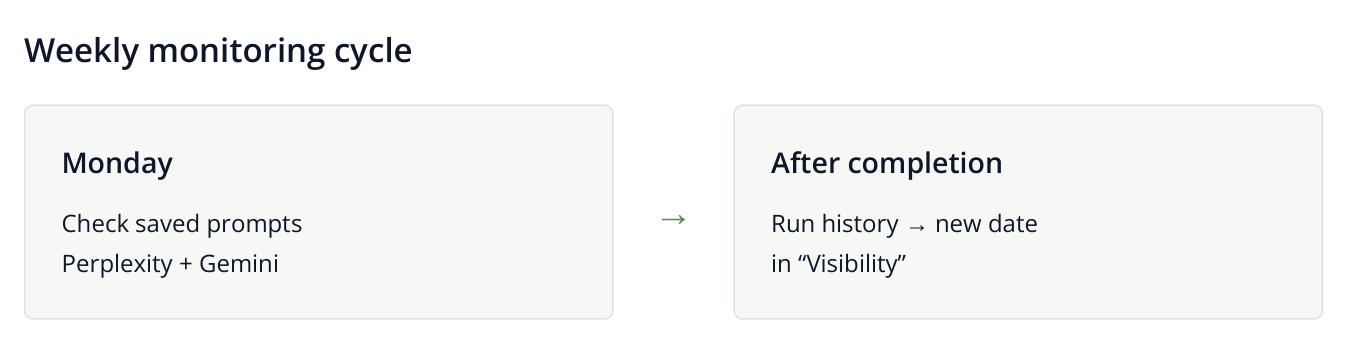
4. Recurring-check workflow: the schedule runs your saved question set, and each completed analysis adds a date to the visibility history.
Agencies can agree on a fixed weekly check day with each client. Reports use the same questions, and results can be discussed after each batch of work. For a new product, start with its main selection scenarios and add new service areas as separate prompts later.
Compare the same questions across dates
In “Visibility”, choose dates for one assistant and inspect the relevant tags. n/a means there is no data for that combination, perhaps because the prompt was added later or the assistant was disabled. It does not mean the brand disappeared from recommendations.
Open responses for questions whose results changed. After rental terms were published, for example, the brand might begin appearing as a supplier with maintenance. Save both versions for reporting and follow later checks: answers can change without website edits too. A series using the same questions supports a more reliable trend assessment than one pair of dates.
Keep core question wording consistent between comparison dates. Add new services as separate questions so the earlier service history remains clear. If you change brand name variants, note that in the report discussion: matching settings also affect counted mentions.
Read the chart alongside prompt responses
In “Visibility”, select your brand, Perplexity and the dates, then a service tag such as “rental”. The chart above the table shows visibility history for that selection. Use it to locate a change quickly, then inspect the rows to identify which questions caused it.
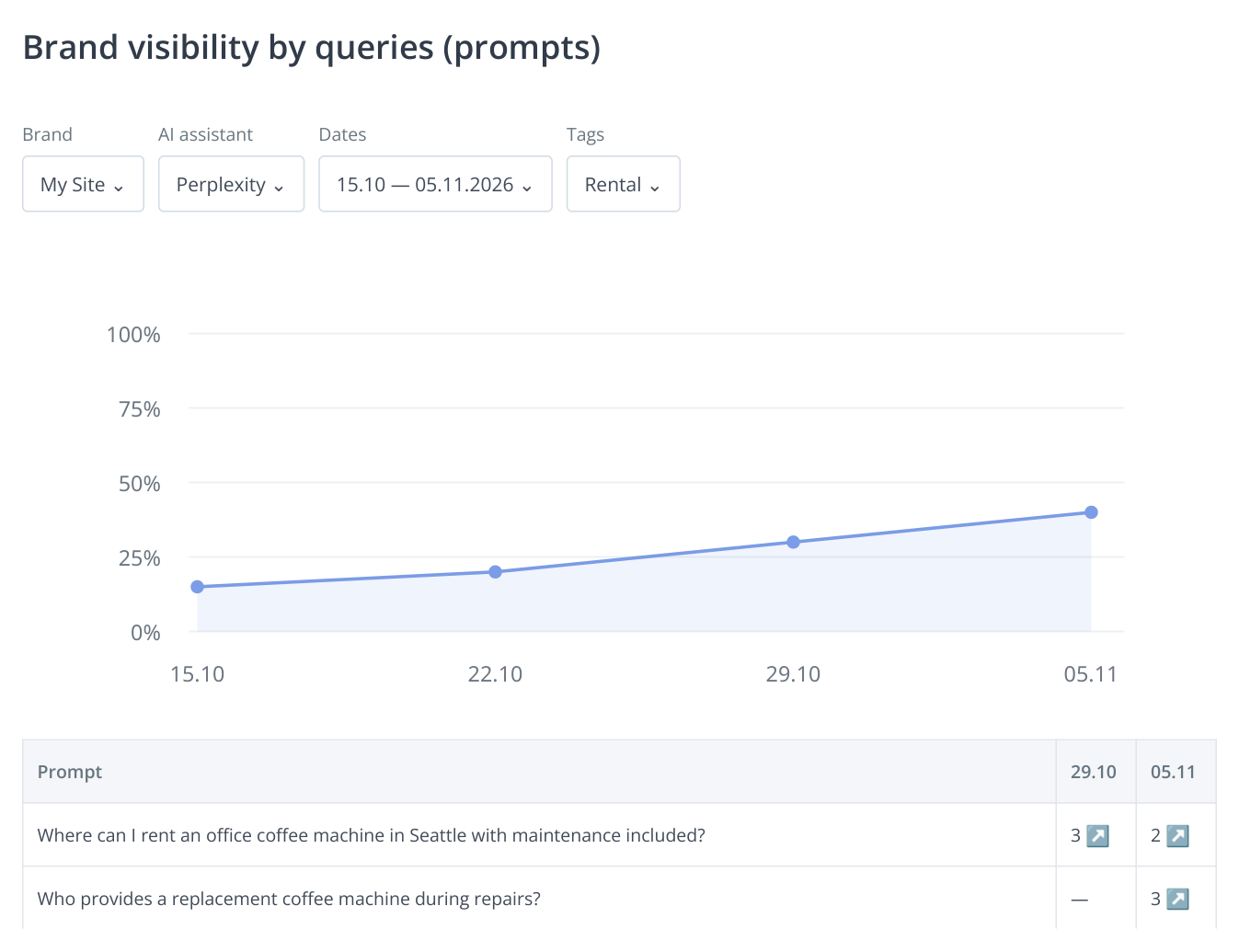
5. The selected brand's Perplexity chart and individual prompt history. This is illustrative data; the icon beside each result opens its saved response.
In this sample, visibility rises from 15% to 40%. Open the latest rental answers: which terms does the assistant associate with the brand, is there a link, and does the company fit the question? Then choose Gemini with the same dates and tag to see which assistant represents the service more strongly.
To compare a specific competitor, switch brands in the upper selector. Its chart uses the same prompts. If the competitor's visibility grows while yours stays flat, inspect the questions where it appeared. Those questions help identify content topics, service terms and external sources for the next phase.
Find competitors in “Brand visibility”
Open “Brand visibility”. It shows companies found in responses, including those not yet in your competitor list. Select an assistant and dates. Horizontal bars above the table show each brand's mention rate on the latest selected date.
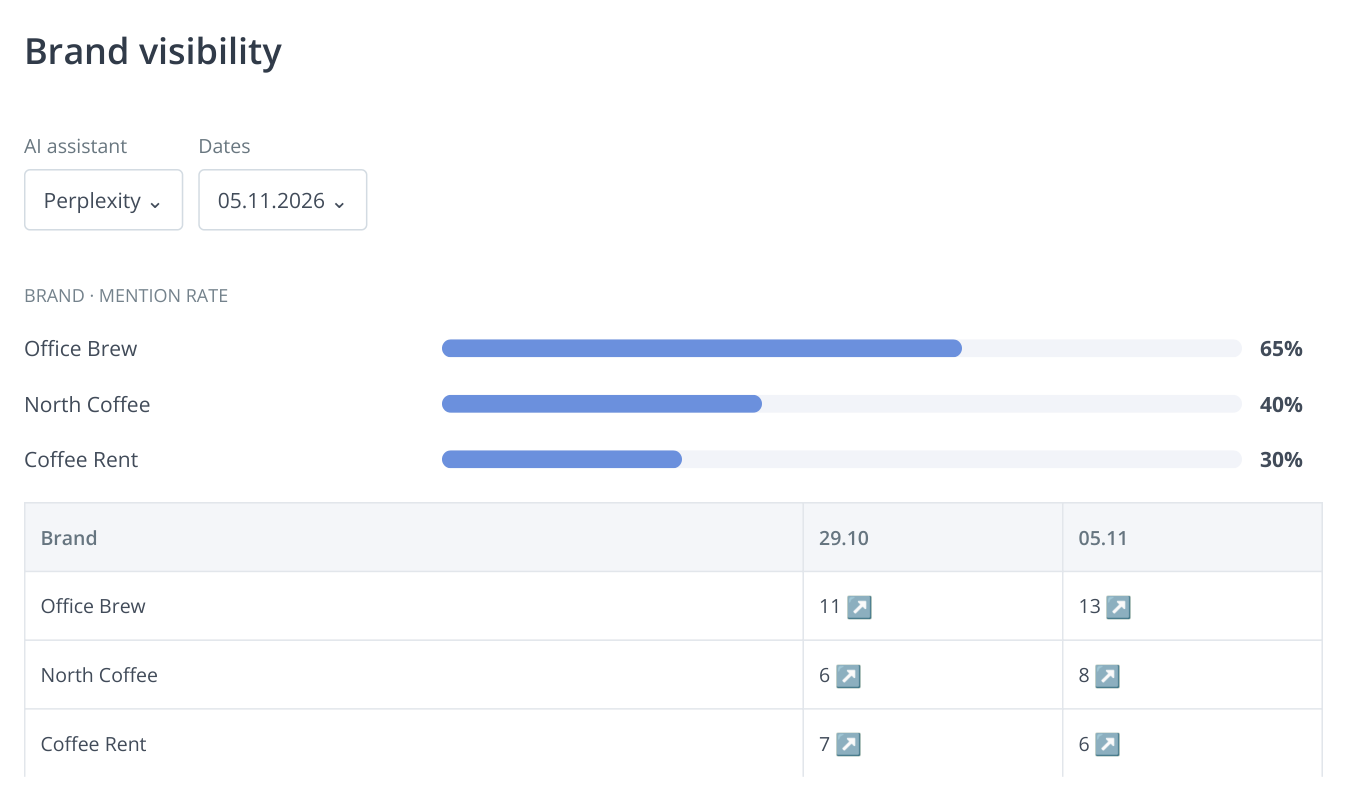
6. Horizontal bars compare brand presence on the latest selected date; the table below shows the history. This example uses one set of 20 prompts.
Click a company's count to open the questions mentioning it. An unfamiliar brand may be a direct competitor, a marketplace or a solution for another segment. Read the context first: a home coffee maker retailer may not compete with an office rental supplier. Add relevant companies to your tracked competitors for future comparison.
Use this report before launching a new service: it shows which companies AI already associates with the buyer's question. Agencies can use it in strategy discussions to explain which competitors appear and in which service areas.
Export the results and choose the next task
Open “AI Visibility Export”. Select dates, assistant, brand and tags, then download the document in a suitable format. Prepare separate Perplexity and Gemini results for the service you are promoting.
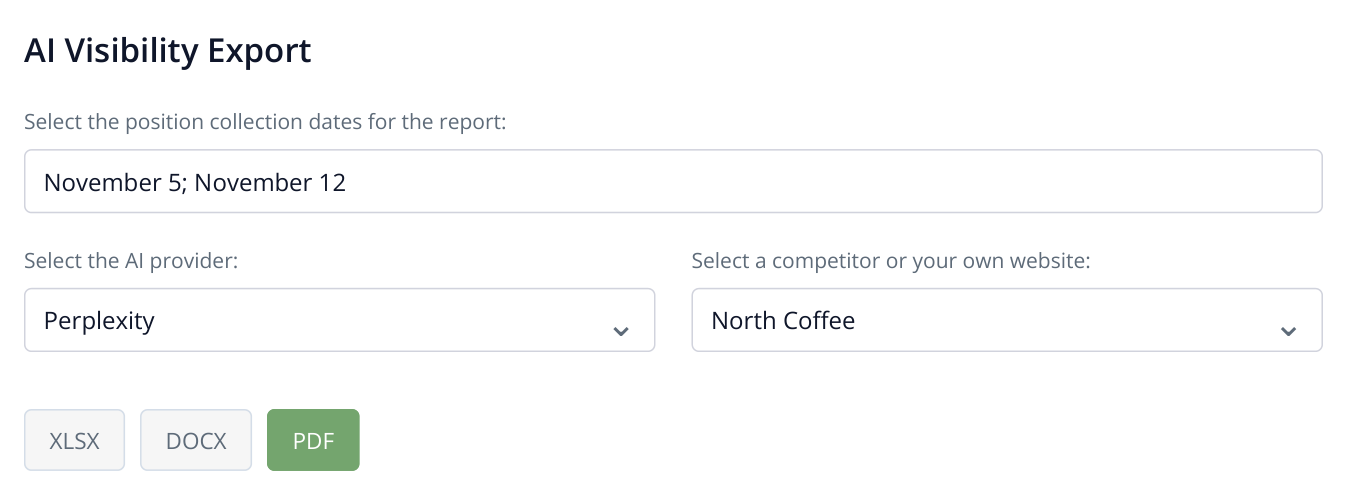
7. Choose the dates and AI service for the report. This example compares weekly measurements.
If Perplexity still lists only competitors for rentals, open “Competitors’ Content” and “Important content for AI” in the GEO audit. Compare the terms explained on your page with those of the recommended suppliers. Add missing maintenance or service-area information, publish it and keep checking the same prompts. Platform selection is covered in the dedicated guide.
Read more similar articles