
 English
expand_more
 Español
 Deutsch
 Français
 Português
 Türkçe
 Polski
 العربية
 हिन्दी

How to manage client projects and access permissions in Labrika
An agency can manage multiple client websites in Labrika, invite specialists and share the reports each client needs. Website report permissions and task board roles are configured separately. Your team can collaborate without sharing a password, and each client gets an appropriate way to follow their project.
Create a separate project for each client's website
Add each website with a recognizable name, such as “North Coffee — store”, “Service Plus — services” or “Alpha Software — B2B”. If a client owns several websites, distinguish them by brand or business line.
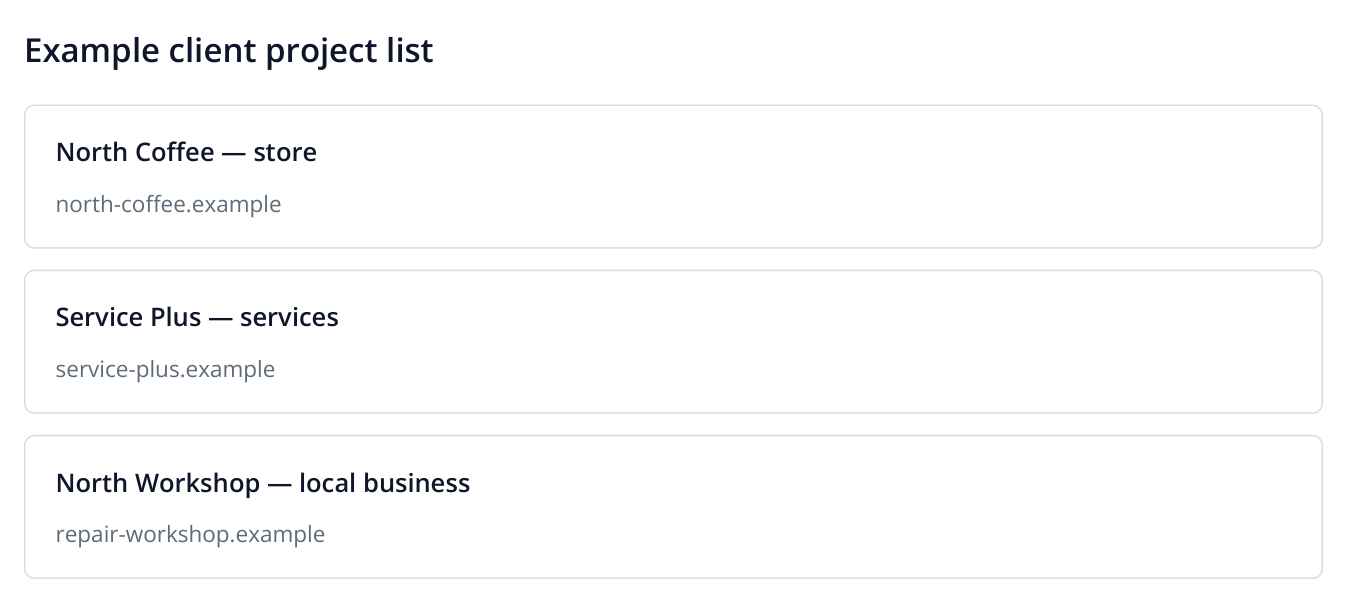
1. Illustrative projects: clear names make it easier to choose the right website in daily work.
Set each client's search engines, locations and keywords in their project. To apply a shared schedule, open “Scheduled runs”, select sites on the same service plan and choose “Edit selected” → “Full website audit”. For example, schedule weekly checks for clients with the same maintenance package and a different frequency for a frequently updated store.
When launching a campaign, open its project and add the relevant pages to monitoring. For example, an agency might check one client's paid search landing pages daily while collecting a weekly article change history for another.
Share a link to just one report
If a client or contractor needs a single result, send a guest link. They can view the selected report without registering with Labrika; the link does not grant access to other reports or projects. For example, send a developer an error report to fix, or a client an audit summary before discussing the work.
- Open the website and the specific report. If analysis is still running, wait for the results.
- On the narrow right-hand toolbar, click the icon with three connected dots. Its tooltip is “Get a link to the report”, and it sits above the “?” help icon.
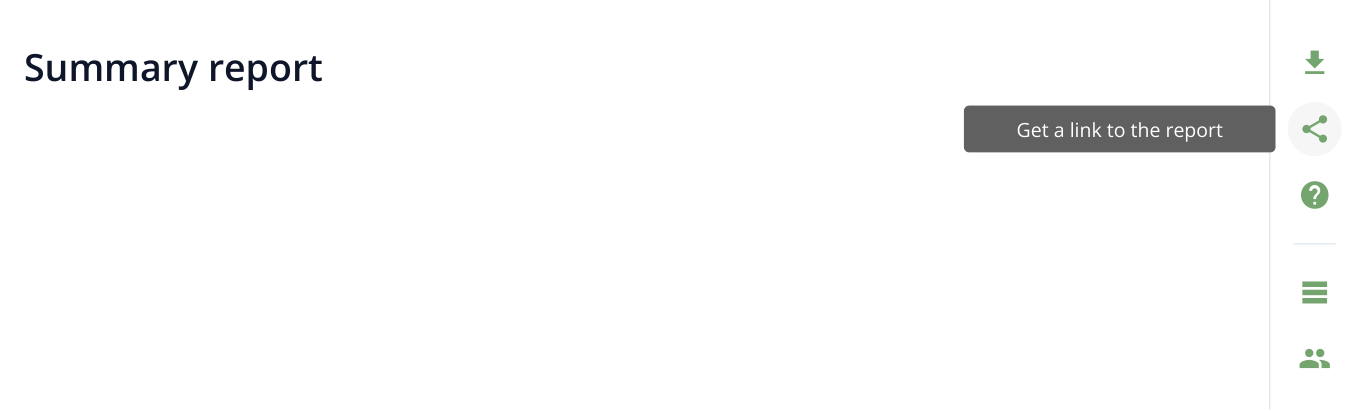
2. The right edge of the report page: the button is between download and help. The illustration shows its hover tooltip.
- The dialog already contains an address under “Report link”. If the “Link” / “File” selector appears, leave “Link” selected.
- Click the copy icon to the right of the address. The message “The link was copied to the clipboard” appears. Paste the link into an email, messenger or task description and send it to the recipient.
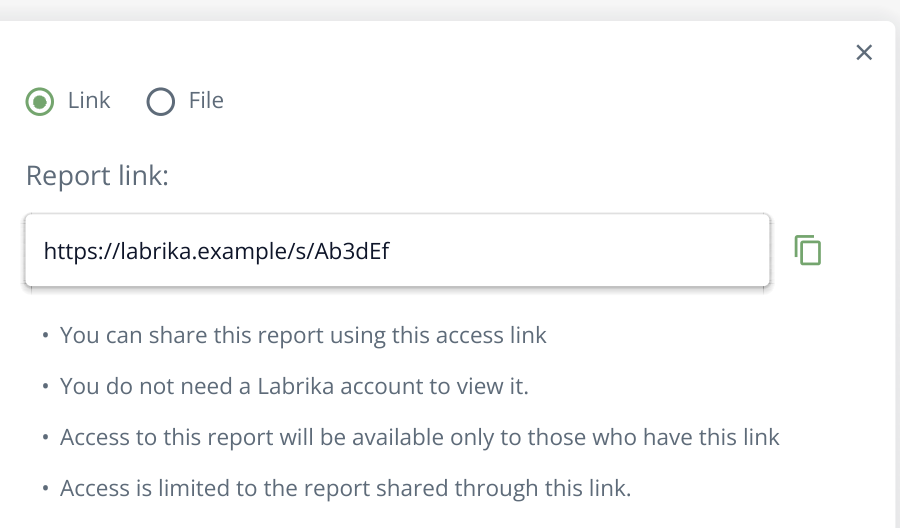
3. The address is created when the dialog opens. The icon on the right copies it; the recipient simply opens the link. The address shown is illustrative.
Add a short assignment, such as “Review the errors in this report and estimate the time needed to fix them.” The developer immediately has the information needed for an estimate. Share a summary before a client meeting so everyone discusses the same results. To share several individual reports, obtain a link from each one.
Anyone with the link can access the report. For an employee who regularly works with several reports and settings, use an email invitation and select their permissions as described next.
Invite a client to their website reports
Open any report for the website. Find the people icon on the narrow right-hand toolbar; its tooltip reads “Invite Team Members”. Click it. In the “Sharing permissions for site” dialog, click “Invite Team Members” and fill in “Email to send an invitation”. Under “Permissions”, expand “Ability to view all reports” and select the reports the client should be able to open.
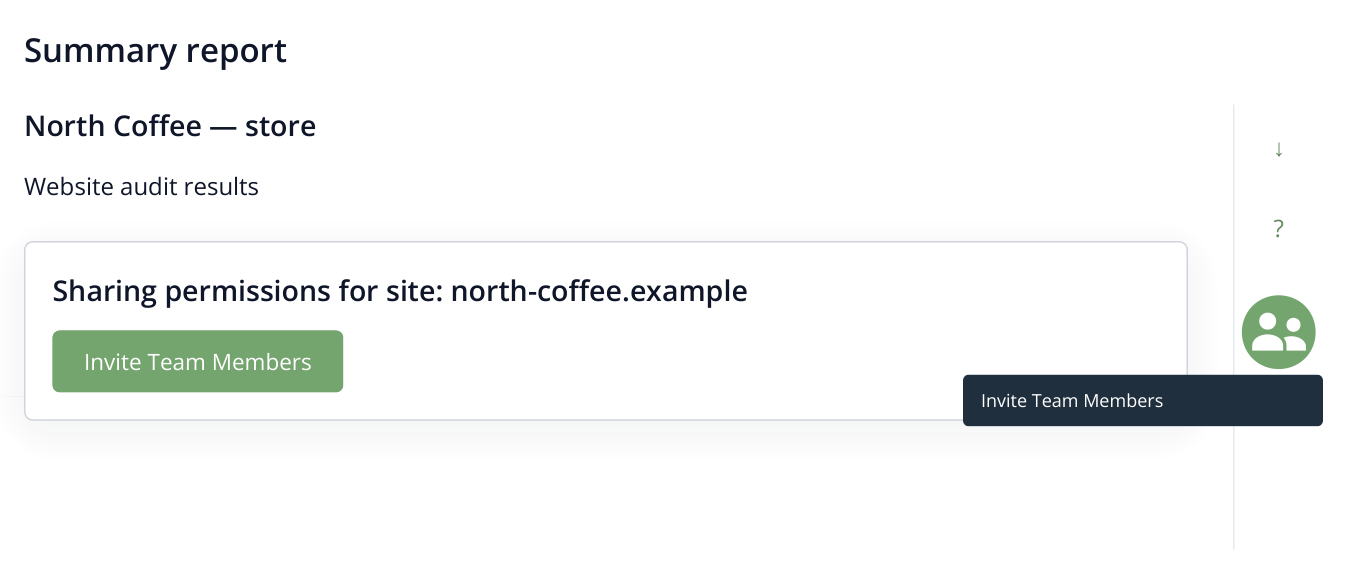
4. The access button is on the report's right-hand toolbar. It opens the access list first, followed by the invitation form.
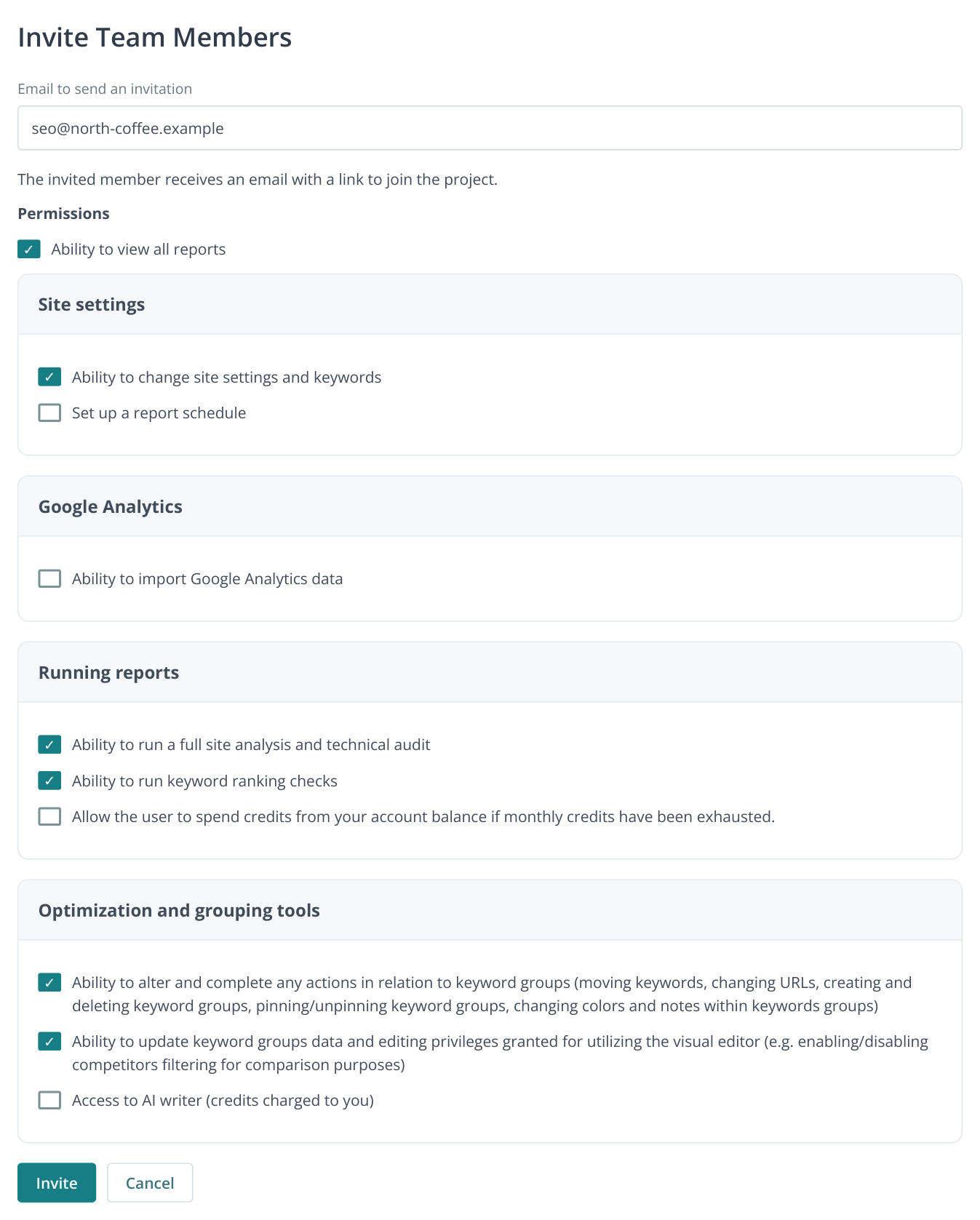
5. Invitation form with permission groups. In this example, the SEO specialist can use settings, run analyses and manage keyword groups; balance spending and AI writer access are disabled. The main permission groups are shown.
This form uses checkboxes for website and keyword settings, scheduling, analytics, audit and ranking checks, and keyword group actions. “Allow the user to spend credits from your account balance if monthly credits have been exhausted.” and AI writer access are enabled separately. For a client who only reads results, grant report viewing; for a specialist, enable the actions their work requires. Task board roles are selected in a different invitation, shown below.
Click “Invite”: Labrika emails the invitation. The recipient follows the link, signs in or registers, and accepts. They can then open the website in their own account and view the permitted reports without the agency's password. If the email is lost, open “Sharing permissions for site”: the invitation row offers link copying and resending.
For example, a store manager needs audit results and rankings, while an external SEO specialist may need additional actions. Choose permissions to match the person's responsibilities: the list lets you grant the specific capabilities they need.
Set up task participation
For collaboration on assignments, click “Tasks” in the narrow left-hand navigation, expand the board and open “Members”. The board owner clicks “Invite a new team member to the project”, selects an existing contact or creates one by email, chooses “Project role” and clicks “Save”.
Which role to choose
| Role | Tasks they can see | What they can do | Who it suits |
|---|---|---|---|
| Owner | All tasks | Creates the board, invites people and manages roles, tasks and dates. Accepts completed work and can rename or delete the board. | The board creator; this role is assigned automatically. |
| Administrator | All tasks | Assigns work, changes dates, accepts results and manages existing members. The owner invites new people. | A project manager who needs the overall Kanban view. |
| Specialist | Tasks assigned to them and tasks they created | Creates tasks for themselves and other members. Edits descriptions, dates and assignees on their own tasks. Submits completed work for review. | An SEO specialist who also assigns work to developers or editors. |
| Executor | Only tasks assigned to them | Comments, attaches files, checks off task items and changes working status. Cannot create tasks or change their dates or assignees. | A developer or editor working from existing assignments. |
| Observer | Only tasks assigned to them | Reads task content, dates and attachments. Cannot post in the chat, edit tasks or change their status. | A client who needs to view selected work. |
Kanban is available to the owner and administrator. Specialists and assignees work through their task lists and cards, moving completed work to “Review”. The owner or administrator moves it to “Ready” after approval.
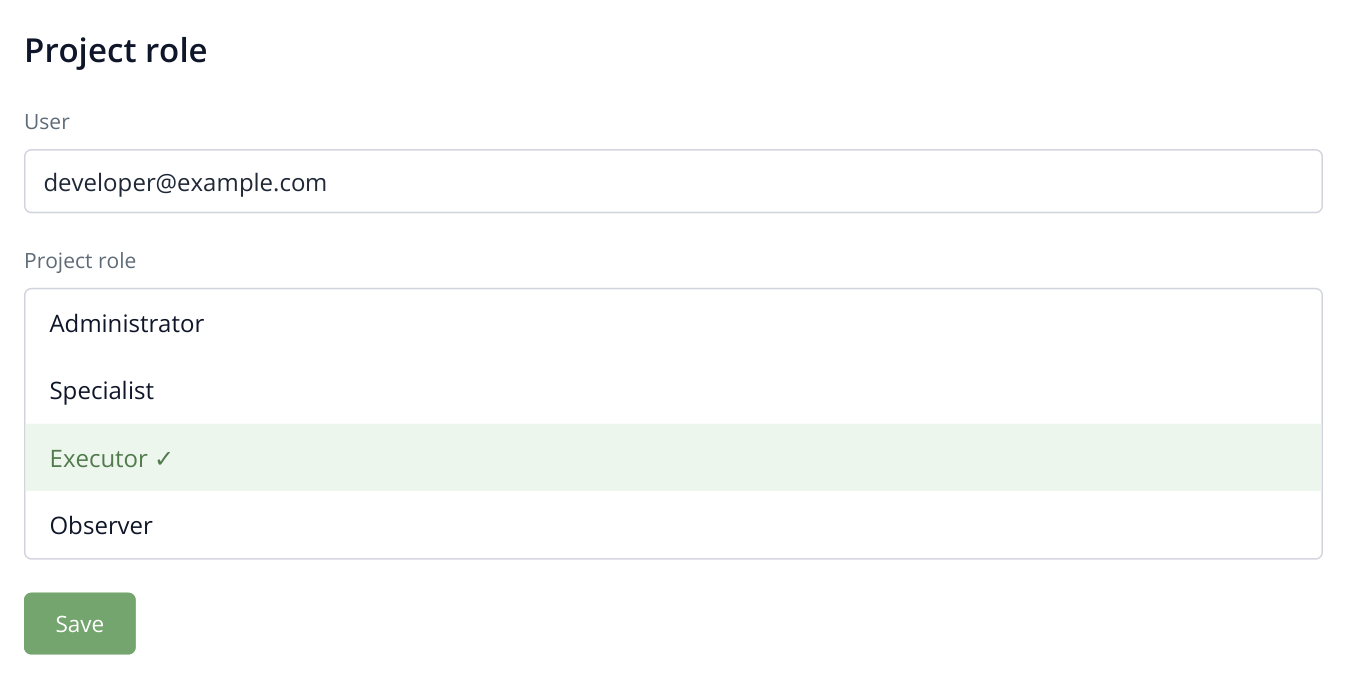
6. Choosing a role for an invited developer. The owner was set when the board was created; the list selects the new member's role.
How a colleague accepts the invitation and starts work
- After you save a new member, Labrika sends an email to the address entered. In the “Project sharing invitation” email, the employee clicks “Accept invitation”.
- If they are not signed in, they click “Go to authorization” and sign in to Labrika or create an account. They should use the account they intend to work from.
- If the “Gaining access to a project” screen appears after sign-in, they click “Accept invitation”. The invitation is linked to their account.
- In their account, they open the invited project, then “Tasks”, the board and its “Tasks” list. The owner or administrator assigns tasks to them, and those tasks appear in their working list.
For the first assignment, open its name, read the description and linked report, then set the status to “In progress”. After completing the fix, leave a comment with the result and choose “Review”. The manager sees the updated status on the shared board.
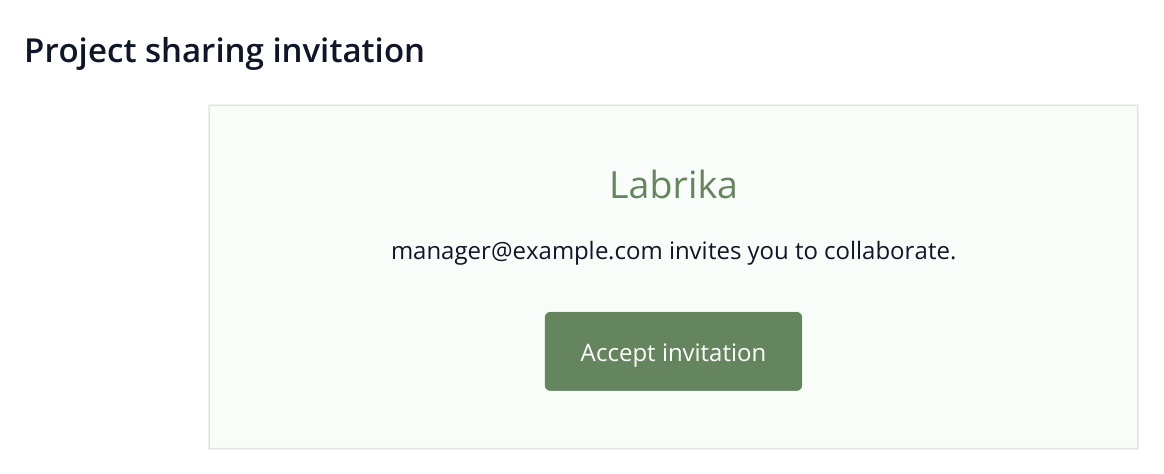
7. The invitation goes to the email entered when the contact was added. The button opens the acceptance process; the illustration shows a sample email.
For example, a developer gets template and site error tasks, a writer gets content assignments, and an SEO specialist handles review and optimization. Give a client the “Observer” role if they only need to view assigned tasks without editing or chat.
If the client needs to discuss work in task chat, choose “Executor” and assign them to the relevant tasks. “Observer” suits read-only participation without comments. The agency's manager remains the administrator and approves completed work.
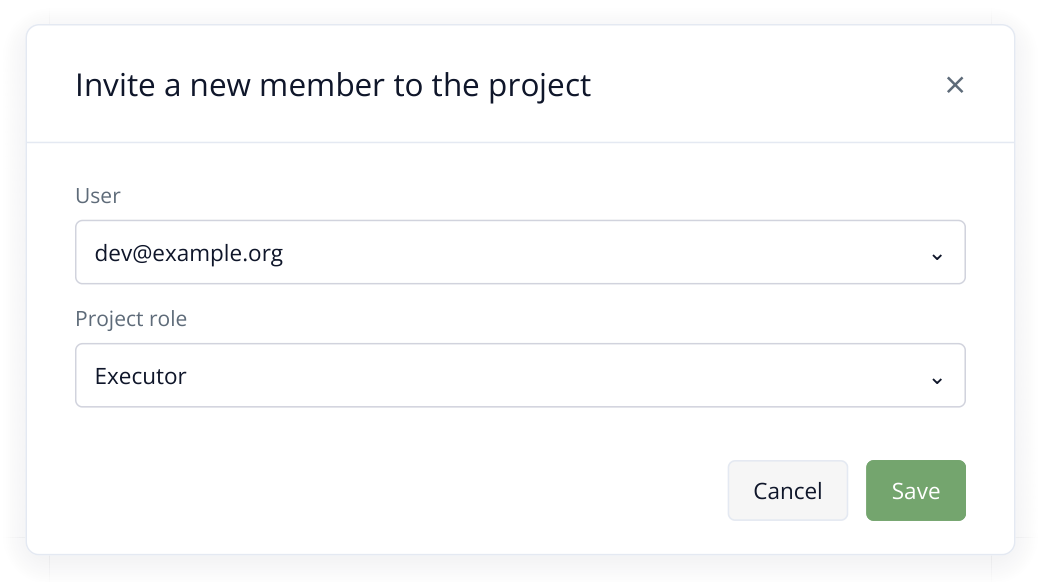
8. Inviting a developer: select the contact and project role. If the contact does not exist, create it by email from the same list.
Open “Who has access” on the board and review the client's membership. Assign an observer to the tasks they may read. Once the contact is confirmed, the project grants access to reports linked to their assignments. For additional reports, use “Sharing permissions for site” as shown above. Administrator access is broader than needed for viewing selected tasks and related reports.
Choose a workflow for each type of client
| Agency service | How to organize the work |
|---|---|
| Monthly SEO retainer | Scheduled audits and rank tracking, Kanban tasks and client access to relevant reports |
| One-off technical audit | A site check, prioritized action plan and branded document to hand to a developer |
| New section launch | Keyword groups and copy for the writer, development and publication on the Gantt chart, and a post-launch check |
| AI visibility optimization | A GEO audit, content and placement tasks, a consistent prompt set and AI visibility history |
For ongoing retainers, use a consistent sequence for each client: check, assign, implement and measure again. Tailor the reports and checking frequency to each website.
Team managers can use “What team members are working on” to see current and scheduled assignments. Employees can use their personal timers and Excel exports for time reporting.
Choose how to communicate with the client
To discuss one result, send a link to that report; the client can open it without an account. For regular participation, grant report and task access so discussions can refer to specific URLs and results. For a monthly meeting document, prepare a branded report using White label.
When handing a client to another employee, invite the new specialist to the relevant reports and board, assign current tasks and record the nearest deadlines. Removing the former member from a board does not replace reviewing their website permissions. Check both access lists after the handover: the new owner should be able to open reports linked to their tasks.
Read more similar articles