
 English
expand_more
 Español
 Deutsch
 Français
 Português
 Türkçe
 Polski
 العربية
 हिन्दी

How to create a branded Labrika report in DOCX and PDF
Agencies and independent SEO consultants can send clients an audit featuring their own company name, logo and contact details. In “Site summary report”, Labrika generates a DOCX report. You can then save that document as a PDF for sharing or presenting.
Add your company details
Once the audit is complete, open “SEO” → “Print version” → “Site summary report” in the selected website's menu. To report on completed work, run a fresh audit first so the document reflects the website after the fixes. Fill in “Company name:”, upload an image under “Logo:” and enter “Contact:”. Use “Page header content:” for the project name or your agency's name.
Under “Logo:”, click “Upload” and upload a PNG or JPG/JPEG image. A preview appears below the field: check that you have selected the right logo. The trash icon removes it; “Upload” lets you replace it.
Include the contact details of the specialist who will discuss the findings with the client. This makes the export a working document: the client knows whom to contact about the recommended fixes.
Choose what to include and create the report
Use the checkboxes to include the number of crawled pages and the keyword grouping and optimization assessment. Under “Detailed tables”, “Max rows per table:” sets how many rows appear in the document's tables, for example, 20. The complete tables are included as XLSX attachments, giving the client a concise report and the developer full URL lists to work from. Keyword rankings have separate settings below: whether to include the report, which dates to compare and how many rows to show.
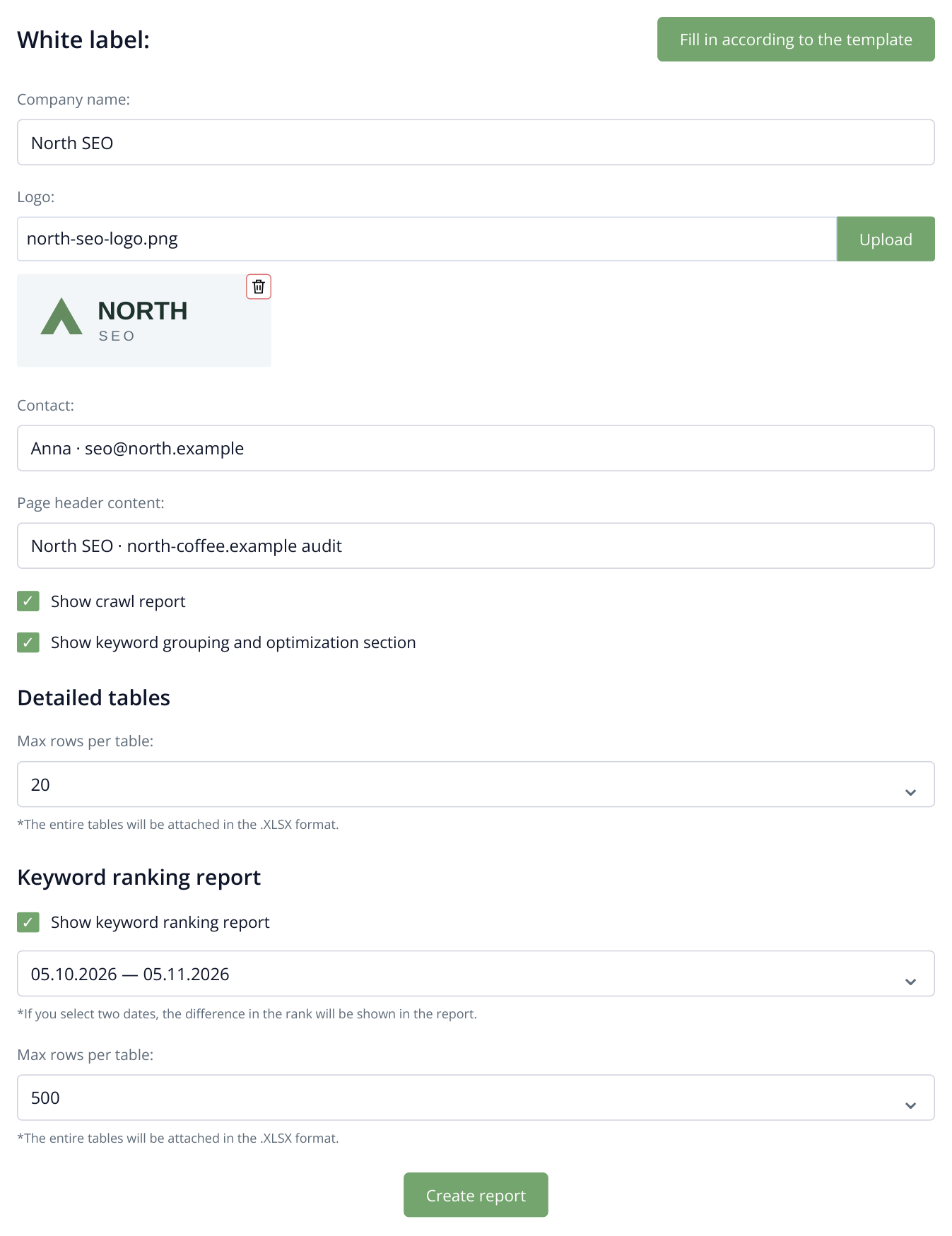
1. The complete form: company details, logo upload and preview, contact information, page header and report contents. This example includes 20 rows per audit table, 500 ranking rows and two comparison dates. The logo and company details are fictional.
Click “Create report”. Download the result when it is ready; use “Download” to download it again. The archive contains the DOCX document and its XLSX report attachments.
Useful tip: For a monthly client report, enable “Show keyword ranking report” and choose the comparison dates. The client can see both the website's condition and keyword ranking changes over that period.
Save the branded DOCX as a PDF
Extract the downloaded archive and open the DOCX file in Word or LibreOffice. If useful, add a brief note such as: “First restore the category pages with 5xx errors, then fix canonical tags.” In Word, save or export the document as a PDF; in LibreOffice, use PDF export. Open the resulting file and check the cover page and wide tables before sending it.
In Word, open “File” → “Save As” and choose PDF as the file type. In LibreOffice Writer, use “File” → “Export As” → “Export as PDF”. A PDF is convenient for sharing with a business owner because its formatting does not depend on the recipient having a word processor installed.
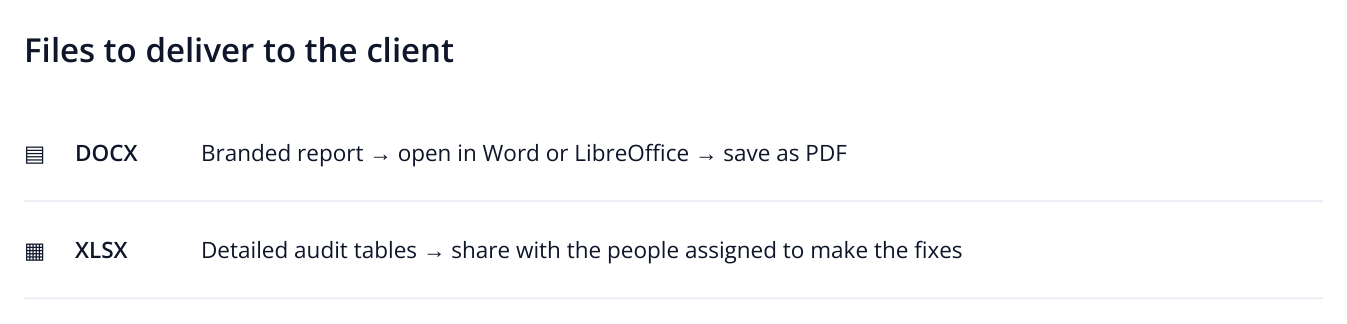
2. A workflow diagram for the downloaded files, rather than another Labrika screen. Create the PDF from the finished DOCX in your word processor.
For a branded PDF, use “Site summary report” and the DOCX workflow described above. The standard “Export summary report” lets you select PDF directly, but creates a summary report without these branding settings.
For ongoing monthly SEO work, send the business owner a PDF showing the project's status, and give the developer the DOCX and URL spreadsheets. For a one-off audit, add a prioritized action plan so the client can assign the work straight away.
Read more similar articles