
 English
expand_more
 Español
 Deutsch
 Français
 Português
 Türkçe
 Polski
 العربية
 हिन्दी

How to get a prioritized SEO action plan in Labrika
Labrika turns your audit findings into an action plan with tasks already ranked by priority. Website owners get a clear order of work, while SEO specialists get ready-made tasks linked to the relevant reports. You can invite your team, assign the work and manage progress using Kanban or a Gantt chart in the same workspace.
Generate a plan from your website audit
Open a website with a completed audit. The plan uses the latest analysis; if that analysis is more than 30 days old, run a fresh audit first.
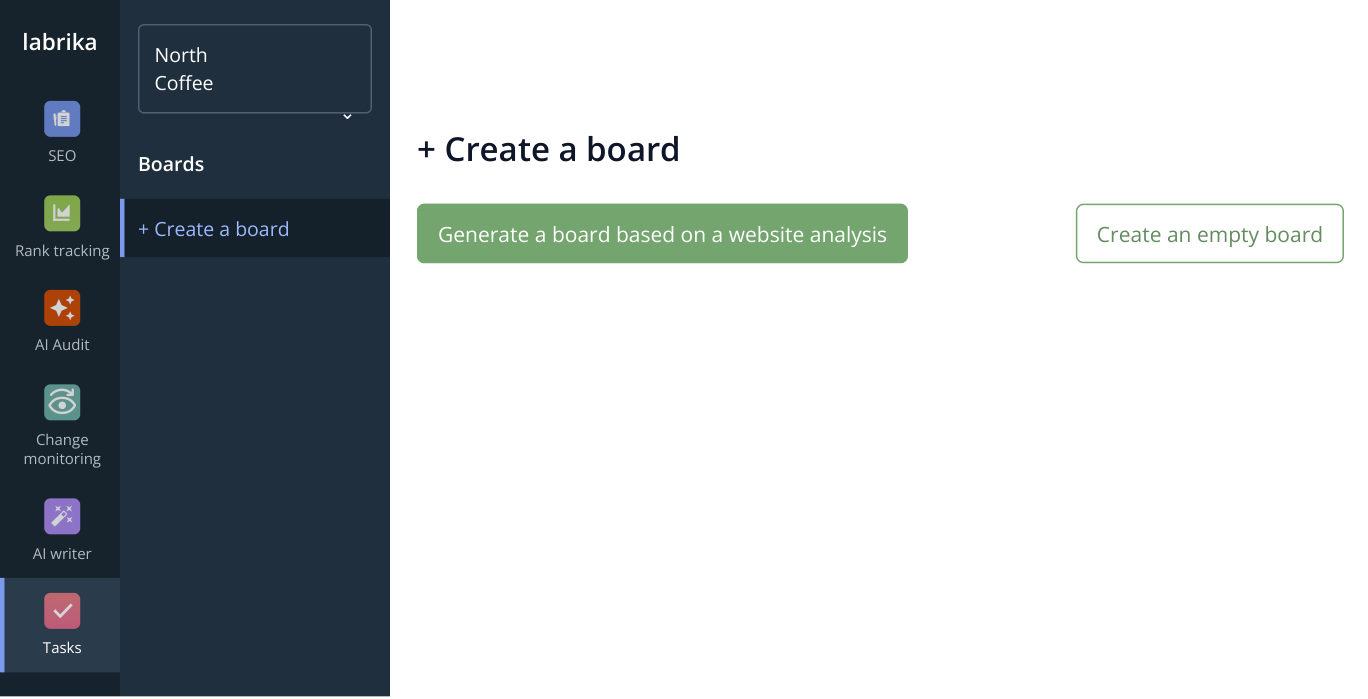
1. Click “Tasks” in the narrow sidebar on the left. In the “Boards” section that opens, select “+ Create a board”, then choose to generate a board from an analysis. This is an interface excerpt with sample data.
- Click “Tasks” in the narrow left sidebar. Under “Boards”, select “+ Create a board”.
- Select «Generate a board based on a website analysis».
- Enter a “Title”, such as “Store: audit fixes”, and click “Create”.
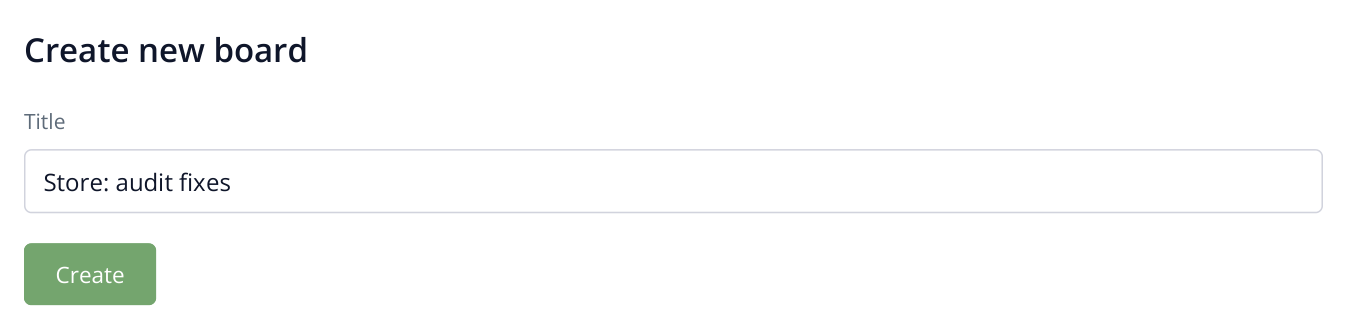
2. The name makes your board easy to find under “Boards”. Clicking “Create” opens a task list that is already ordered by priority.
Your generated plan opens under “Tasks”. Labrika has already prioritized the tasks based on your website's issues. Problems preventing access or indexing receive high priority, followed by other improvements. For an online store, for example, restoring unavailable category pages matters more than refining descriptions: shoppers need to be able to reach the products.
The plan contains topic groups and specific assignments. Click a task name to read its description. The icon in “Report” opens the audit findings, while “Help” opens guidance on the issue. “Importance” and “Complexity” help you assess the work when choosing an assignee.
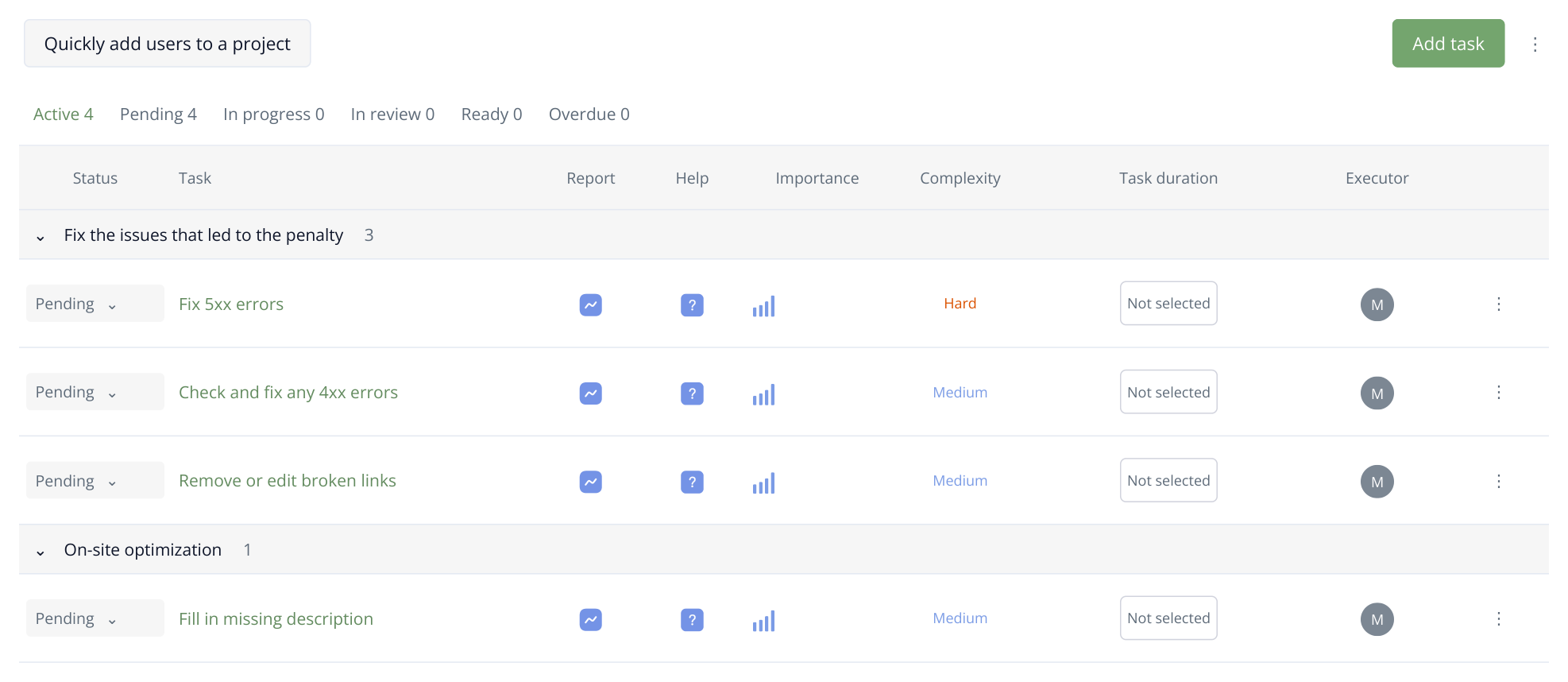
3. Part of a generated plan with sample tasks for an online store. The order is set during generation; each row opens the task, its report and help. The team sets deadlines after creating the plan.
For example, “Fix 5xx errors” leads to pages returning server errors, giving the developer URLs to investigate. “Fill in missing description” leads to pages with missing descriptions. The manager can move straight to assigning the work: tasks, explanations and audit findings are already connected.
Invite project members
If several people work on the website, the project owner can invite them to the board. An agency might invite its SEO specialist and the client's developer, for example, so both work from tasks generated by the same audit.
- Open “Members” and click “Invite a new team member to the project”.
- Choose a team member in “User”. To add a new contact, expand the list, enter their email in “Enter email for new user” and click “Create”.
- Choose a “Project role” and click “Save”.
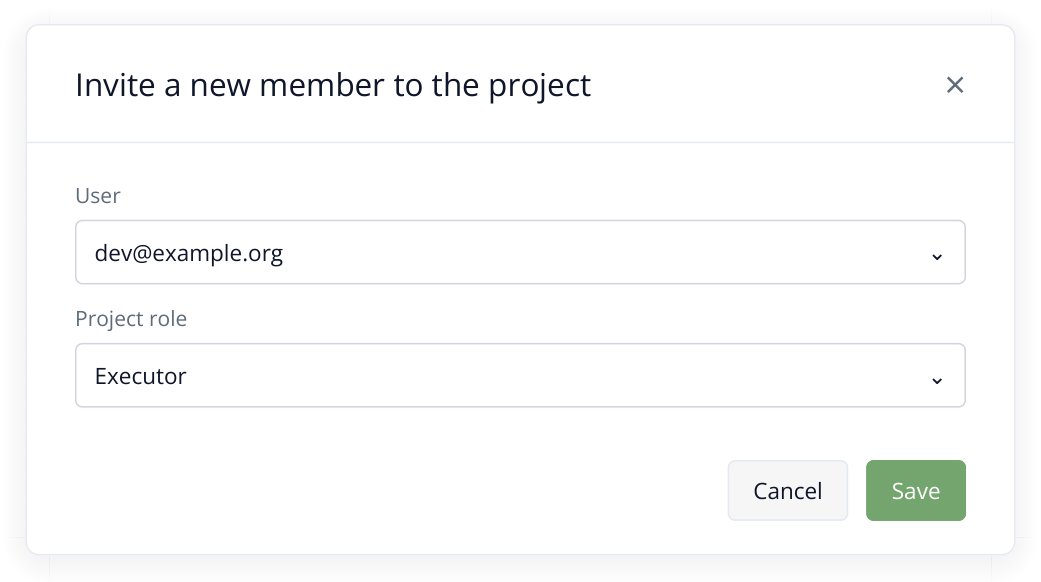
4. Inviting a developer: choose the contact and their project role. If the contact does not exist yet, create it by email in the same list.
If a colleague is already in your contacts, you can invite them directly from a task: “Executor” includes “Invite user from contacts”. This is useful when assigning work as you review the plan.
Which role to choose
| Role | Tasks they can see | What they can do | Who it suits |
|---|---|---|---|
| Owner | All tasks | Creates the board, invites people and manages roles, tasks and dates. Accepts completed work and can rename or delete the board. | The board creator; this role is assigned automatically. |
| Administrator | All tasks | Assigns work, changes dates, accepts results and manages existing members. The owner invites new people. | A project manager who needs the overall Kanban view. |
| Specialist | Tasks assigned to them and tasks they created | Creates tasks for themselves and other members. Edits descriptions, dates and assignees on their own tasks. Submits completed work for review. | An SEO specialist who also assigns work to developers or editors. |
| Executor | Only tasks assigned to them | Comments, attaches files, checks off task items and changes working status. Cannot create tasks or change their dates or assignees. | A developer or editor working from existing assignments. |
| Observer | Only tasks assigned to them | Reads task content, dates and attachments. Cannot post in the chat, edit tasks or change their status. | A client who needs to view selected work. |
Kanban is available to the owner and administrator. Specialists and assignees work through their task lists and cards, then submit completed work to “Review”. After reviewing the result, the owner or administrator moves the task to “Ready”.
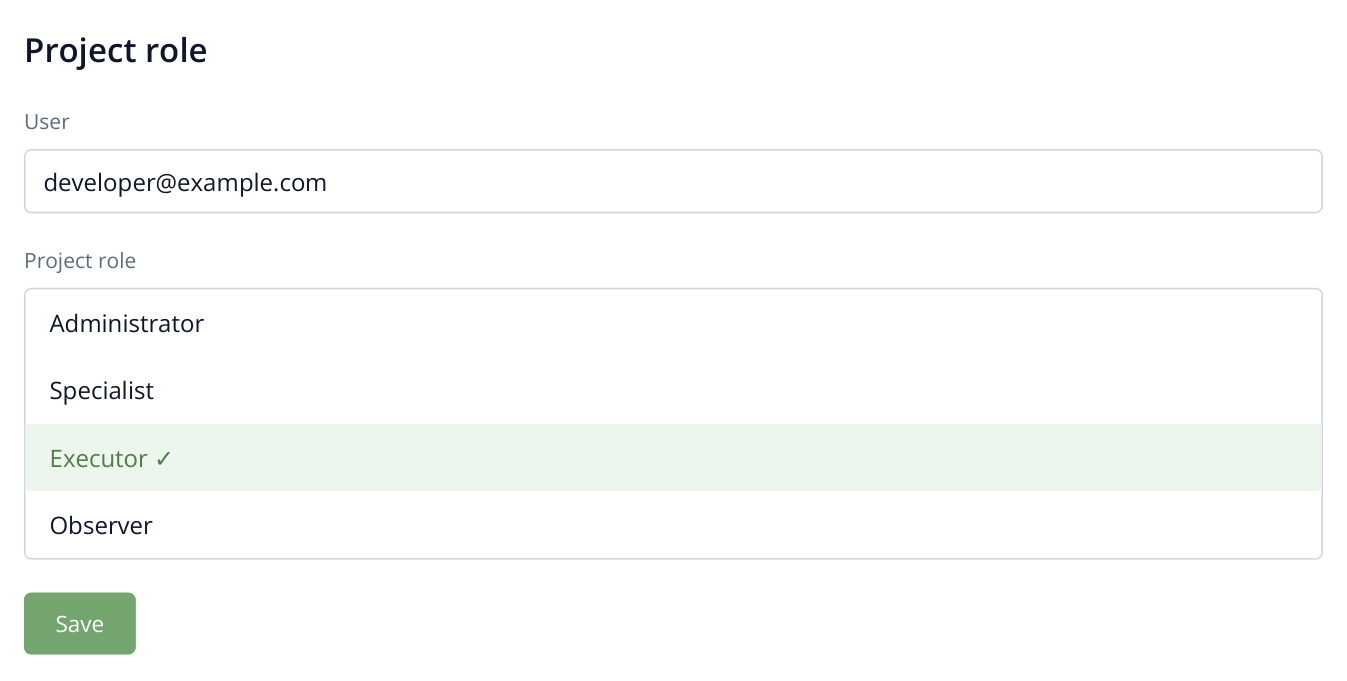
5. Selecting a role for the invited developer. The owner was assigned when the board was created; this list sets the new member's role.
How a colleague accepts the invitation and starts work
- After you save the new member, Labrika sends an email to the specified address. The recipient clicks “Accept invitation” in the “Project sharing invitation” email.
- If they are not signed in, they click “Go to authorization” and sign in to Labrika or register. They should use the account they will work from.
- If “Gaining access to a project” appears after sign-in, they click “Accept invitation”. The invitation is then linked to their account.
- In their account, they open the shared project, then “Tasks”, the relevant board and its “Tasks” list. The owner or administrator assigns tasks to them; those tasks then appear in their work list.
To start the first assignment, open the task, read its description and linked report, and change its status to “In progress”. Once the fix is complete, leave a comment describing the result and select “Review”. The manager sees the status change on the shared board.
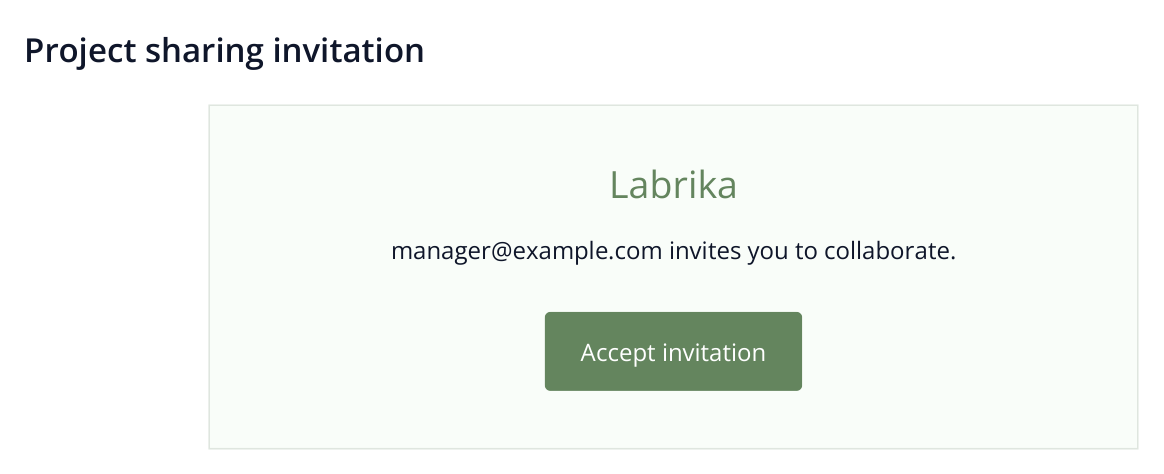
6. The invitation is sent to the contact's email address. Its button opens the acceptance flow; the illustration shows a sample email.

7. The confirmation screen for someone already signed in to Labrika. After accepting, they can open the projects and assigned tasks available to them.
If the email is missing, check the address and “Spam” folder. The owner can open “Members” and click the contact's “Invitation not accepted” status. In “Send Invitation”, use “Copy link to clipboard” and send the link to the colleague. The email can be resent once a day. A confirmed contact does not need to register again: they use their existing account.
Assign tasks and deadlines
Click a task name to open it. Choose a member under “Executor” and set the start and finish dates under “Task duration”. These details are also available in the plan table.
In this example, the developer handles 5xx errors and broken links, while the SEO specialist fills in missing descriptions. If several people share a task, add them to its assignee list. Use “Mark the team member as responsible for the task” to identify the person accountable for completion.
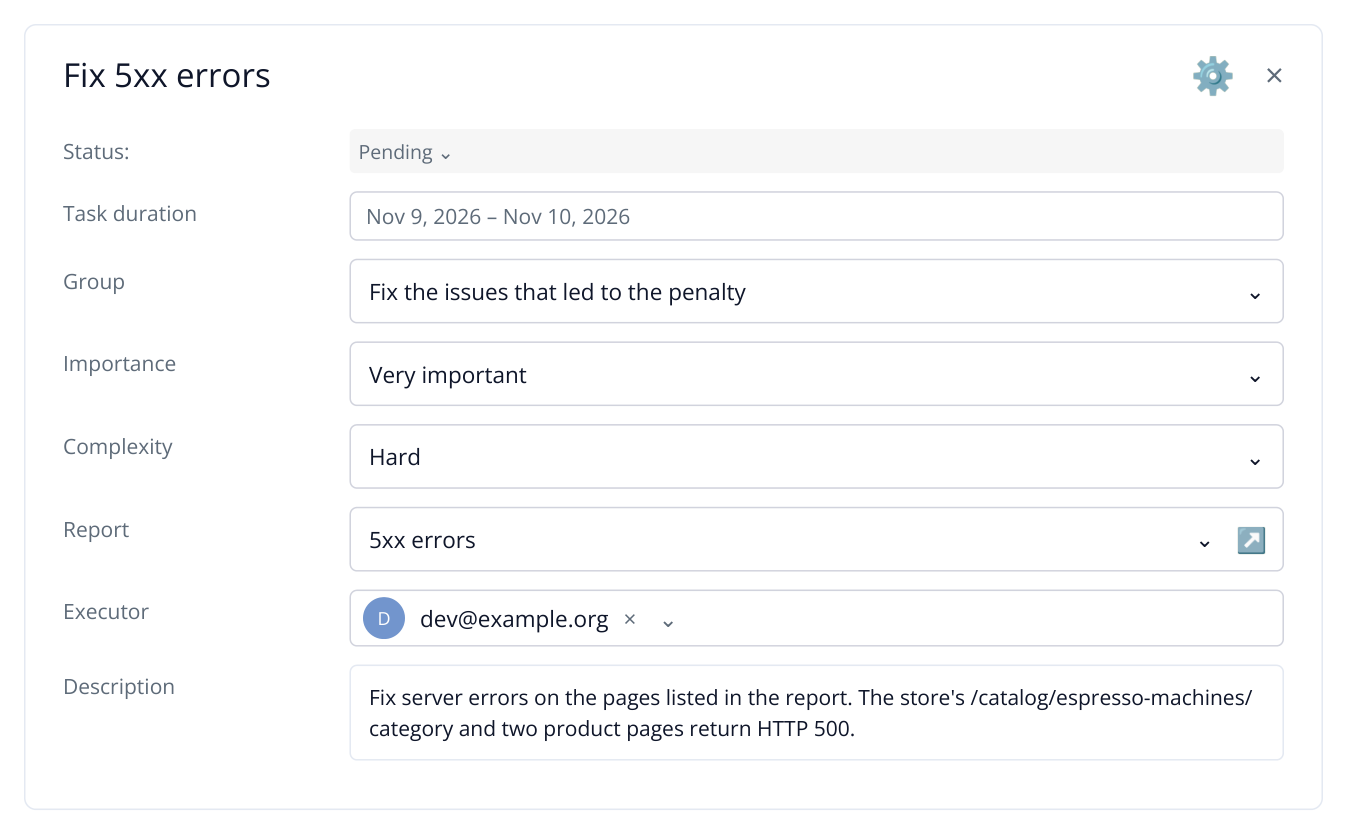
8. Part of the “Fix 5xx errors” task: a developer is assigned and the work is scheduled for November 9–10. The description and report link stay with the assignment.
Add details about your website to the description, such as the errors first appearing after a CMS update. Comments and files stay in the task, so the manager can see both the assignment and the developer discussion when reviewing the fix.
Assign several tasks at once
To assign a whole set of work to one person, click “Quickly add users to a project” above the table. In “Quick distribution of tasks”, select the tasks on the left and the assignee on the right, then click “Save”. You can assign the developer the 5xx, 4xx and broken-link tasks in one step.
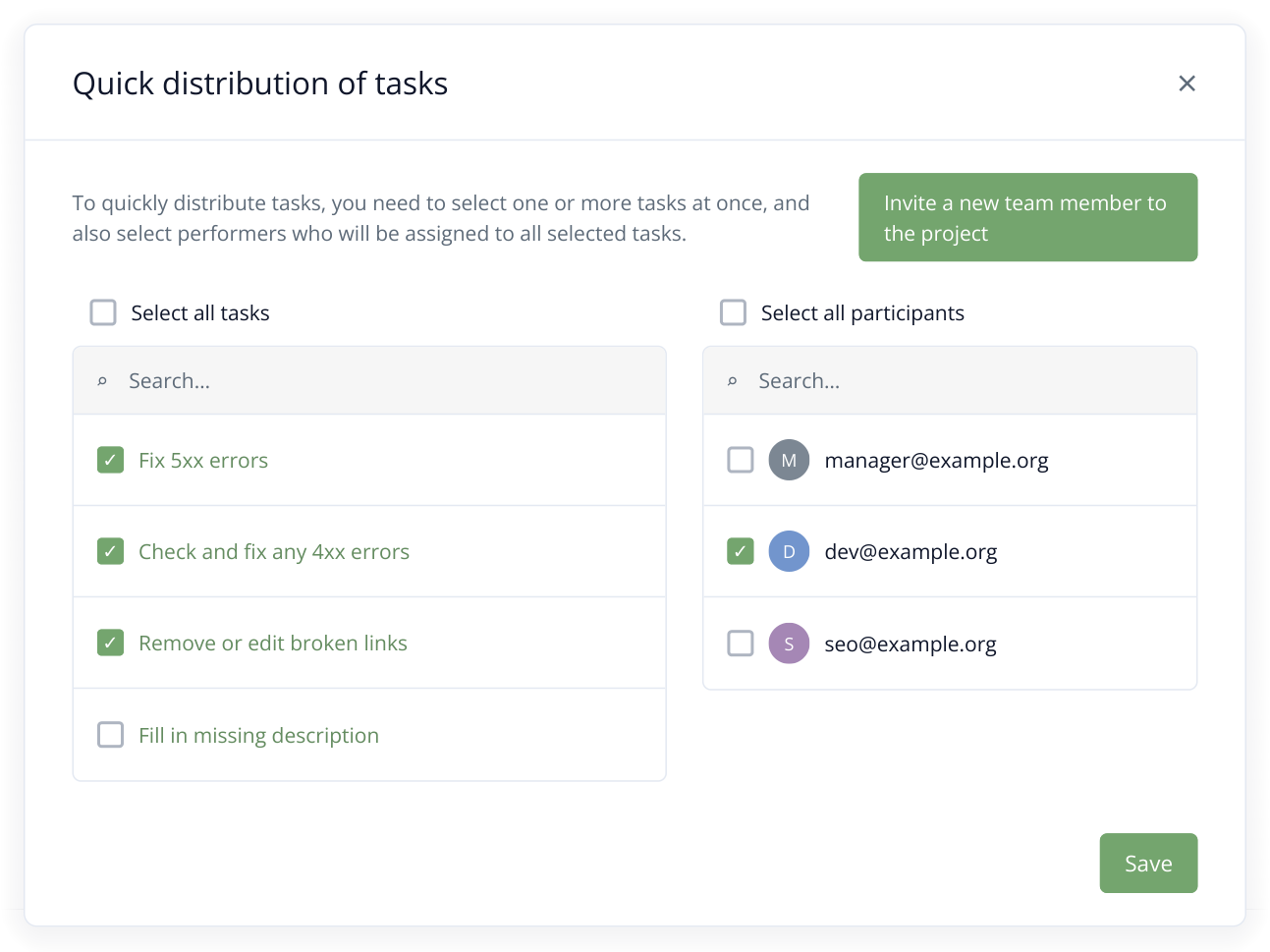
9. Three technical tasks are assigned to the developer with one save. The description task remains available for a separate assignment to the SEO specialist.
Selected members are assigned to every checked task. Assign the technical work to the developer in one save, then assign the content tasks to the SEO specialist in the next. You do not need to open every task card.
Manage day-to-day work with Kanban
The owner or administrator opens “Kanban” for the board. The same tasks appear as cards grouped by status, and can be dragged between columns. The manager can immediately see what the team has started and which fixes await review.
- A developer with the “Executor” role opens the assigned “Fix 5xx errors” task under “Tasks” and changes its status from “Pending” to “In progress”.
- After making the fix, the developer adds a comment explaining the work and selects “Review”. The card moves to the corresponding column on the manager's Kanban board.
- The owner or administrator checks the result. If the issue is resolved, they move the task to “Ready”. If more work is needed, they return it to “In progress” with a comment.
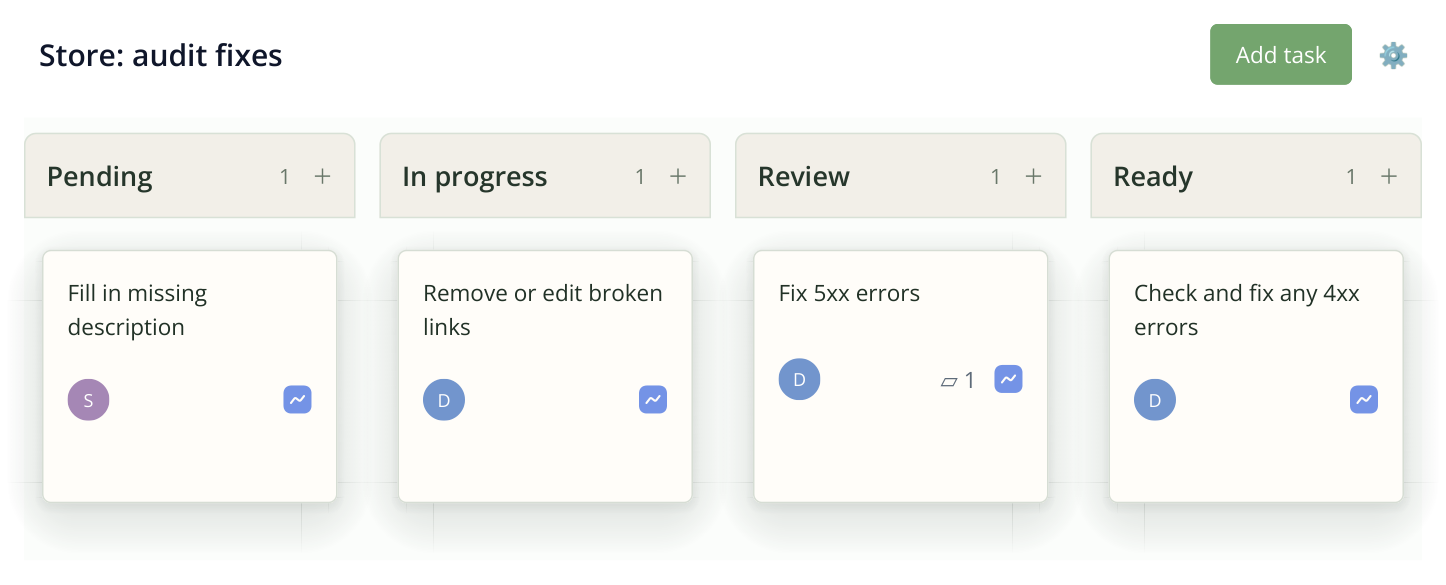
10. The same plan in Kanban: descriptions are still pending, the developer is fixing links, 5xx fixes await review and the 4xx task is complete.
Several cards in “Review” tell the manager that completed fixes need review. For an agency, this separates a contractor's submission from an accepted result: the assignee submits the work, and the owner or administrator accepts it.
To review 5xx fixes, run an audit after publishing the changes and open the new “5xx errors” report. Check the task's URLs: fixed pages should no longer appear in the results. Comment with the check date and any remaining URLs. The owner or administrator then accepts the task or returns it for further work.
Schedule work on a Gantt chart
Open “Gantt chart” to coordinate dates, for example, to finish store improvements before an advertising campaign. Tasks, dates and completion percentages appear on the left; their duration appears on a shared timeline on the right.
Set dates in the task cards. In this example, server errors are scheduled for November 9–10, link fixes for November 11–13, and another colleague works on descriptions in parallel. The manager can see that the developer's two consecutive assignments occupy the entire week.
If the schedule changes, drag the task bar to different days. Drag its edge to change the duration. Double-clicking opens the task card. The owner or administrator can adjust the schedule directly on the chart.
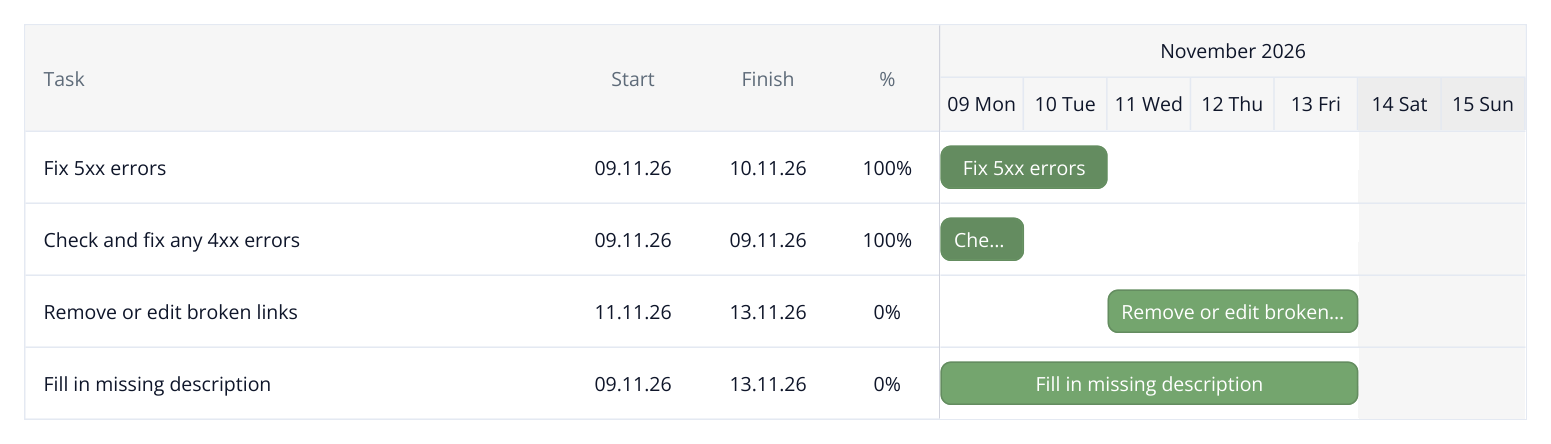
11. Dates and progress alongside the calendar timeline show which tasks run consecutively and which overlap. In this example, project members have set the dates and completion percentages.
If the developer needs two extra days to fix server errors, the chart makes the overlap with their next assignment easy to spot. You can move that work or assign someone else before the conflict becomes a missed deadline. Agencies can discuss the revised schedule with clients, and store owners can see which fixes will be ready before ads go live.
The table, Kanban board and Gantt chart show the same plan. Date and status changes are saved for the team's ongoing work. Once fixes are complete, compare the audits before and after to show the client which issues were resolved.
Read more similar articles