
 English
expand_more
 Español
 Deutsch
 Français
 Português
 Türkçe
 Polski
 العربية
 हिन्दी

How to manage team workloads and track time in Labrika
In Labrika, managers can see what team members are working on and what is scheduled next. Employees separately record their actual time using a timer in their personal task list. Agencies can use this to assign urgent work, assess effort by client and prepare reports on billable hours.
Open “What team members are working on”
In project management, open “What team members are working on”. Find an employee or review the whole team. Each person has a column containing “In progress” and “Pending” groups, with task cards and dates.
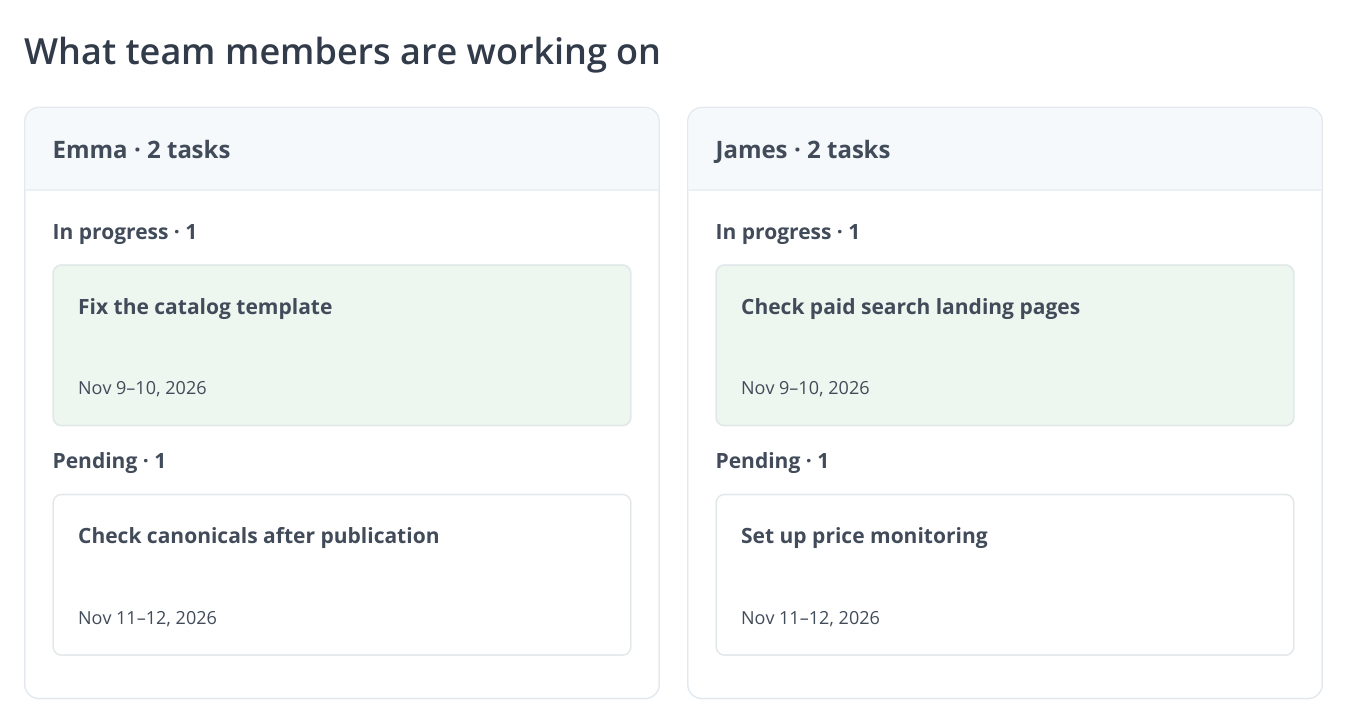
1. Each employee has a column with dated “In progress” and “Pending” cards. A background color highlights current work. Tasks and dates are illustrative.
For example, Emma is updating the catalog template through Tuesday, while James has another task scheduled for Wednesday. Open James's assignments and discuss whether he can fit in an urgent landing page check. The report shows assigned work and deadlines; a task's calendar duration is not the same as its working hours.
For a small team, this overview helps distribute development and content work. For an agency with several clients, it reveals overlapping assignments given to the same specialist across projects. Task dates show the delivery window; actual hours are recorded separately.
Assign work around existing commitments
Open the project task, choose an assignee and set start and end dates. If several people are involved, designate an owner. For example, a developer fixes links and an SEO specialist checks the published result.
To review the sequence, click “Tasks” in the left-hand navigation, open the board and select “Gantt chart”. The timeline shows when the template update ends and when testing or content entry can begin. The owner or administrator manages the shared Kanban board; assignees update their own task statuses in the task list.
An agency example: a new client requests an urgent pre-campaign audit. The manager first reviews current workloads, then assigns the diagnosis to an available specialist without quietly pushing back other clients' agreed deadlines.
Start a timer for a specific job
Open “Personal task list and time tracking for workplan.”, enter the work in “New task” and click “Add”. Agree on a team naming convention, such as “client — stage — job”: “North Coffee — November — catalog check”. The shared prefix makes it easier to combine entries from different employees for the same client and period.
This personal tool is under “Profile” → “Company resources” → “Tasks”. Each employee opens it from their own account. The “What team members are working on” overview belongs to the project board: managers use it for planning, while the personal timer records time actually spent.
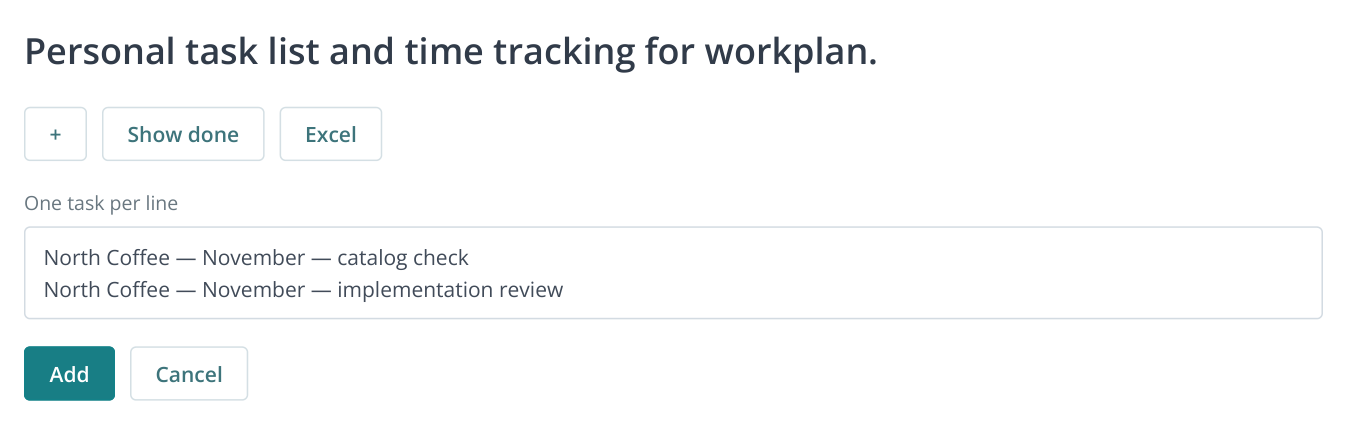
2. The “+” button above the list opens bulk entry: one job per line. A common client prefix helps combine hours after export.
Click “Start” when you start. When switching to another job, click “Pause”. “Spent” stores the accumulated time. Resume tracking when you return to the same job.
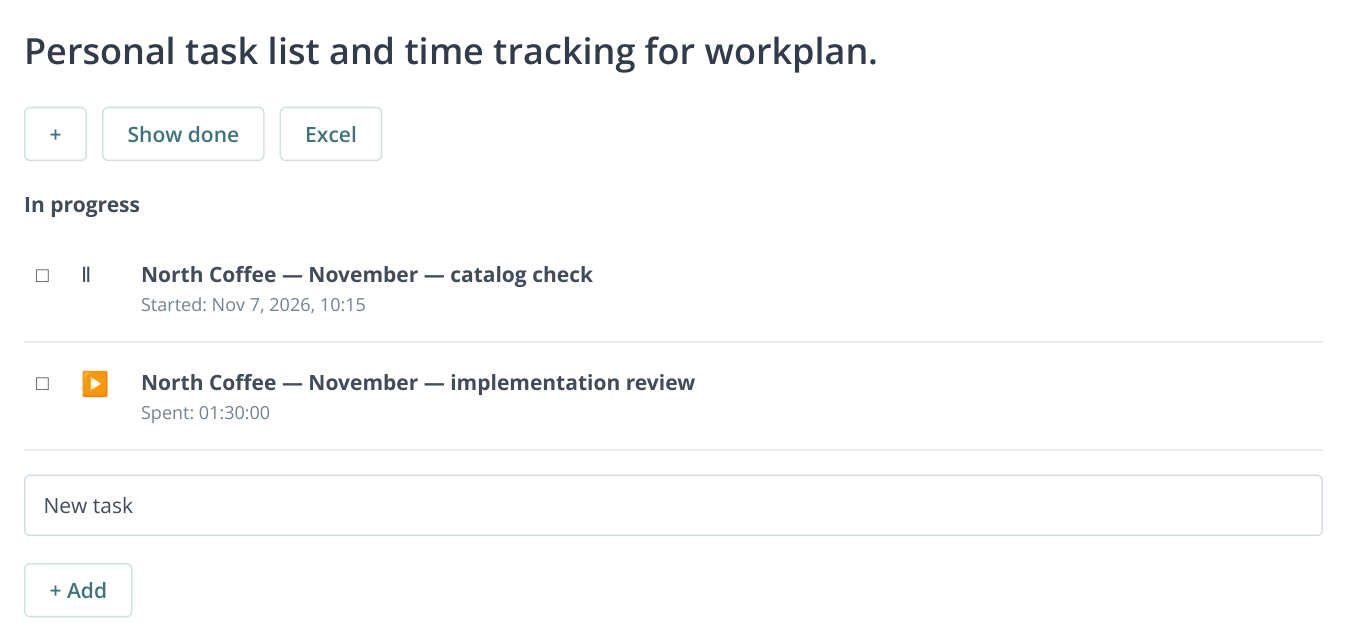
3. ▶ starts the timer and Ⅱ pauses it. A paused job shows “Spent”; an active one shows its start time. Excel exports the entries.
Separate tasks reveal where the time goes. Four client hours might include analysis, writing assignments and checking implementation. This breakdown helps estimate the next order: a follow-up check of a small website takes a different amount of time from a full review of a new catalog.
Combine client hours in Excel
At the end of the reporting period, click “Excel” in the personal list. If several employees worked for the client, each provides an export. The manager combines the rows in one spreadsheet, adds employee names and filters by the shared client and stage prefix. For example, entries containing “North Coffee — November” belong to the same month of service.
Suppose Emma spent two hours on fixes, James spent one hour and 30 minutes reviewing them, and a writer spent two hours on copy. The combined spreadsheet totals five hours and 30 minutes for that stage. This is an example of combining exports, not an automatically generated team timesheet.
| Management task | Information to use |
|---|---|
| Report for an hourly contract | Jobs, assignees and actual time for the agreed period |
| Estimate a new project | Time spent on similar tasks: auditing, preparing assignments and checking implementation |
| Assess agency workload | Clients and types of work that account for most of the team's time |
Keep a history of completed work
Mark the job as done when it is complete. Use “Hide done” to remove it from the active view. Save exports before deleting entries: deleted jobs will no longer appear in Excel.
Attach the deliverable to the corresponding spreadsheet row: a dated report for a catalog check, or the board task and published URL for fixes. The client can connect hours to completed assignments, while the agency can use the actual time from a comparable stage to estimate its next order.