
 English
expand_more
 Español
 Deutsch
 Français
 Português
 Türkçe
 Polski
 العربية
 हिन्दी

How to import your keyword ranking history into Labrika
Import your ranking history when switching to Labrika or handing a project over to a new SEO specialist. Historical measurements sit alongside new ones, so an agency can continue client reporting and a website owner can assess trends from the months before the move.
1. Export ranking history from your previous tool
In your previous tool, export rankings for the required period as CSV or XLSX. The file must contain keywords and their rankings on different dates. Labrika recognizes supported SE Ranking and Topvisor exports, as well as its own ranking history format.
Keep the original headers and the search engine, location and device information. These are needed to assign measurements to the correct groups. If your history uses a different format, confirm compatibility before uploading it.
For larger exports, each file can contain up to 10 MB and 200,000 rows across all sheets. If your export exceeds these limits, export several date ranges from the previous tool. Keep the original headers and supporting rows in every part so Labrika can still recognize the format.
2. Upload the file to Labrika
- Open “Keywords settings” in the relevant project and click “Import”.
- Under “Import contents:”, select “Position history import”.
- Select the CSV or XLSX file and wait for the preview.
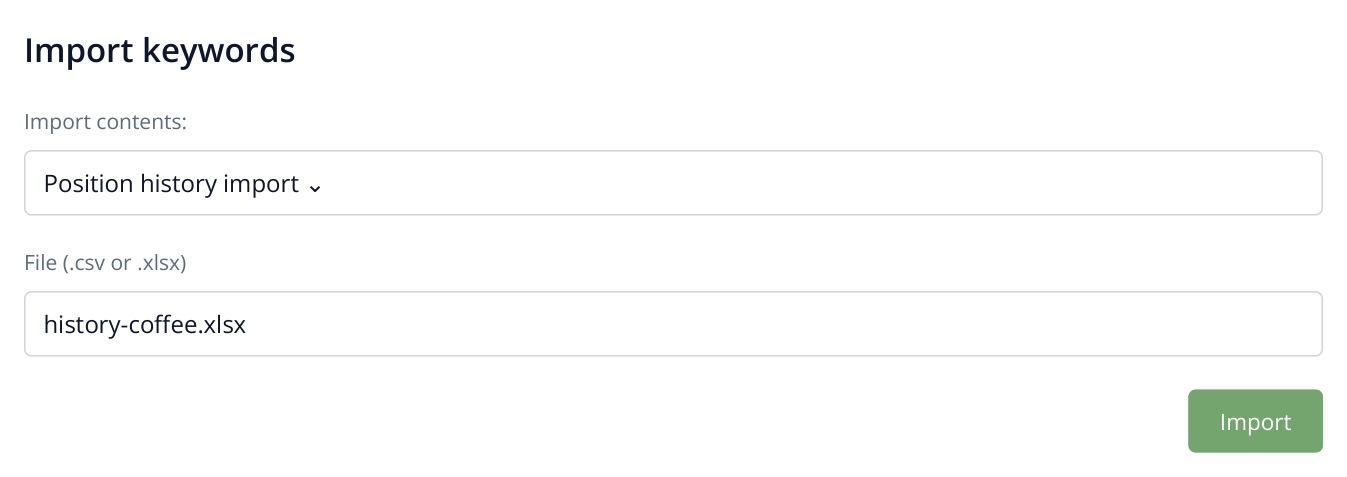
1. Select “Position history import” to upload keywords together with their historical ranking measurements.
Under “Information about the file”, check the domain, “Keywords found:”, “Search engines found:” and “Ranking check dates found:”. Expand the dates section to see the beginning and end of the imported period.
The preview shows a sample of the keywords. Use the total counters to check the file's scope: a short table on screen may represent a much larger export.
3. Match search engines and locations
Under “It is necessary to compare search engines.”, select the corresponding Labrika search configuration for each row. Use the same location and device as the original ranking checks.
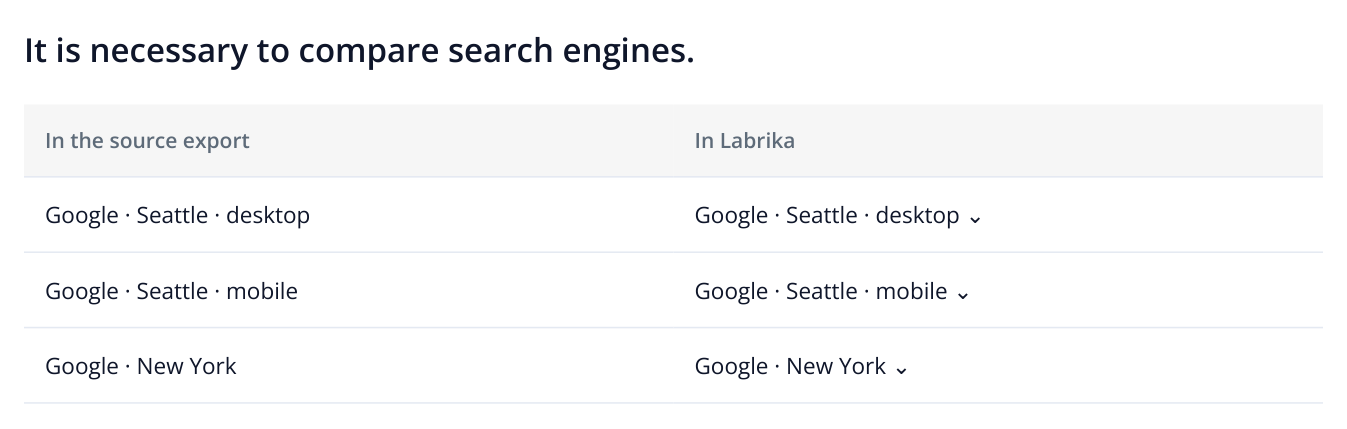
2. Google desktop and mobile are matched separately, preserving the distinction between devices and locations after the move.
For example, Google rankings in Seattle on desktop and Google rankings in Seattle on mobile must be linked to separate search configurations. Your charts will then retain the same breakdown after the move.
If the required search engine, location and device combination is missing, return to the project's search engine settings and add it, then upload the file again. Use the same mappings when importing several files. A domain mismatch warning means you should check whether you selected the project that the export belongs to.
4. Choose how to handle existing rankings
Below the preview is a checkbox for updating existing rankings. It is enabled by default.
- To add earlier dates while keeping measurements already collected in Labrika: clear the checkbox. Only missing measurements will be added.
- To replace overlapping measurements with values from the file: leave the checkbox enabled.
For a typical move into an active project, the first option is usually appropriate: historical data supplements your new measurements. Keep the original export so you can check individual values if needed.
If the file contains landing page URLs, check those as well: the import can update the pages associated with keywords.
5. Apply the import and save your settings
Click “Import”. When you return to the project settings, click “Save”. These are two consecutive steps: first apply the file, then save the project settings to start processing the ranking history.
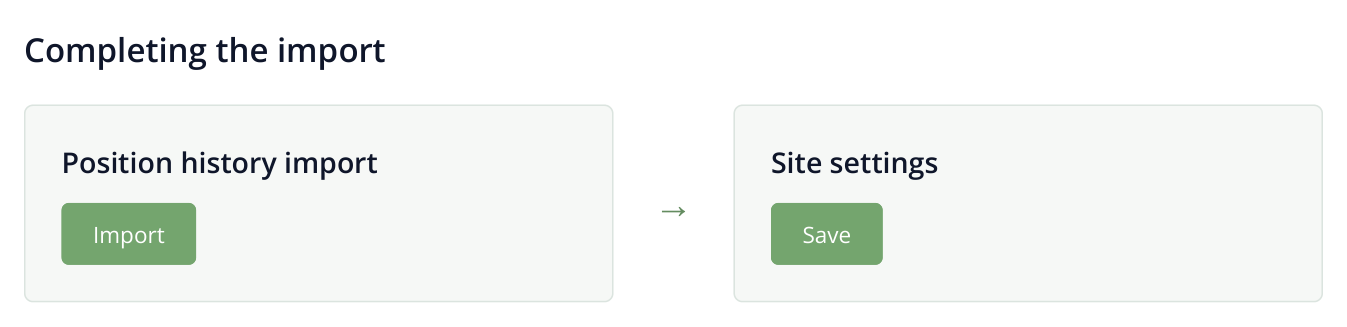
3. Two consecutive screens: “Import” transfers the data into the project settings; “Save” saves the project changes and starts processing the ranking history.
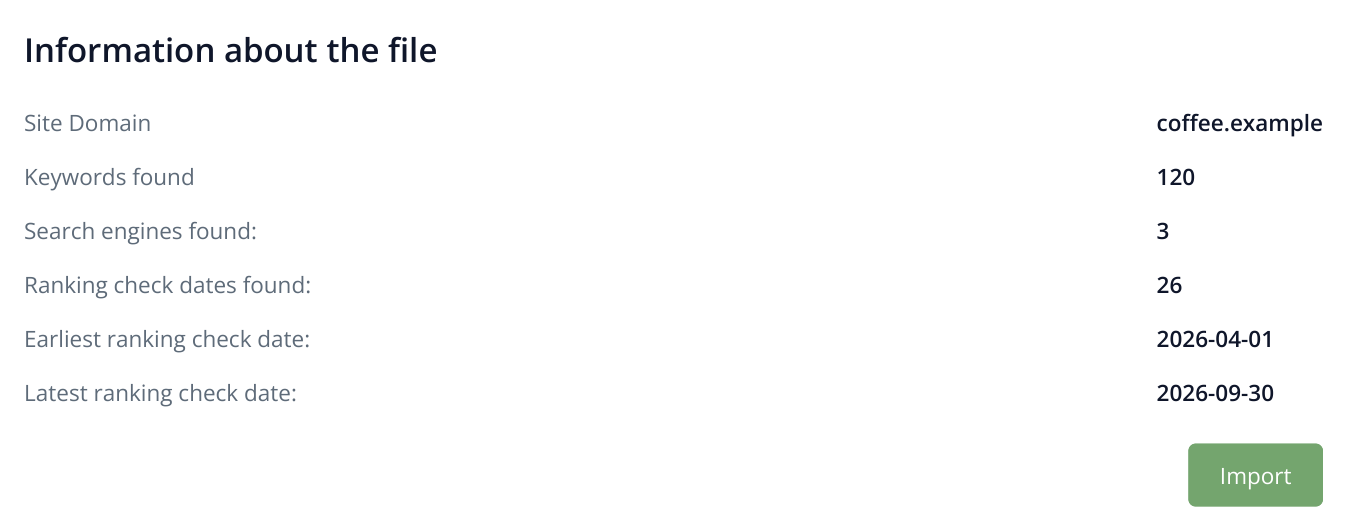
4. A six-month export example: the date range and total counters are visible before importing. After “Import”, click “Save” in the project settings.
Once processing finishes, open “Site rankings”, select the required search engine and choose historical dates. Compare a few keywords against the original file, including the first and last dates of the period. If you disabled updates to existing rankings, Labrika's previous values will be retained on overlapping dates.
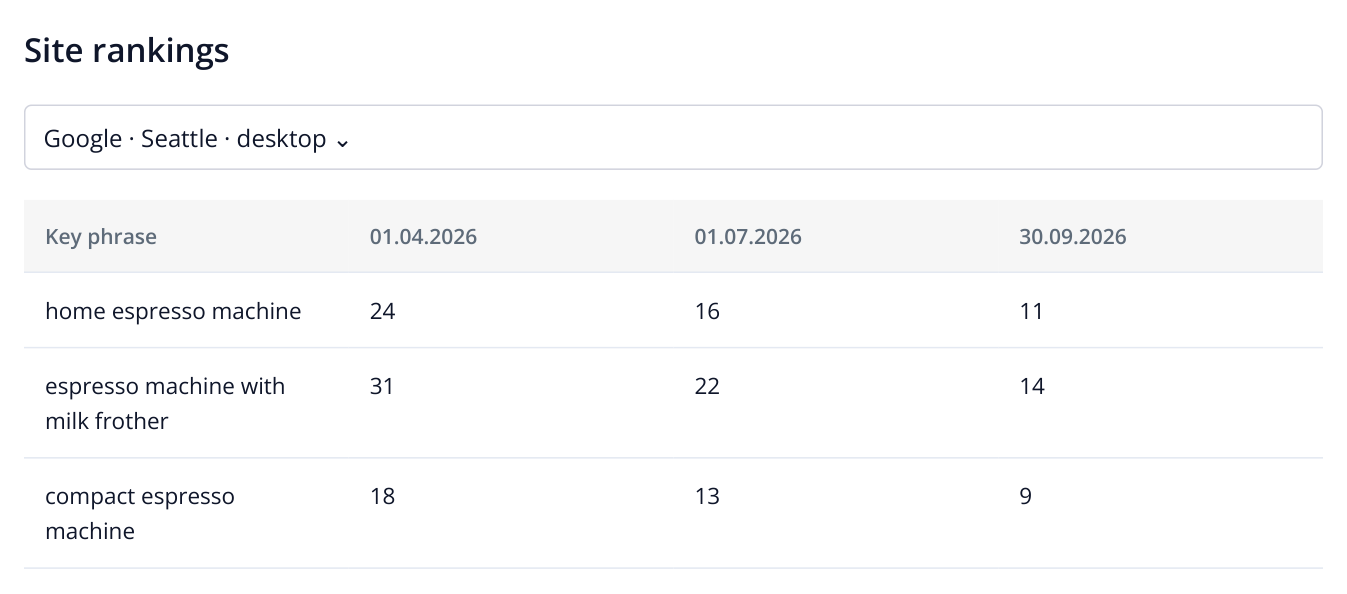
5. A report excerpt with sample data: after importing, you can continue assessing trends across earlier months. To verify the import, choose dates included in the original export.
If a historical date has not appeared yet, allow processing to finish after “Save” and check the selected search engine in “Site rankings”. Compare a specific keyword and date with the file, rather than relying solely on the overall chart. You can close your previous tool's account once you have completed these checks; keep a copy of the export.
For example, an agency takes over a project in October, but the client wants to see progress since April. After importing, new rankings can be compared with spring and summer measurements in the same tool. This is particularly useful for seasonal products: switching tools does not reset your observation period.