
 English
expand_more
 Español
 Deutsch
 Français
 Português
 Türkçe
 Polski
 العربية
 हिन्दी

How to find cross-domain canonical errors and fix internal links
A product or service page can load normally while telling search engines that its preferred version is on another website. An incorrect cross-domain rel="canonical" can cause this. If Google accepts that URL as canonical, it may show the other page instead of yours, sending potential customers to the wrong website.
For example, a store has moved from old-shop.example to shop.example, but its product page template still contains the old domain. Visitors see the new store, while each product's canonical tag points to its old page. One setting can affect the entire catalog. The same problem can arise when a new website is built from a copy of another project or moved from a staging domain.
Labrika brings pages with cross-domain canonical tags into one report, so your SEO specialist does not have to inspect every product or category page's source code. Use it to check a store after a migration, review a developer's website handover, or investigate why important pages have disappeared from search. Below, you will find the affected URLs, fix the shared cause and check for ordinary links that still point to the previous domain.
Find pages pointing to another domain
Run a full website audit. Under “Technical audit”, open “Pages with rel=canonical tag” and select the “Pages with cross-domain canonical” filter. Compare the “Page” and “rel=canonical” columns: the URL on your website appears on the left, and its declared canonical version on the right. For example, a product page in the new store may point to the same product on the previous domain.
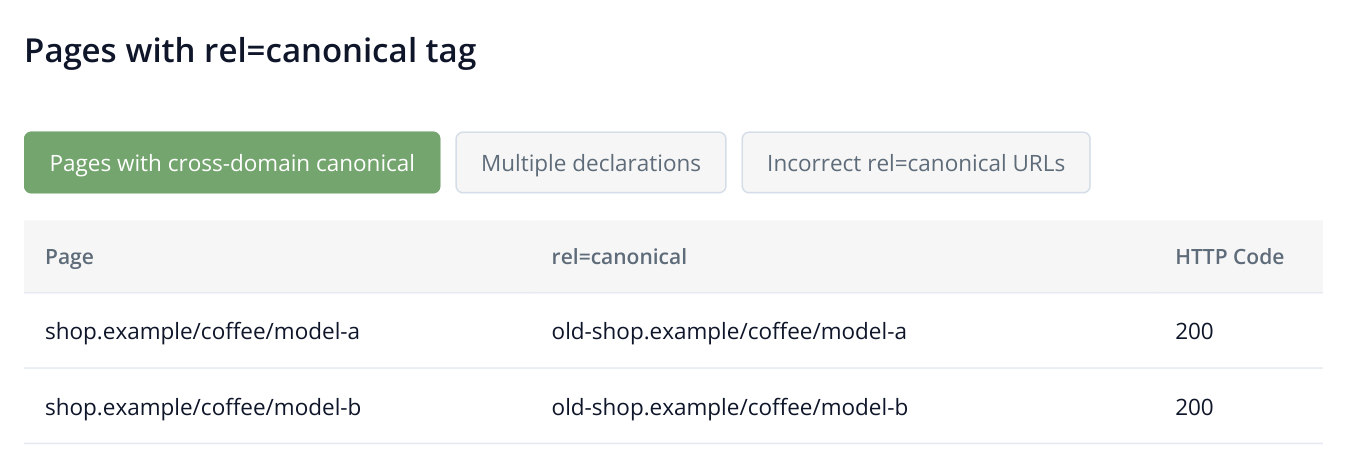
1. Both product pages in this example point to the old domain. The same error across similar pages often indicates a shared template issue.
Check a product and a category page from the results. If the old domain appears on pages of the same type, send your developer a few examples and ask them to fix the shared template or domain setting. Review intentionally declared canonicals to an original publisher separately: the filter identifies another domain, but whether to change it depends on the purpose of the page.
Fix canonical tags in your CMS or template
Use the final URL of the intended page on your own domain. For example, the canonical for https://shop.example/coffee/model-a should point to the preferred version of that product, rather than the store's homepage. Place the tag in the <head> section.
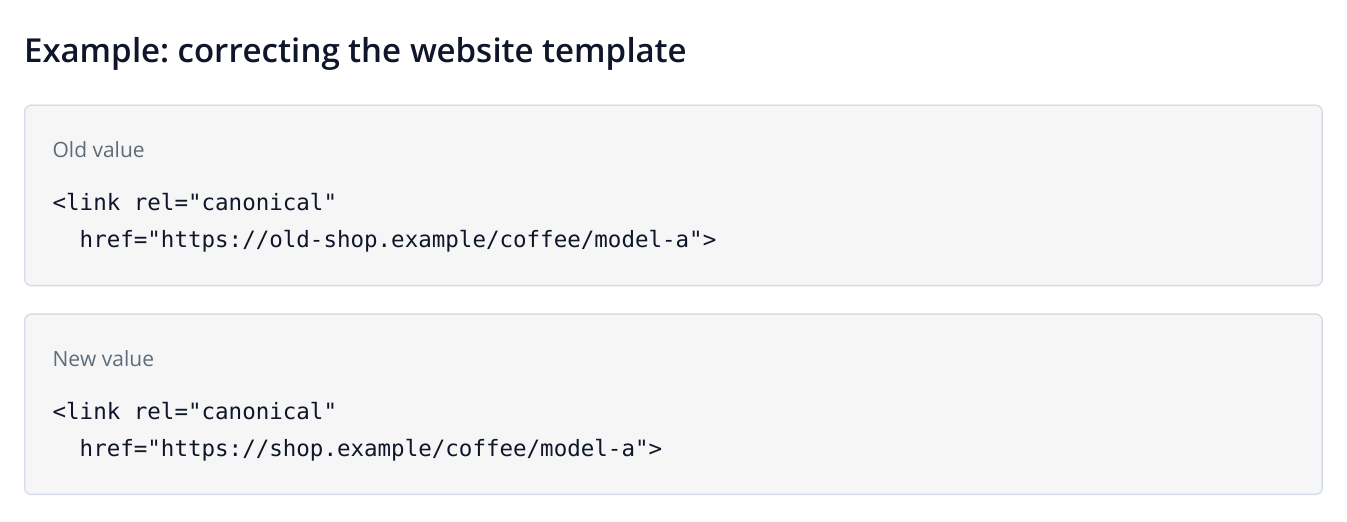
2. Illustrative HTML example: the domain changes while the product path stays the same. Make this change on the website itself.
Check that the chosen URL loads successfully, allows indexing and matches the page's content. Consistent canonical tags, links and sitemap entries help Google identify the preferred version. See Google's canonicalization documentation for details.
Update internal links to the same URLs
After a migration, the old domain may also remain in navigation menus, product collections or articles. A customer clicks a product and lands in the old store, perhaps seeing an outdated price, or reaches a page that no longer exists. Fixing canonical tags does not update these links: check their destinations separately.
Open “Links” → “Unique external links”. Enter the old domain in the table's search field. Find the product URL and click “Show all” in the “Pages” column. This opens the list of pages on your website that link to the old domain. Send these source URLs to your developer together with the new destination URL.
Suppose a link to an old product page appears in a category and two articles. Fix the category link in its template or catalog data, and update the article links in your CMS editor. Use the same final URL in menus, breadcrumbs and sitemap.xml as you chose for the canonical tag. Check links to intermediate URLs on your own website in the report on links to redirects.
Give your developer both parts of the task: the old destination URL and the list of linking pages from the dialog. If the link appears in a menu or another shared component, update that component once. If it appears in article copy, update it in the relevant page's editor. You can keep the anchor text and change only the URL.
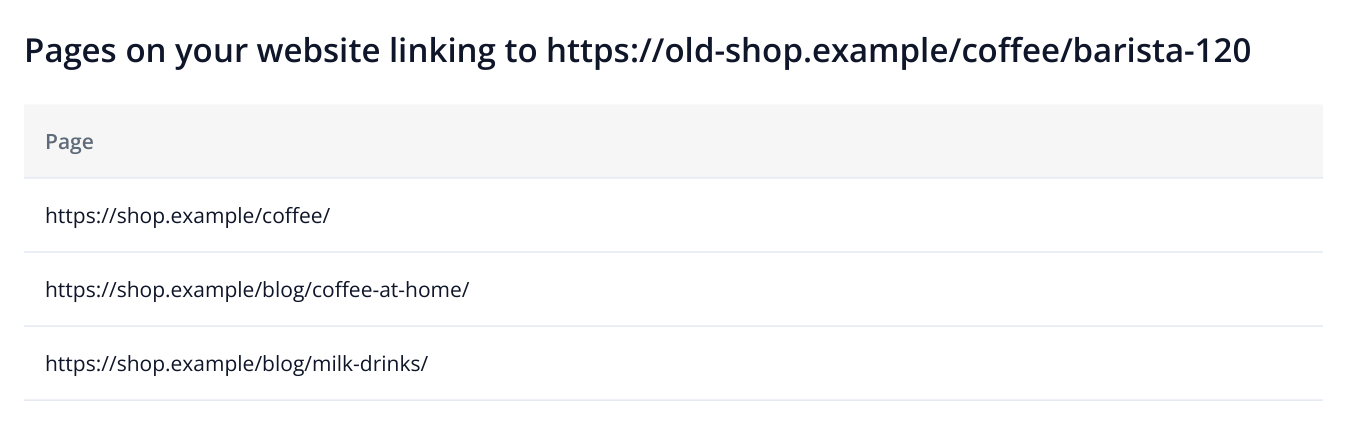
3. Clicking “Show all” under “Pages” reveals the pages on your website where the link needs updating. The old destination URL appears in the dialog title.
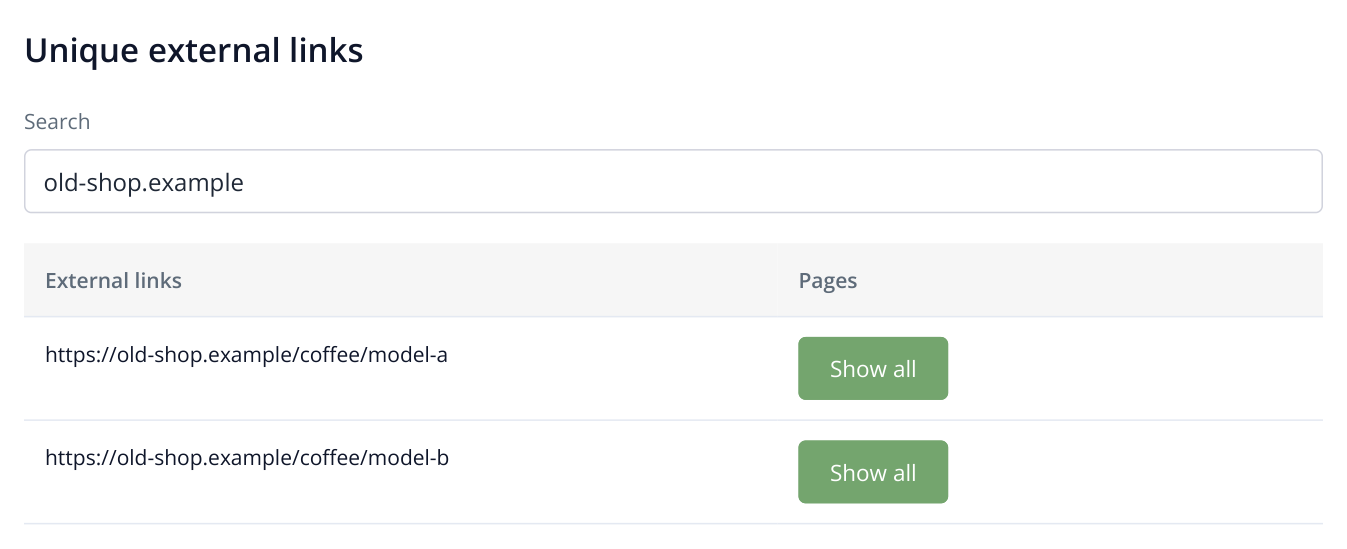
4. Report excerpt with example URLs. Searching for the previous domain finds links to old product pages; “Show all” opens the pages where those links need replacing.
Run the audit again and reapply “Pages with cross-domain canonical”. The corrected pages should no longer appear in these results. Then check “Incorrect rel=canonical URLs” and “Multiple declarations” to catch an invalid destination or a second canonical tag left by another plugin.
After the new audit, search for the old domain again in “Unique external links”. If any links remain, “Show all” shows exactly where they are. This gives you two practical migration checks: pages declare the correct canonical version, and navigation points to the current URLs.