
 English
expand_more
 Español
 Deutsch
 Français
 Português
 Türkçe
 Polski
 العربية
 हिन्दी

How to audit JavaScript websites for SEO issues in Labrika
After a catalog moves to React or Vue, its products may look correct in a browser while sharing duplicate page titles, declaring incorrect canonicals or using links without destination URLs. Labrika's JavaScript rendering mode checks content after scripts have run and gives your developer a list of affected URLs. Use it to review a new template or prepare a dynamic website for SEO work.
Enable JavaScript rendering
Open the website settings → “Advanced settings” → “Crawler Settings”. Enable “Parse JavaScript (2 page parsing credits will be deducted for each page instead of 1)” and save the settings.
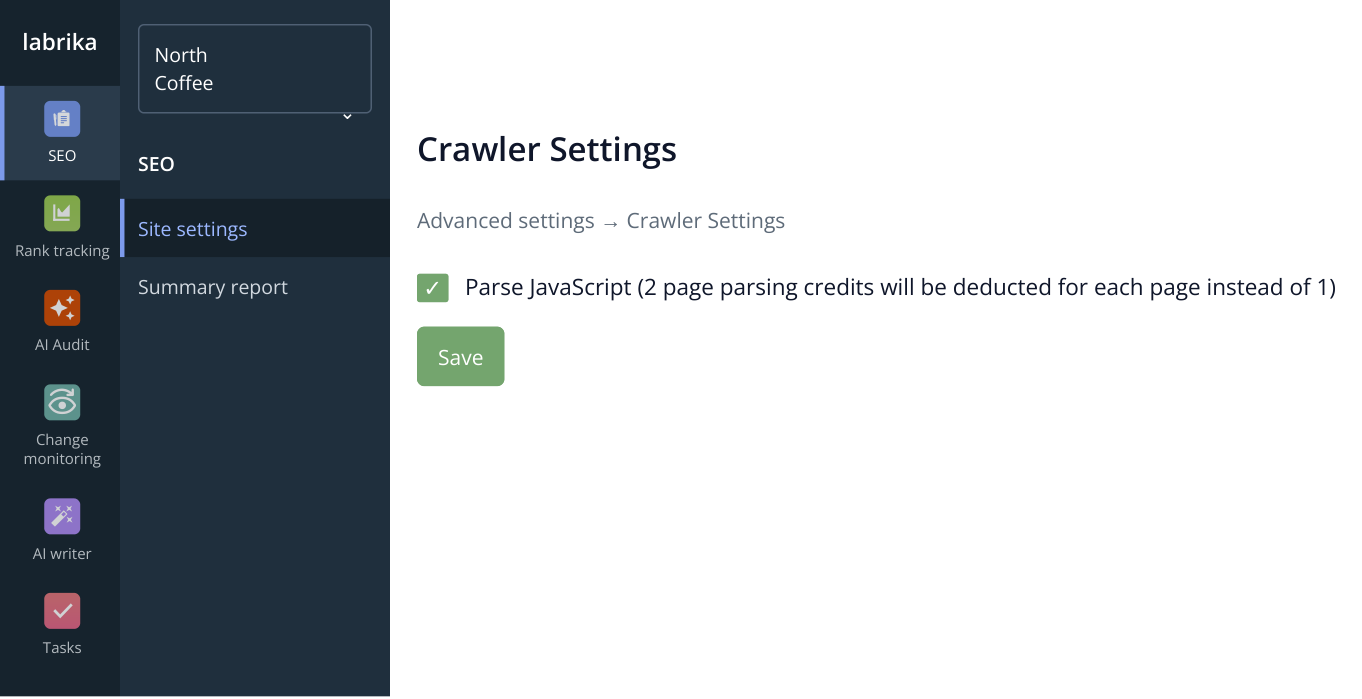
1. Start under “SEO” → “Site settings”. In “Advanced settings”, open the crawler settings, enable JavaScript and save. This is an interface excerpt with example data.
Use this mode when scripts generate important content. If the server already returns complete titles, links and text, using React or Vue alone does not mean you need JavaScript rendering for every audit.
Choose folders to crawl and URLs to exclude
The same “Crawler Settings” screen contains two lists: “URL restrictions” and “URL exceptions”. Use them to check relevant sections while skipping utility pages. For example, after a React catalog update, crawl products and accessories while excluding comparison pages and sorting variations. This focuses your JavaScript crawl credits on the pages you want to promote.
Include the folders you want to audit
In “URL restrictions”, enter one path per line, such as /coffee/ and /accessories/. You can also enter full URLs, such as https://shop.example/coffee/. Labrika starts crawling from those addresses and checks discovered pages within the specified folders: /coffee/ also includes /coffee/model-a.
To audit folders and their nested pages, leave “Skip all other pages” unchecked. Enable it when you only need the specific URLs listed, such as a few product pages after a template fix. In that case, list the individual product URLs.
Exclude pages you do not need
Add one rule per line to “URL exceptions” as well. For example, /coffee/compare/ excludes comparison pages in that folder, while *sort=* excludes URLs containing the sort= sorting parameter. These rules use a syntax similar to robots.txt; exclusions also apply within the folders selected for crawling.
To check the whole website while skipping unwanted sections, leave “URL restrictions” empty and fill in only the exclusions. To audit specific sections with exclusions inside them, complete both lists, as shown below.
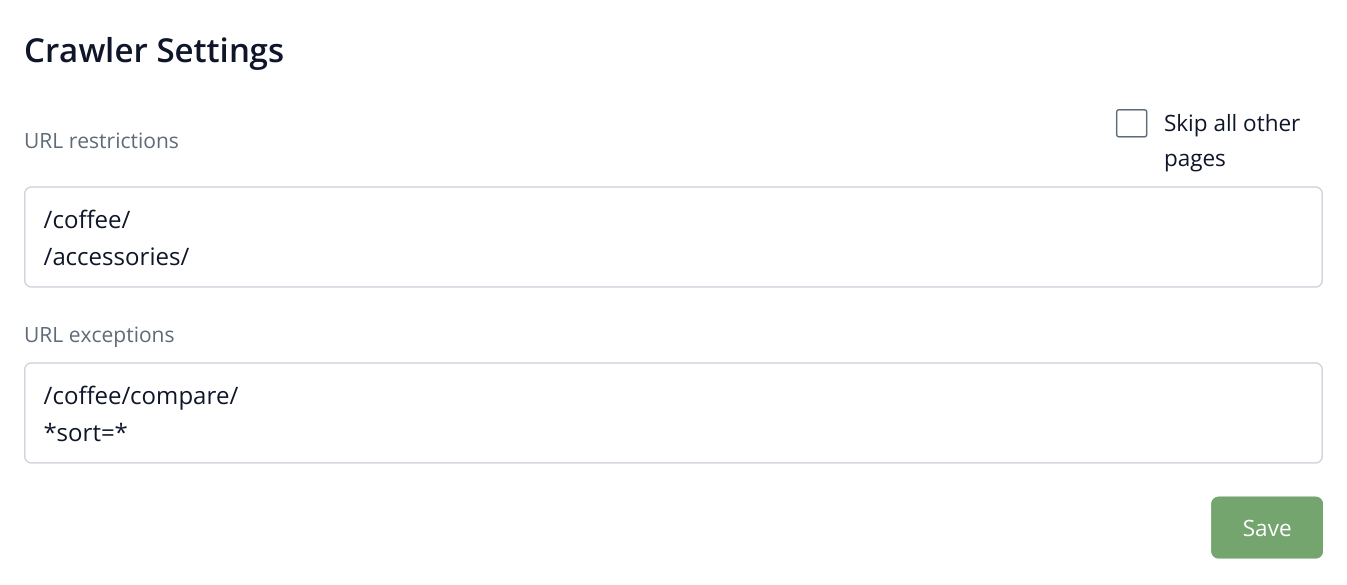
2. This example crawls two folders and their nested pages while excluding product comparisons and URLs with the sort= parameter. The checkbox is off so the crawl is not limited to the two addresses in the upper list.
Click “Save”, then “Start report”, and run a full audit. In this example, the results should include pages under /coffee/ and /accessories/, including discovered product pages; comparison and sorting pages are excluded. If a required product page is in another folder, such as /products/, add that path to the crawl list too.
Check the elements generated by the application
Start with “SEO audit” → “TITLE duplicates” and “Meta tag and h1 errors”. For example, 20 product pages might still have the title “Catalog” even though different product names appear on screen. Send the affected URLs to your developer: the template needs to generate each title from the relevant product's data. Next, under “Technical audit” → “Pages with rel=canonical tag”, check that products point to their intended canonical URLs rather than all pointing to the category page.
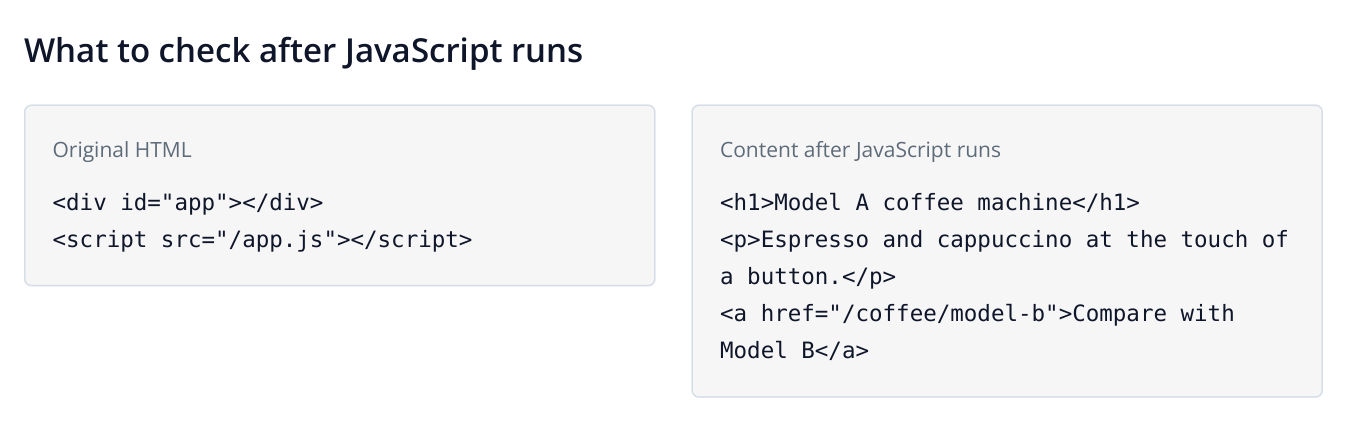
3. Illustrative example: the heading, product description and link to another product appear after the script runs.
Under “Links”, open “Internal links” and check links from categories to product pages. If a product opens only through a JavaScript event handler, ask your developer to add a standard link with a destination: <a href="/coffee/model-a">Model A</a>. Google recommends links with an href attribute for discovering pages; see its JavaScript SEO documentation.
After the fixes, repeat the audit with the same JavaScript settings and crawl scope. Once the template works correctly, expand the audit to cover the rest of the relevant catalog.
Reopen the same reports after the new crawl: the generic title should no longer appear among duplicates, canonicals should point to the intended pages, and navigation links should be discoverable. Save the results for the release review and extend the audit to other categories using the same template.